

Your browser cache is like that junk drawer in your kitchen—useful at first, but eventually it piles up and slows everything down. If you’re wondering how to clear cache in Edge, you’re probably noticing your Microsoft Edge browser is running slower than it used to, or you just want a fresh start. The good news? It takes about 30 seconds, and I’m going to walk you through it step-by-step.
Cache is basically a storage box where Edge saves copies of websites, images, and files you’ve visited. It’s supposed to make things faster next time you visit. But over time, it can accumulate gigabytes of data and actually slow your browser down instead of speeding it up. Clearing your cache regularly is one of the easiest maintenance tasks you can do—think of it like taking out the trash before it starts smelling.
In this guide, I’ll show you exactly how to clear cache in Edge using multiple methods, explain what different cache types do, and answer the questions that trip people up most often. Let’s get your browser running lean and mean again.
The Quick Method: Clear Cache in 30 Seconds
If you’re in a hurry and just want the essentials gone, here’s the fastest way to clear cache in Edge:
- Open Microsoft Edge
- Press Ctrl + Shift + Delete on your keyboard (this is the universal shortcut)
- You’ll land directly in the “Clear browsing data” window
- Make sure “Cached images and files” is checked
- Set the time range to “All time” (or whatever you prefer)
- Click the blue “Clear now” button
Done. Your cache is gone. This entire process takes about 20-30 seconds once you know the keyboard shortcut. I use this method all the time when a website is acting weird or my browser feels sluggish.
Pro Tip: The keyboard shortcut Ctrl + Shift + Delete works in almost every browser—Chrome, Firefox, Edge, Opera. It’s worth memorizing if you use multiple browsers.
Clear Cache Through Settings (The Complete Way)
If you want more control over what gets deleted, or you prefer using the menu instead of keyboard shortcuts, here’s how to clear cache in Edge the traditional way:
- Open Microsoft Edge
- Click the three-dot menu icon in the top-right corner (⋯)
- Select “Settings” from the dropdown menu
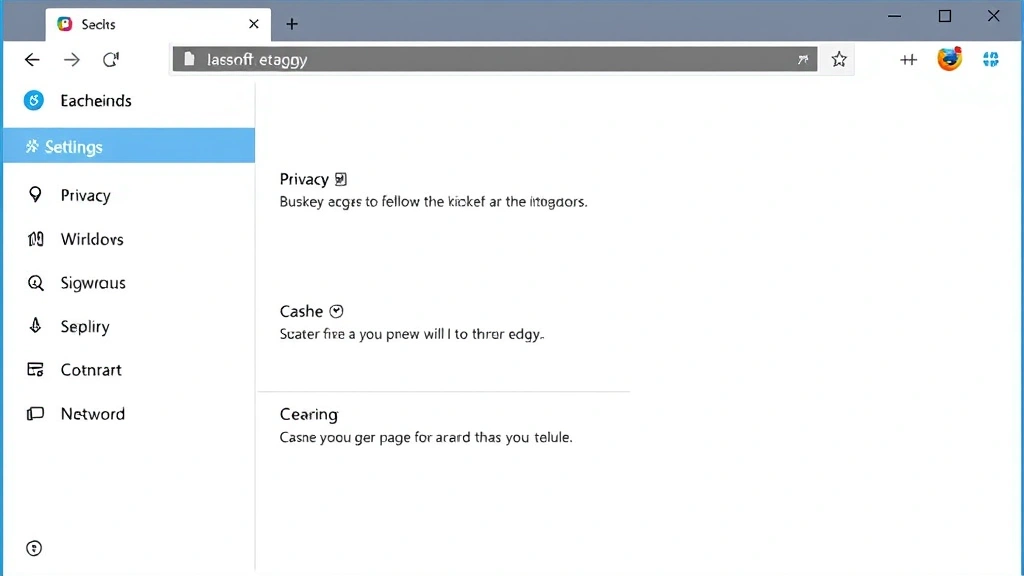
- In the left sidebar, click “Privacy, search, and services”
- Under “Clear browsing data,” you’ll see a section labeled “Clear browsing data”
- Click “Choose what to clear” or “Clear browsing data now”
- A popup window will appear with several options
Here’s where it gets important: you’ll see checkboxes for different data types. I’ll explain what each one does in the next section, but for now, focus on “Cached images and files”—that’s your cache. Make sure it’s checked, then click “Clear now.”
The menu method takes a bit longer than the keyboard shortcut, but it’s useful if you want to selectively delete certain types of data. For example, maybe you want to keep your browsing history but dump the cache. This method lets you do that.
Make Edge Clear Cache Automatically on Exit
Here’s a game-changer: you can make Edge automatically clear your cache every single time you close the browser. No more remembering to do it manually. Here’s how:
- Open Microsoft Edge
- Click the three-dot menu (⋯) in the top-right corner
- Go to “Settings”
- Click “Privacy, search, and services” in the left sidebar
- Scroll down to “Clear browsing data”
- Toggle ON the switch that says “Choose what to clear every time you close the browser”
- A new option appears below it: “Choose what to clear every time you close the browser.” Click that
- Check the boxes for the data types you want automatically deleted (I recommend “Cached images and files” at minimum)
- Close Settings—you’re done
Now, every time you close Edge completely, those selected data types automatically get cleared. It’s like having a cleaning crew that shows up after you leave. The only caveat: this only works when you fully close the browser, not just when you close individual tabs.
Safety Warning: If you enable automatic cache clearing, be aware that Edge will also delete your browsing history if you have that option checked. Some people like this for privacy; others find it annoying. Choose what gets auto-cleared carefully.
What Each Cache Type Actually Does
When you go to clear cache in Edge, you’ll see several options. Let me break down what each one actually means, because it’s not always obvious:
Browsing History: This is a list of every website you’ve visited. Clearing it means Edge won’t auto-suggest websites when you start typing in the address bar. It’s purely for privacy—doesn’t affect performance much.
Download History: A record of files you’ve downloaded. Clearing this doesn’t delete the files themselves, just the record that you downloaded them. Useful for privacy, not performance.
Cookies and other site data: This is where websites store information about you—login credentials, preferences, shopping cart items. Clearing cookies means you’ll be logged out of websites and may have to re-enter preferences. Don’t clear this unless you specifically need to.
Cached images and files: This is the big one. This is what most people mean when they say “clear cache.” It’s copies of images, videos, scripts, and other files from websites. Clearing this frees up disk space and can speed up your browser. This is safe to clear anytime.
Autofill form data: Information you’ve typed into forms (addresses, email, phone numbers). Clearing this means Edge won’t auto-fill those fields anymore. Safe to clear, but only do it if you want to reset form suggestions.
Passwords: Saved passwords for websites. Don’t clear this unless you’re trying to force yourself to re-enter passwords for security reasons. If you’re worried about password security, check out how to find saved passwords on iPhone to understand how password management works across devices.
Hosted app data: Data from progressive web apps and extensions. Usually safe to clear, but might log you out of some apps.
For most people, the answer to “how to clear cache in Edge” is really just about clearing “Cached images and files.” That’s the one that actually impacts performance. The others are mostly privacy-related.
Using the Keyboard Shortcut (Fastest Option)
I mentioned this earlier, but it deserves its own section because it’s genuinely the fastest way to clear cache in Edge. The keyboard shortcut Ctrl + Shift + Delete is a lifesaver.
Why use this instead of the menu method? Speed. Once you memorize it, you can clear your cache in about 10 seconds. No clicking through menus, no hunting for the right settings. Just press the keys and go.
The shortcut works on Windows and Mac (use Command + Shift + Delete on Mac). It works in Edge, Chrome, Firefox, and most other browsers. If you use multiple browsers, this is the one shortcut worth knowing.
When you press the shortcut, Edge takes you directly to the “Clear browsing data” window. From there, it’s just two clicks: make sure “Cached images and files” is checked, then click “Clear now.”
Pro Tip: If you’re on a shared computer, use this shortcut before you walk away. It’s a quick way to make sure nobody sees what websites you’ve been visiting.
When Clearing Cache Doesn’t Fix Your Problem
Sometimes people clear cache in Edge expecting it to solve every performance problem, and then they’re disappointed when their browser is still slow. Let me be real with you: cache clearing helps, but it’s not a magic bullet.
If your Edge browser is still running slow after clearing cache, here are other things to check:
Too many extensions: Browser extensions can be performance hogs. Open your extensions list (type “edge://extensions” in the address bar) and disable anything you don’t actively use. Each extension runs in the background and consumes memory.
Too many open tabs: Each tab is like a separate program running. If you have 47 tabs open, your browser will be slow. Close the ones you’re not using. I know it’s hard—I’m guilty of this too.
Outdated Edge version: Make sure you’re running the latest version of Edge. Go to Settings → About Microsoft Edge, and it’ll automatically check for updates. An outdated browser can be significantly slower. If you’re not sure what version you’re running, you might want to check how to check Windows version to ensure your operating system is current too, since that affects browser performance.
Malware or unwanted software: If clearing cache doesn’t help and your browser is still crawling, you might have malware. Run a full antivirus scan. This is rare, but it happens.
Insufficient RAM: If your computer only has 4GB of RAM and you’re running 50 programs, no amount of cache clearing will help. This is a hardware limitation.
ISP or network issues: Sometimes slow browsing isn’t your browser’s fault—it’s your internet connection. Run a speed test at Speedtest.net to check if your connection is actually slow.
Cache clearing is like changing the oil in your car—it’s maintenance that helps, but it’s not going to fix a broken engine. If you’ve cleared cache and your browser is still slow, the problem is probably something else.
Privacy & Security: Why You Should Clear Cache Regularly
Beyond performance, there are legitimate privacy reasons to clear cache in Edge regularly. Your cache contains information about everywhere you’ve been online. If someone gets access to your computer, they can see your browsing history through the cache.
For shared computers, this is especially important. If you use a work computer or a family computer, clearing cache before you walk away is basic digital hygiene. It’s like locking your office door when you leave.
According to OSHA guidelines on workplace safety, protecting your digital workspace is part of overall security awareness. While OSHA focuses mainly on physical safety, the principle applies: keep your workspace secure.
If you’re concerned about your privacy online, clearing cache regularly is step one. Step two is using a VPN. Step three is understanding what cookies do (they track you across websites). But for now, just know that clearing cache removes evidence of where you’ve been.
For people who are particularly privacy-conscious, the automatic cache-clearing feature I mentioned earlier is perfect. Set it to clear on exit, and you never have to think about it again. Every time you close Edge, it’s like you were never there.
One more thing: if you’re worried about password security across your devices, take a look at how to update apps on iPhone to ensure your security apps are current, and consider using a password manager instead of relying on browser storage.
Frequently Asked Questions
Does clearing cache delete my passwords?
– No, not unless you specifically check the “Passwords” box when clearing. Cached images and files are separate from saved passwords. If you only want to clear cache, make sure only “Cached images and files” is checked. Your passwords stay safe (assuming you don’t check that box).
Will clearing cache make me lose my bookmarks?
– No. Bookmarks are stored separately from cache. Clearing cache won’t touch your bookmarks. Bookmarks are saved in Edge’s bookmark storage, which is completely different from the cache.
How often should I clear cache in Edge?
– If you’re just worried about performance, once a month is fine. If you’re concerned about privacy on a shared computer, clear it daily or use the automatic clearing feature. For most people, weekly or bi-weekly is a good middle ground. There’s no harm in clearing cache more frequently—it doesn’t hurt anything.
Can I clear cache in Edge on my phone?
– Yes. On an iPhone or Android phone running Edge, go to Settings (the three-dot menu), scroll down to “Privacy,” tap “Clear browsing data,” select what you want to clear, and tap “Clear.” The process is similar to desktop Edge, just adapted for mobile.
What’s the difference between cache and cookies?
– Cache stores copies of website files (images, scripts, etc.) to make websites load faster. Cookies store small pieces of information that websites use to remember you (login info, preferences, tracking data). Both take up space, but they do different things. You can clear one without clearing the other.
Does clearing cache improve security?
– It improves privacy, not security. Clearing cache removes evidence of where you’ve been, but it doesn’t protect you from hackers or malware. For actual security, use a password manager, keep your software updated, and use two-factor authentication on important accounts. Cache clearing is privacy maintenance, not security protection.
Will clearing cache log me out of websites?
– Only if you also clear cookies. If you clear only “Cached images and files,” you’ll stay logged in. But if you clear “Cookies and other site data,” you’ll be logged out of most websites. This is why it’s important to know what each option does.
Is there a way to clear cache for just one website?
– Not directly through the main clear cache feature. You can clear all cache or nothing, but not selectively by website. However, you can clear cookies for individual sites by right-clicking on a website and selecting “Site settings,” then clearing data for that specific site. It’s a bit clunky, but it works if you only want to clear cache for one place.
What if the “Clear now” button is grayed out?
– This usually means Edge is busy doing something else. Close the window, wait a few seconds, and try again. If it stays grayed out, try restarting Edge completely. This is rare, but it happens occasionally.
Can I schedule cache clearing automatically?
– Yes, using the “Clear browsing data every time you close the browser” feature I mentioned earlier. That’s the built-in scheduling option. There’s no way to schedule it for specific times (like every Sunday at 9 AM), but the on-exit option is the closest thing.


