
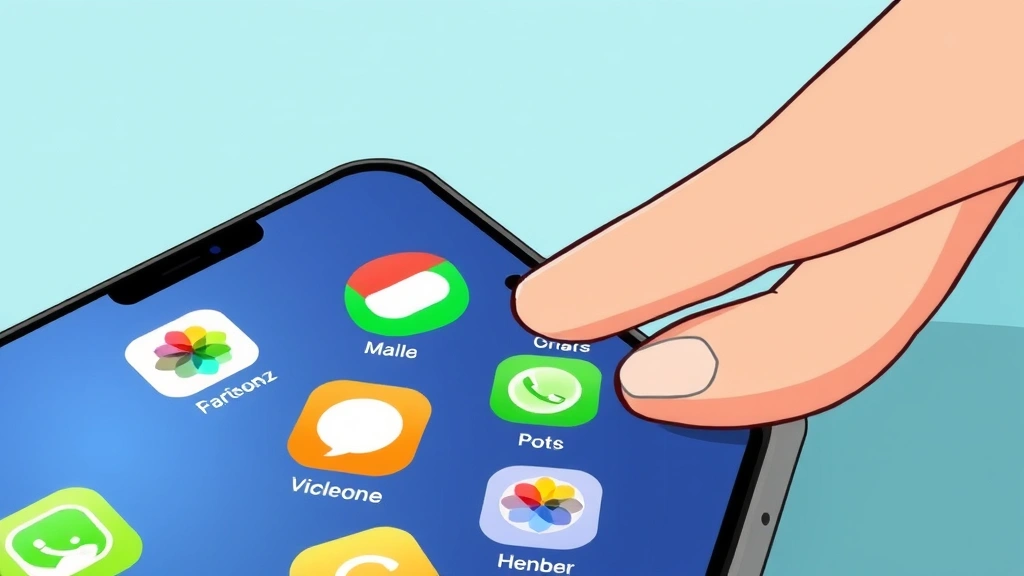
Your iPhone’s home screen is like the front door to your digital life. If you’re tired of the same old layout, cluttered app icons, or just want to make your phone feel fresh and personal, you’re in the right place. Learning how to change home screen on iPhone is way easier than most people think—and it opens up a whole world of customization possibilities. Whether you want to reorganize your apps, create custom widgets, add a new wallpaper, or build focus-based screens, this guide walks you through every method step-by-step. No tech jargon. No confusion. Just real, practical instructions you can follow right now.
The Basics: What You Can Actually Change on Your Home Screen
Before we dive into the how-to, let’s be clear about what’s customizable. Your iPhone home screen isn’t locked into one rigid design—Apple gives you real flexibility here. You can change your wallpaper, rearrange apps, add widgets, create multiple home screens, and even set up different screens that appear automatically based on what you’re doing (like work vs. personal time). Think of your home screen like rearranging furniture in a room. The walls stay the same, but everything inside can move around.
The key thing to understand: iOS has evolved a lot. If you’re running iOS 14 or newer, you have access to widgets, app library, and focus modes. If you’re on an older version, some features won’t be available—but the basics (wallpaper and app rearrangement) work on virtually every iPhone. Check your iOS version by going to Settings > General > About if you’re not sure what you’re working with.
Here’s what we’re covering:
- Wallpapers (stock and custom)
- App icon repositioning and organization
- Widget placement and sizing
- Focus-based home screens
- App Library functionality
- Custom shortcuts and icon tricks
Pro Tip: Take a screenshot of your current home screen before making changes. If you mess something up or miss the old layout, you’ll have a reference. It’s like keeping the original instruction manual.
Changing Your Wallpaper: The Easiest Starting Point
This is the quickest way to make your home screen feel new. A fresh wallpaper is like a new coat of paint—instant impact, zero complexity.
Step-by-step:
- Long-press anywhere on your home screen (hold your finger down for 1-2 seconds)
- Tap the “Customize” button at the bottom (or the “+” icon, depending on your iOS version)
- Select “Wallpaper”
- Choose from Apple’s pre-loaded options (Dynamic, Stills, Collections) or your own photos
- Tap “Add” and choose whether to apply it to Lock Screen, Home Screen, or both
- Confirm and you’re done
That’s literally it. The wallpaper change takes effect immediately. If you don’t like it, just repeat the process.
Pro move: Use your own photos. High-contrast images work best (dark backgrounds make app icons pop, light backgrounds need careful icon placement). Avoid busy photos with too much detail—they make icons hard to read. A solid color or subtle gradient is actually your best friend here.
You can also use dynamic wallpapers that change throughout the day, or set different wallpapers for lock screen and home screen. Apple’s stock options are solid, but honestly, a personal photo or a simple color you love beats everything else.
Reorganizing Your App Layout: Moving Icons Around
This is where you take control of your home screen’s actual structure. Most people just let apps pile up wherever they land, but you can build a layout that actually matches how you work.
Method 1: One-at-a-time dragging
- Long-press any app icon
- Tap “Edit Home Screen” (or just hold until the context menu fades)
- Drag the app to a new location
- Tap the home button (or swipe up) when done
Method 2: Batch moving (faster for big changes)
- Long-press an app icon until it jiggles
- Drag it to create a new page or position
- Keep dragging other apps while they’re in edit mode
- Tap outside the app area to save
Here’s a real-talk strategy: organize by frequency and function, not alphabetically. Keep your most-used apps in the bottom row (easy thumb reach). Put productivity apps together, entertainment apps in another cluster, utilities in a third group. If you use hidden apps on iPhone, remember that they won’t show on your home screen anyway, so don’t stress about them here.
You can also create multiple home screens by dragging an app off the right edge of your current screen. Swipe left and right to navigate between screens. Most power users have 2-3 screens: one for daily drivers, one for work/productivity, one for entertainment or utilities.
Real talk: Reorganizing your home screen takes 10-15 minutes if you’re thorough. Don’t overthink it. You can always change it again next week if you hate it. This isn’t permanent.
Adding and Customizing Widgets: The Game-Changer (If You Use Them)

Widgets are small app previews that show live information on your home screen—weather, calendar events, reminders, fitness rings, news headlines, whatever. They’re optional, but they’re genuinely useful if you set them up right.
Adding a widget:
- Long-press your home screen
- Tap the “+” button (bottom left corner)
- Scroll through the list and tap the app you want a widget for
- Select the widget size (small, medium, large—varies by app)
- Tap “Add Widget”
- Choose which home screen to place it on
- Tap “Add” and you’re set
Some apps have multiple widget options. Weather might offer a small forecast tile or a large detailed card. Calendar might show today’s events or a month view. Try different sizes and see what actually helps you.
Smart widget strategy: Put your most-checked widgets on your first home screen (weather, calendar, reminders). Put less-critical ones on secondary screens. Don’t cram your entire screen with widgets—leave room for your actual app icons, or things get overwhelming fast.
You can also stack widgets (place them on top of each other) and swipe through them. This saves screen space but honestly feels clunky. Most people just spread them out.
Pro Tip: Lock your home screen when you’re happy with the layout. Long-press, tap Customize, scroll down, and toggle “Lock Home Screen” on. This prevents accidental moves when you’re just trying to open an app.
Setting Up Focus-Based Home Screens: Different Screens for Different Modes
This is an iOS 15+ feature that’s genuinely clever. You can create different home screens that automatically appear based on what you’re doing—work mode gets a work screen, personal time gets a personal screen, etc. It’s like having multiple phones in one.
How to set it up:
- Open Settings > Focus
- Tap the “+” button to create a new focus (Work, Fitness, Do Not Disturb, Sleep, or Custom)
- Name it and customize which apps/contacts can notify you
- Tap “Home Screen & Lock Screen” to assign a specific home screen to this focus
- Select which apps appear when this focus is active
- Save and done
For example: when you activate “Work” focus, your phone automatically switches to a home screen with only work apps—Slack, email, project management tools, calendar. Entertainment apps hide. Notifications only come from work contacts. When you switch back to personal time, your regular home screen returns with all your normal apps.
This requires a bit of setup, but it’s incredibly useful if you want to separate work and personal life on one device. You’re not just changing your home screen—you’re changing your entire phone’s behavior based on context.
Using App Library to Clean Up Without Hiding Apps
App Library is Apple’s automatic app organization system. It groups your apps into categories (Productivity, Entertainment, Utilities, etc.) and hides them in a scrollable view. You still have access to every app, but your home screen stays clean.
How it works:
- Swipe right from your last home screen page
- You’ll see App Library with all your apps grouped by category
- Tap any category to expand it
- Search for an app using the search bar at the top
You can also move entire app pages to App Library instead of your home screen. Long-press a page thumbnail (in the dots at the bottom of your home screen), and toggle “Show on Home Screen” off. This keeps the apps in App Library but removes the clutter from your main screens.
Many people use this strategy: keep their favorite 20-30 apps on the home screen, move everything else to App Library. Siri search (swipe down from the top) finds anything instantly anyway, so you don’t really need every app visible.
If you want to unhide apps on iPhone, App Library is actually where they end up—so this is the reverse: hiding apps by moving them to the library instead of the home screen.
Custom App Icons and Shortcuts: Advanced Customization
This is where things get creative. Using the Shortcuts app, you can create custom icons that launch apps, run automations, or open specific functions. It’s a bit more involved, but it’s powerful.
Creating a custom shortcut icon:
- Open the Shortcuts app (pre-installed on most iPhones)
- Tap the “+” button to create a new shortcut
- Tap “Add Action” and search for “Open App”
- Select the app you want to customize
- Tap the three dots in the top right
- Tap “Add to Home Screen”
- Choose a custom name and icon (take a photo or pick from your library)
- Tap “Add” and the custom icon appears on your home screen
The benefit? You can use any image as an app icon. Create a cohesive aesthetic, use emojis, or design custom graphics. Many people download free icon packs online and use this method to apply them. According to Apple’s official support documentation, this is the approved way to customize icons without jailbreaking.
You can also create shortcuts that do multiple things—open an app AND send a text, or open an app AND run an automation. This is advanced territory, but it’s available if you want to dive deep.
Real talk: Custom icons look cool, but they take time to set up. If you just want your phone to work without fussing, skip this. If you enjoy tinkering and want your phone to feel uniquely yours, it’s worth the 30 minutes.
For more general iPhone customization, check out FamilyHandyman’s tech section and This Old House’s digital guides for broader device management tips. If you’re running into technical issues, Apple’s official support site has detailed walkthroughs for every feature.
Frequently Asked Questions
Can I change my home screen on older iPhone models?
– Yes, but with limitations. Wallpaper and app rearrangement work on any iPhone. Widgets, App Library, and Focus screens require iOS 14 or newer. If you’re on iOS 13 or earlier, you can still customize your home screen—you just won’t have access to the advanced features. Check Settings > General > About to see your iOS version.
Will changing my home screen affect my apps or data?
– Not at all. Rearranging, hiding, or organizing your home screen is purely visual. Your apps, photos, messages, and everything else stays exactly the same. You’re just changing how things look.
Can I have different home screens for different people using the same iPhone?
– Not directly. iOS doesn’t have built-in multi-user profiles like some Android phones. However, you can use Focus modes to simulate this—create a “Guest” focus with limited apps, or set up different screens for different times of day. If multiple people actually use the same iPhone regularly, that’s a bigger conversation about device sharing.
How do I restore my home screen to the default layout?
– Go to Settings > General > Transfer or Reset > Reset > Reset Home Screen Layout. This puts every app back in alphabetical order and removes all customization. Your apps aren’t deleted—just rearranged to default. This is useful if you’ve made a mess and want to start fresh.
What’s the difference between hiding an app and moving it to App Library?
– Hiding an app (using the unhide apps feature) removes it from search and Siri suggestions. Moving an app to App Library just removes it from your home screen but keeps it searchable and accessible. If you want an app completely out of sight, hide it. If you just want a cleaner home screen, use App Library.
Can I schedule my home screen to change at different times?
– Not automatically, but you can use Focus modes with automations. Create a “Morning” focus with a specific home screen, a “Work” focus with another, and a “Personal” focus with a third. Then set automations to activate these focuses at specific times. It’s not true scheduling, but it achieves the same result.
Do custom icons slow down my iPhone?
– No. Custom icons created through Shortcuts are just shortcuts—they don’t impact performance. Your iPhone will run exactly the same whether you have custom icons or stock ones.
What if I accidentally deleted an app from my home screen?
– It’s not actually deleted. The app is still on your iPhone—it’s just in App Library or hidden. Search for it using Spotlight (swipe down from the top), tap it, and it’ll open normally. If you want it back on your home screen, long-press it and select “Add to Home Screen.”
Can I change my home screen on iPad the same way?
– Mostly yes. iPad has similar customization options, but the interface is slightly different because of the larger screen. The basic principles (wallpaper, app rearrangement, widgets, App Library) are the same. Focus modes work on iPad too.
Is there a way to preview how my home screen will look before saving changes?
– Not officially, but you can take a screenshot while customizing to see the layout. Just don’t tap Save until you’re happy. If you mess up, you can always undo by resetting your home screen layout (Settings > General > Transfer or Reset > Reset Home Screen Layout).


