How to Add Admin to Facebook Page: Easy & Essential Steps
Managing a Facebook page becomes significantly easier when you distribute administrative responsibilities among trusted team members. Learning how to add admin to Facebook page is a fundamental skill for any page owner who wants to scale their social media presence without burning out. Whether you’re running a small business, community group, or brand account, adding administrators ensures your page stays active and responsive even when you’re unavailable. This guide walks you through every method to grant admin access, manage permissions, and maintain security on your Facebook page.
Quick Answer
To add admin to Facebook page, open your page, click “Settings” in the top menu, select “Page Roles” from the left sidebar, enter the person’s name or email in the “Assign a New Page Role” field, choose their role (Admin, Editor, Moderator, Analyst, or Advertiser), and click “Add.” The person will receive a notification and must accept the role. The entire process takes less than two minutes and requires page owner access.
- Facebook account with page owner or admin access
- Name or email address of the person you want to add
- Desktop computer or mobile device with internet connection
- Facebook app (iOS/Android) or web browser
- Clear understanding of role permissions and responsibilities
How to Add Admin to Facebook Page on Desktop
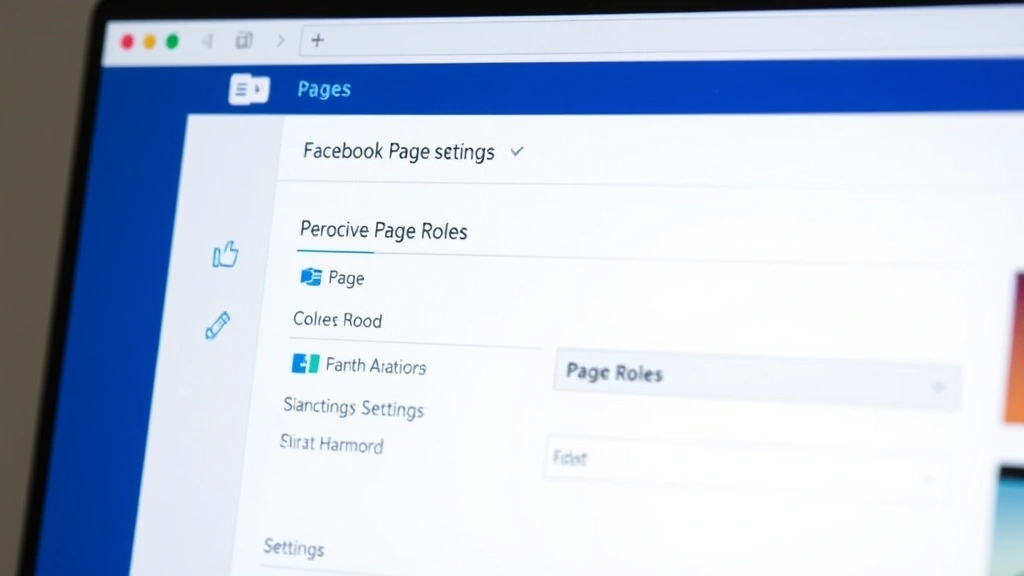
The desktop method is the most straightforward way to add admin to Facebook page and gives you the clearest view of all available options. Start by navigating to your Facebook page and ensuring you’re logged in with an account that has owner or admin privileges. Look for the settings icon or gear symbol in the top right corner of your page header, then click “Settings.”
Once in the Settings menu, locate “Page Roles” in the left sidebar navigation panel. This section displays all current admins, editors, moderators, analysts, and advertisers assigned to your page. Click on the text field labeled “Assign a New Page Role” and begin typing the name of the person you want to make an admin. Facebook will display matching suggestions as you type.
Select the correct person from the dropdown menu that appears. Next, you’ll see a dropdown menu showing available role options. Choose “Admin” if you want to grant full administrative access, or select a more limited role based on their responsibilities. After selecting the role, click the “Add” button to complete the process.
The person you’ve added will receive a notification about their new role. They must accept this invitation before becoming an active admin. You can track pending invitations in the “Page Roles” section, where they’ll appear with a status indicator. Once accepted, they’ll have full access to manage your page according to their assigned role permissions.
Adding Admin to Facebook Page on Mobile Devices
Adding an admin through the Facebook mobile app follows a similar process but with slightly different navigation. Open the Facebook app on your iPhone or Android device and navigate to your page by tapping the menu icon (three horizontal lines) at the bottom right of your screen. Search for your page or tap it if it appears in your recent pages list.
Once on your page, scroll down and tap “Settings.” The mobile interface condenses options into a more streamlined menu. Look for “Page Roles” and tap it to access the admin management section. Tap the field that says “Add a Page Role” or “Assign a New Page Role” and type the person’s name or email address.
Select the person from the suggestions that appear, then choose their role from the dropdown menu. Tap “Add” to send the invitation. The mobile experience is equally efficient, though the smaller screen means you may need to scroll more to see all options. The person will receive the same notification on their account and can accept or decline the admin role.
According to WikiHow’s comprehensive guides, mobile management of social media pages has become increasingly important as more users access platforms exclusively through apps. Familiarizing yourself with both desktop and mobile methods ensures you can manage your page from anywhere.

” alt=”Facebook page settings menu on desktop showing page roles option” />
Understanding Facebook Page Roles and Permissions
Facebook offers five distinct roles when you add admin to Facebook page, each with different permission levels. Understanding these distinctions helps you assign appropriate access to team members based on their responsibilities and trustworthiness.
Admin: This is the highest permission level and grants complete control over the page. Admins can manage all page settings, create and delete posts, respond to messages, manage comments, add or remove other admins, view page analytics, run ads, and access all page features. Only assign this role to people you completely trust with full page control.
Editor: Editors can create, edit, and delete posts, respond to comments and messages, and manage page moderation. However, they cannot change page settings, manage roles, or access advertising features. This role works well for content creators and community managers who don’t need administrative control.
Moderator: Moderators can respond to comments and messages, delete comments and posts, and manage page moderation. They cannot create new posts or access analytics. This role is ideal for customer service representatives or community monitors who focus on engagement and safety.
Analyst: Analysts have read-only access to page insights and analytics. They cannot make any changes to the page, post content, or manage comments. Use this role for team members who need to track performance metrics but shouldn’t have editing capabilities.
Advertiser: Advertisers can create and manage ads for your page. They cannot make changes to the page itself or access analytics. This role suits marketing specialists who focus specifically on paid promotion campaigns.
As reviewed by Consumer Reports’ technology section, proper role assignment is crucial for maintaining security and operational efficiency in any organization managing digital properties. Take time to assess each team member’s needs before assigning roles.
Managing Multiple Admins and Roles
As your page grows, you’ll likely need multiple team members with different responsibilities. Managing these various roles effectively ensures smooth operations and prevents unauthorized changes. Return to “Page Roles” regularly to review who has access and what permissions they hold.
Document your admin structure by listing each person’s name, their assigned role, their responsibilities, and the date they were added. This documentation helps you track who should have access and makes it easier to onboard new team members or remove departing ones. Update this list whenever roles change.
Consider creating a hierarchy where one or two trusted individuals hold the Admin role, several team members have Editor or Moderator roles based on their daily responsibilities, and others have limited Analyst or Advertiser roles. This structure prevents any single person from having unchecked control while ensuring all necessary functions are covered.
Communicate clearly with each team member about their role, what they can and cannot do, and how their work contributes to the page’s success. Many mistakes occur because people don’t fully understand their permissions or responsibilities. Regular check-ins help ensure everyone is using their access appropriately.
Security Best Practices for Page Admins
When you add admin to Facebook page, you’re granting significant trust and access. Implement security best practices to protect your page from misuse, hacking, or accidental damage. Start by only adding people you know personally or have thoroughly vetted professionally.
Require all admins to use strong, unique passwords on their Facebook accounts. Weak passwords are the leading cause of social media account compromises. Consider using a password manager to help team members create and store complex passwords securely. Enable two-factor authentication on your own account and encourage admins to do the same.
Review your page roles list monthly and remove anyone who no longer needs access. People who leave your organization, change positions, or are no longer involved should have their access revoked immediately. Leaving inactive admins in place creates unnecessary security risks.
Establish clear guidelines about what admins can and cannot do on your page. For example, specify that admins should never post promotional content for personal businesses, should maintain a consistent brand voice, and should escalate sensitive issues to you before taking action. Document these guidelines and have new admins acknowledge them.
Monitor page activity regularly by checking recent posts, comments, and changes. Most Facebook pages show an activity log where you can see who made what changes and when. Review this log periodically to ensure all activity aligns with your expectations and policies.
According to Lifehacker’s security recommendations, social media account security is increasingly important as pages become valuable business assets. Never share your password with admins, and always use Facebook’s official role-assignment features rather than account sharing.
Troubleshooting Common Issues When Adding Admins
Sometimes the process of adding an admin doesn’t work as expected. If you’re having trouble, several common issues and solutions can help resolve the problem. First, ensure you’re logged into an account with sufficient permissions—only page owners and current admins can add new admins.
If the person’s name doesn’t appear in the suggestions when you type it, try entering their email address instead. Sometimes Facebook’s search function responds better to email addresses, particularly if the person has a common name. Make sure you have their exact email address associated with their Facebook account.
Verify that the person you’re trying to add has an active Facebook account. Deactivated or deleted accounts cannot receive admin roles. Ask them to check their account status and reactivate if necessary, then try adding them again.
If the person receives an invitation but cannot see it, check their Facebook notifications and the “Other” folder in their messages. Sometimes Facebook filters invitations into unexpected locations. They may need to look in their notification settings to find the page role invitation.
Clear your browser cache and cookies if you’re experiencing technical glitches on the desktop version. Log out completely, close your browser, and log back in to refresh your session. This often resolves temporary display issues or permission errors.
If you’re still unable to add an admin after trying these solutions, contact Facebook support through your page’s Help Center. Document exactly what steps you’ve taken and what error messages you received. This information helps support representatives diagnose the problem more quickly.
How to Remove Admin Access When Necessary
Just as important as knowing how to add admin to Facebook page is understanding how to remove admin access when someone leaves your team or no longer needs the role. Navigate to your page’s Settings and select “Page Roles” just as you would to add an admin.
Find the person whose access you want to remove in the list of current admins, editors, moderators, analysts, or advertisers. Click the “X” button or remove icon next to their name. Confirm the removal when prompted. The person will immediately lose access to your page and will receive a notification about the removal.
Removing access is instantaneous—the person cannot undo or override this action. They’ll be unable to access page settings, view analytics, post content, or perform any other admin functions within seconds of removal. This immediate revocation is important for security, especially if someone leaves on bad terms.
Keep a record of when you removed each person and why, if applicable. This documentation helps you maintain a clear picture of your page’s security history and can be valuable if questions arise later about who had access at specific times.
As reviewed by Good Housekeeping’s digital management tips, proper access control is fundamental to protecting any shared digital asset. Treat admin removal with the same care you use when adding admins.
FAQ
Can I add someone as an admin if they don’t have a Facebook account?
No, the person must have an active Facebook account to receive an admin role. They can create a personal account if they don’t already have one. Once their account is active, you can add them to your page roles.
How many admins can a Facebook page have?
Facebook doesn’t specify a maximum number of admins per page, but best practices suggest limiting admin access to 3-5 trusted individuals. Too many admins can create confusion and security risks. Assign more limited roles (Editor, Moderator) to additional team members who need specific functions.
What happens if I accidentally remove myself as admin?
If you remove yourself as the only admin, you’ll lose access to your page. To regain access, you’ll need another admin or the page owner to re-add you. This is why it’s important to always have at least one other trusted admin on your page as a backup.
Can admins see my personal Facebook information?
No, page admins can only see information related to the page itself. They cannot access your personal profile, messages, or private information. Their access is limited to page management functions only.
How do I know if an admin has made unauthorized changes?
Check your page’s Activity Log in Settings. This log shows who made what changes and when. Review it regularly to spot any suspicious activity. If you find unauthorized changes, remove that person’s access immediately and consider changing your password.
Can I change an admin’s role to a different role without removing them first?
Yes, you can change someone’s role directly. Go to Page Roles, find the person, and click on their current role. Select the new role from the dropdown menu and save. This change takes effect immediately without requiring the person to accept a new invitation.
What’s the difference between a page owner and an admin?
A page owner is the person who created the page and has ultimate control. An admin is someone granted administrative access by the owner. Owners can remove all admins, delete the page, and perform actions admins cannot. Typically, only one person should be the page owner.
Do admins get paid for managing my page?
Facebook doesn’t pay admins. Payment arrangements are entirely between you and your team members. Discuss compensation separately from the role-assignment process on Facebook.
For additional guidance on social media management, check out our article on how to make a Facebook post shareable, which covers important engagement strategies. You might also find value in learning how to comment anonymously on Facebook group for understanding community dynamics. If you’re expanding to other platforms, our guide on how to make a public profile on Snapchat provides complementary social media management skills.
According to The Spruce’s business management resources, delegating administrative tasks is essential for scaling any operation. Taking time to properly add admins and establish clear role definitions pays dividends as your page grows. By following these steps and best practices, you’ll build a reliable team capable of maintaining your Facebook page’s quality, consistency, and security while you focus on strategic growth.