How to Send Encrypted Email Outlook: Easy & Essential Tips
Email security is no longer optional—it’s essential. Whether you’re sharing sensitive financial documents, personal health information, or confidential business data, learning how to send encrypted email Outlook protects your communications from unauthorized access. Outlook offers multiple built-in encryption methods that are surprisingly simple to use, even for beginners.
In this guide, we’ll walk you through every method to encrypt your emails in Outlook, from basic password protection to advanced encryption standards. By the end, you’ll understand exactly which encryption option works best for your needs and how to implement it in minutes.
Why Email Encryption Matters
Email remains one of the most targeted vectors for data breaches and cyber attacks. According to cybersecurity experts, unencrypted emails can be intercepted, read, and forwarded without your knowledge. When you send encrypted email in Outlook, you’re adding a critical layer of security that transforms your message into unreadable code that only intended recipients can decode.
Encryption protects against several threats: man-in-the-middle attacks where hackers intercept communications, unauthorized forwarding of sensitive information, and compliance violations if you handle regulated data. Industries like healthcare, finance, and law require encryption for client communications. Even if you’re not in a regulated field, encrypting sensitive personal information is a smart security practice.
The beauty of how to send encrypted email Outlook is that modern versions of Outlook have made the process nearly effortless. You don’t need to be a tech expert or install additional software—the encryption tools are already built into your email client.
Understanding Outlook Encryption Options
Outlook provides several encryption methods, each with different strengths and use cases. Understanding these options helps you choose the right approach for your situation. The main encryption methods available are Encrypt-Only, Do Not Forward, S/MIME, and Information Rights Management (IRM).
Encrypt-Only is the simplest method and works with any recipient using a Microsoft account or work account. Do Not Forward adds an extra layer by preventing recipients from copying, printing, or forwarding your message. S/MIME (Secure/Multipurpose Internet Mail Extensions) uses digital certificates for enterprise-level security. Information Rights Management provides granular control over what recipients can do with your encrypted email.
For most users, Encrypt-Only or Do Not Forward will meet their needs. Enterprise users managing sensitive data might need S/MIME or IRM. The right choice depends on your recipient’s email system, the sensitivity of your data, and your organization’s security policies.
How to Enable Encrypt-Only in Outlook
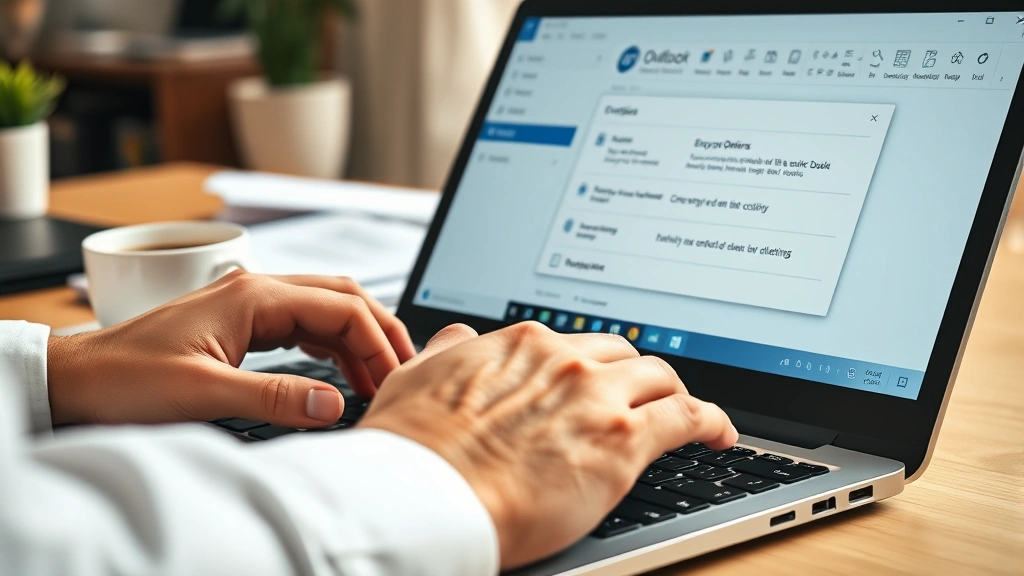
Encrypt-Only is the fastest way to send encrypted email in Outlook and works across most email platforms. This method encrypts your message while allowing recipients to reply normally. Here’s how to use it:
- Open Outlook and click “New Email” to create a message
- Type your recipient’s email address in the “To” field
- Compose your message as usual
- Click the “Options” tab in the ribbon menu
- Select “Encrypt” from the Permission group (or look for “Encrypt-Only” depending on your Outlook version)
- Click “Send” to transmit your encrypted email
Your recipient will receive an encrypted message. If they have a Microsoft account, they can open it directly in their browser or Outlook client. If they use a different email provider, they’ll receive instructions to access the encrypted message through a secure portal. This method is ideal for sending sensitive information to both internal and external recipients.
One advantage of Encrypt-Only is that it requires no setup or certificate management. You can encrypt emails immediately without any preliminary configuration. This makes it perfect for urgent situations where you need to send sensitive data quickly.
Using Do Not Forward Protection
Do Not Forward takes encryption a step further by preventing recipients from forwarding, copying, printing, or taking screenshots of your encrypted email. This is crucial when you’re sending information that should remain confidential and not be shared with others. Here’s how to implement it:
- Create a new email message in Outlook
- Add your recipient and compose your message
- Click the “Options” tab
- Select “Do Not Forward” from the Permission group
- Send your email as normal
Recipients will see a “Do Not Forward” banner at the top of your message, making it clear that the content is restricted. They can read and reply to your email, but they cannot forward it to others or save it externally. This method is particularly valuable when sharing confidential business strategies, personal financial information, or other highly sensitive data.
Similar to how you might password protect a PDF to control document access, Do Not Forward gives you control over email distribution. The difference is that email encryption happens instantly without requiring separate file management.
Setting Up S/MIME Encryption
S/MIME (Secure/Multipurpose Internet Mail Extensions) represents the gold standard for email encryption in enterprise environments. Unlike Encrypt-Only, S/MIME uses digital certificates to authenticate both sender and recipient, providing non-repudiation and advanced security features. Setting up S/MIME requires a few more steps but offers superior protection.
First, you need to obtain a digital certificate. Your organization’s IT department typically provides these, or you can obtain one from a Certificate Authority. Once you have your certificate, follow these steps to configure S/MIME in Outlook:
- Open Outlook and click “File” > “Options”
- Select “Trust Center” from the left menu
- Click “Trust Center Settings”
- Choose “Email Security” from the options
- Under “Certificates and Algorithms,” click “Import/Export” to add your digital certificate
- Follow the prompts to import your certificate file
- Check the box for “Add digital signature to outgoing messages” if desired
- Click “OK” to save your settings
Once configured, you can encrypt individual emails by clicking “Options” > “Encrypt” when composing a message. S/MIME encryption works with most email clients and provides the highest level of security. However, recipients must also have S/MIME configured to read encrypted S/MIME messages, which is why it’s primarily used in corporate environments.
According to WikiHow’s technology guides, S/MIME remains the most widely recognized encryption standard across different email platforms, making it ideal for communicating with external organizations that require enterprise-grade security.
Configuring Information Rights Management
Information Rights Management (IRM) provides the most granular control over encrypted emails. With IRM, you can specify exactly what recipients can do with your message: view only, reply, reply all, forward, print, or copy content. This level of control makes IRM ideal for managing sensitive business communications where you need to track and limit information distribution.
To use IRM in Outlook, your organization must have an IRM service configured (typically through Microsoft Azure Rights Management). Once your IT department has set this up, you can encrypt emails by:
- Creating a new email message
- Clicking “Options” tab
- Selecting “Restrict Access” or “Encrypt” depending on your Outlook version
- Choosing your desired permissions from the dropdown menu
- Sending your email
IRM encryption persists even after recipients download the email, meaning your access controls remain active. If you need to revoke access later, you can do so through your organization’s IRM portal. This makes IRM perfect for sending information that might need to be recalled or accessed for a limited time period.
The advantage of IRM over other methods is audit trails. You can see when recipients opened your encrypted email and what actions they took with it. This transparency is valuable in regulated industries and high-security environments.
Best Practices for Encrypted Emails
Knowing how to send encrypted email Outlook is only half the battle—using encryption effectively requires following best practices. First, always verify recipient email addresses before sending. Encryption protects your message in transit, but sending it to the wrong person defeats the purpose. Double-check addresses, especially when copying from contact lists.
Second, inform recipients in advance that you’ll be sending encrypted emails. Some recipients may not be familiar with accessing encrypted messages, particularly if they use non-Microsoft email clients. A quick heads-up prevents confusion and ensures they know to check for your encrypted message in their junk folder if it doesn’t appear immediately.
Third, use encryption consistently for sensitive information. Don’t encrypt some emails with financial data while leaving others unencrypted. Establish a clear policy: encrypt all emails containing passwords, account numbers, social security numbers, health information, or proprietary business data. This consistency prevents accidental security lapses.
Fourth, never include passwords in encrypted emails. If you need to share a password, use a separate secure method like a password manager or in-person communication. This prevents a single compromised email from exposing both encrypted content and access credentials.
Fifth, consider the recipient’s technical comfort level. If your recipient struggles with technology, Encrypt-Only is simpler than S/MIME. If they’re tech-savvy, S/MIME or IRM might be more appropriate for highly sensitive data. Matching encryption complexity to recipient capability ensures successful communication.
Troubleshooting Common Encryption Issues
Sometimes encrypted emails don’t work as expected. One common issue is recipients not receiving encrypted messages at all. This often happens because Outlook’s encryption feature requires the recipient to have a Microsoft account or be part of your organization’s Azure AD. If external recipients aren’t receiving your encrypted emails, ask them to verify they have a Microsoft account associated with the email address you’re using.
Another frequent problem is the “Encrypt” option being grayed out or unavailable. This typically means your Outlook account isn’t properly configured for encryption. Solution: ensure you’re using Outlook with a Microsoft 365 subscription or your organization’s Exchange server. Standalone Outlook installations may not have encryption features enabled.
Recipients sometimes report being unable to open encrypted emails in their email client. This usually means they need to use the web version of Outlook or download the message through the secure portal. As reviewed by Consumer Reports’ technology section, ensuring recipients understand these access methods prevents frustration.
If you’ve set up S/MIME encryption but recipients can’t decrypt your messages, verify that your digital certificate is properly installed and hasn’t expired. Expired certificates are a common cause of S/MIME failures. Contact your IT department or certificate provider to renew your certificate if necessary.
For IRM issues, check that your organization’s Azure Rights Management service is active and your account has IRM permissions enabled. If the Restrict Access option isn’t appearing, contact your IT department to confirm IRM is configured for your organization.
One more troubleshooting tip: test your encryption setup with a colleague or trusted contact before sending sensitive information to important recipients. This test run helps identify configuration problems before they impact critical communications. Similar to how you might make a copy of a Word document before making major edits, testing encryption prevents mistakes with important emails.
FAQ
Q: Can I encrypt emails to non-Outlook users?
A: Yes, Encrypt-Only and Do Not Forward work with any email provider. External recipients receive a link to access your encrypted message through a secure portal. S/MIME requires the recipient to have S/MIME configured, so it’s primarily for internal or enterprise use.
Q: Does encryption slow down email delivery?
A: No, encryption happens instantly. Your encrypted email sends just as quickly as an unencrypted one. The recipient may experience a slight delay when accessing the encrypted message through the portal, but this is negligible for most users.
Q: Can recipients forward encrypted emails?
A: This depends on the encryption method. Encrypt-Only allows forwarding. Do Not Forward prevents it. S/MIME and IRM depend on your configuration. If preventing forwarding is critical, always use Do Not Forward.
Q: What happens if I accidentally send an unencrypted email?
A: You can’t recall it, which is why using Do Not Forward or Encrypt-Only is important for sensitive data. Always encrypt before clicking Send when handling confidential information.
Q: Is there a cost for using Outlook encryption?
A: No. Encrypt-Only, Do Not Forward, and S/MIME are included with Outlook and Microsoft 365. IRM may require additional Azure Rights Management licensing depending on your organization’s setup.
Q: Can I encrypt attachments separately from the email body?
A: When you encrypt an Outlook email, all content including attachments is encrypted together. You don’t need to encrypt attachments separately. However, you could also password protect a PDF as an additional security layer if needed.
Q: How long does encryption last?
A: Outlook encryption typically lasts for the lifetime of the email. However, IRM can be configured with expiration dates, after which recipients can no longer access the message. Check your organization’s IRM policies for specific retention rules.
Q: Can I encrypt emails on my phone?
A: Yes, Outlook mobile apps support Encrypt-Only and Do Not Forward. The process is similar to desktop Outlook: compose your email, look for the Encrypt or Permission option, and send normally. S/MIME and IRM support varies by device and app version.
Q: What’s the difference between encryption and password protection?
A: Encryption scrambles your message so only authorized recipients can read it. Password protection requires a password to open the message. Encryption is more secure because it uses mathematical algorithms, while passwords can potentially be cracked. Outlook encryption doesn’t use passwords in the traditional sense.
According to Lifehacker’s security experts, combining encryption methods—such as using Do Not Forward for email and password protection for attachments—provides defense-in-depth security for your most sensitive communications.
Learning how to send encrypted email Outlook is one of the most important cybersecurity skills you can develop. Whether you’re protecting personal information, business secrets, or client data, Outlook’s built-in encryption tools make it simple to add professional-grade security to your communications. Start with Encrypt-Only for basic needs, upgrade to Do Not Forward when you need to prevent forwarding, and explore S/MIME or IRM for enterprise-level requirements. Your recipients will appreciate the security, and you’ll have peace of mind knowing your sensitive information is protected.
For additional security guidance, visit Family Handyman’s technology resources and HowStuffWorks’ email security section for complementary information on protecting your digital communications across all platforms.