How to Overclock CPU: Essential Tips for Easy Success
Ready to squeeze more performance from your processor? Learning how to overclock CPU safely can unlock hidden potential and boost gaming framerates, rendering speeds, and overall system responsiveness. Overclocking involves increasing your processor’s clock speed beyond factory settings—a technique that requires patience, proper cooling, and careful monitoring to avoid damage.
Quick Answer: To overclock your CPU, you’ll need to access your BIOS settings, gradually increase the multiplier or base clock, test stability with benchmarking software, and monitor temperatures throughout the process. Always start with small increments (25-50 MHz), maintain temperatures below 80°C under load, and have a backup plan if your system becomes unstable.
Tools & Materials You’ll Need
- CPU cooler (preferably liquid cooling for serious overclocking)
- Thermal paste (high-quality compound)
- Benchmarking software (Prime95, MemTest86, or Cinebench)
- Temperature monitoring software (HWiNFO64, Core Temp)
- BIOS access and documentation for your motherboard
- Screwdriver (for cooler installation if needed)
- Flashdrive (for BIOS updates if required)
- Compressed air (for cleaning dust)
Understanding CPU Overclocking Basics
Before diving into how to overclock CPU, you need to understand what’s actually happening under the hood. Your processor operates at a specific frequency measured in gigahertz (GHz), determined by multiplying the base clock (BCLK) by a multiplier value. When you overclock, you’re increasing one or both of these values to push your CPU beyond its rated specifications.
The primary methods for how to overclock CPU include adjusting the multiplier (easier and safer) or increasing the base clock (more aggressive but riskier). Most modern processors use multiplier-based overclocking because it provides better control and stability. According to WikiHow’s technology guides, the multiplier method is recommended for beginners attempting CPU overclocking for the first time.
Key benefits of learning how to overclock CPU:
- Improved gaming performance and higher frame rates
- Faster video rendering and content creation workflows
- Extended lifespan of your investment through performance optimization
- Better understanding of your system’s capabilities
However, overclocking your CPU does carry risks including reduced processor lifespan, system instability, and potential hardware damage if done incorrectly. This is why understanding proper technique for how to overclock CPU safely is absolutely critical.
Check Your Hardware Compatibility
Not all hardware supports overclocking. Before attempting to overclock your CPU, verify that your components are compatible. First, check what motherboard you have, as it must have an unlocked BIOS and support for multiplier adjustments. Intel K-series and AMD Ryzen non-X processors typically support overclocking, while locked variants do not.
Your power supply unit (PSU) is equally important when learning how to overclock CPU. Overclocked processors draw more power, so you need a PSU with sufficient wattage and stable voltage delivery. A general rule is to have at least 20% headroom above your system’s calculated power consumption.
Cooling solution compatibility: Most importantly, you need adequate cooling to handle the increased heat generated during overclocking. Stock coolers are rarely sufficient—invest in an aftermarket air cooler or liquid cooling system. According to The Spruce’s technical resources, proper thermal management is the foundation of successful CPU overclocking.
Check your processor’s specifications for the maximum multiplier it supports and review your motherboard manual for BIOS overclocking options. This preparation phase is essential before you attempt how to overclock CPU safely.
Prepare Your System for Overclocking
Preparation is where most beginners fail when learning how to overclock CPU. Start by cleaning your system thoroughly—dust buildup significantly reduces cooling efficiency. Use compressed air to clear dust from heatsinks, fans, and radiators. If your cooler is already installed, carefully remove it, clean off old thermal paste with isopropyl alcohol, and apply fresh, high-quality thermal paste.
Update your BIOS to the latest version available for your motherboard. Manufacturers frequently release BIOS updates that improve stability and add new overclocking features. Check your motherboard manufacturer’s website and follow their specific instructions for updating. This step is often overlooked but critical for successful CPU overclocking.
Download and install monitoring software before you start overclocking. Programs like HWiNFO64 and Core Temp provide real-time temperature, voltage, and clock speed data. Having these tools ready lets you track changes immediately as you learn how to overclock CPU. Additionally, download benchmarking software like Prime95 or MemTest86 to test stability after each adjustment.
Reset your BIOS to default settings before beginning. This gives you a clean baseline and prevents conflicting settings from interfering with your overclocking attempts. Document your starting values—knowing your stock configuration helps if you need to troubleshoot issues.
Access and Navigate BIOS Settings
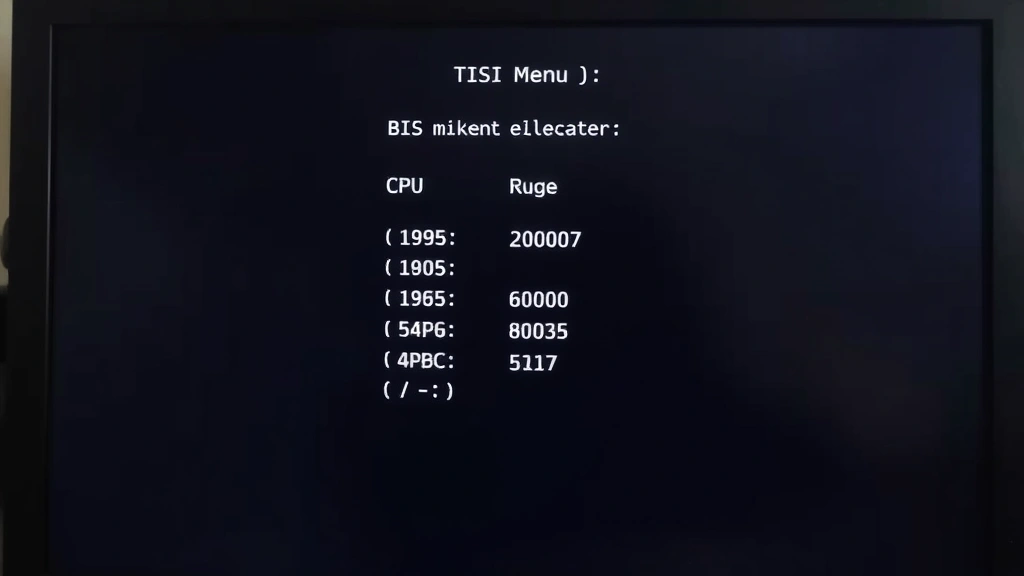
Accessing your BIOS is the gateway to learning how to overclock CPU. Restart your computer and immediately press the BIOS key—typically Delete, F2, F10, or F12 depending on your motherboard manufacturer. Check your motherboard manual or boot screen for the specific key. Once inside BIOS, look for sections labeled “Overclocking,” “Advanced CPU Settings,” or “Performance.”
Different motherboard manufacturers organize BIOS differently, but the core settings for how to overclock CPU remain consistent. You’ll typically find the CPU multiplier, base clock, voltage settings, and load-line calibration options. Take screenshots or write down the default values before making any changes—this is your safety net if something goes wrong.
Navigate carefully through menus and avoid changing settings you don’t understand. Most BIOS interfaces allow you to highlight options and view descriptions. Take time to read these descriptions thoroughly. As reviewed by Family Handyman’s technology section, methodical approach and documentation prevent costly mistakes.
Some motherboards feature “overclocking profiles” or “one-click overclocking” options. While tempting, these automated settings often aren’t optimized for your specific hardware. Manual adjustment gives you precise control and better results when learning how to overclock CPU properly.
The Overclocking Process Step-by-Step
Now comes the actual process of how to overclock CPU. Start conservatively—this isn’t a race. Increase your CPU multiplier by just 1 (representing 100 MHz increase). Save settings and exit BIOS, allowing your system to boot normally. This incremental approach to how to overclock CPU ensures stability and prevents catastrophic failures.
Step-by-step process:
- Increase multiplier by 1 increment (100 MHz)
- Save BIOS settings and reboot
- Monitor temperatures for 5-10 minutes at idle
- Run a quick benchmark (5-10 minutes)
- Check stability and temperatures under load
- If stable, repeat; if unstable, revert and try lower increment
After each adjustment, monitor your system carefully. Open your temperature monitoring software and note the idle and load temperatures. Your CPU should remain below 80°C under full load; many enthusiasts target 70°C for long-term stability. If temperatures exceed safe limits, you’ve increased the multiplier too far and need to revert.
Continue this process incrementally until your system becomes unstable—meaning it crashes, freezes, or shows errors during benchmarking. When instability occurs, you’ve found your limit. Back off by 2-3 multiplier steps to establish a stable overclock. This methodical approach to how to overclock CPU ensures you maximize performance without sacrificing reliability.
Some users adjust CPU voltage slightly to improve stability at higher multipliers, but this requires caution. Excessive voltage damages your processor permanently. Keep voltage increases minimal (0.05V increments) and never exceed 1.35V for Ryzen processors or 1.3V for Intel chips. Voltage management is an advanced aspect of how to overclock CPU that beginners should approach carefully.
Monitor Temperature and Stability
Continuous monitoring is essential when learning how to overclock CPU safely. Temperature management determines whether your overclock is sustainable or will degrade your hardware. Use HWiNFO64 to log temperatures over extended periods—aim for at least 30 minutes of stress testing after each significant adjustment.
Different benchmarking tools stress your CPU differently. Prime95 is extremely demanding and will quickly expose instability. MemTest86 checks memory stability. Cinebench provides real-world rendering performance metrics. When learning how to overclock CPU, run multiple tools to ensure comprehensive stability testing. A system might pass one benchmark but fail another.
Watch for warning signs indicating problems with your CPU overclocking attempt:
- Temperatures climbing above 85°C under load
- Random system crashes or blue screens
- Benchmark errors or failed tests
- Throttling (CPU reducing clock speed automatically)
- Unusual noises from cooler (indicating thermal stress)
If you encounter any of these issues, immediately shut down your system and return BIOS settings to the previous stable configuration. Never ignore warning signs when overclocking—your CPU’s longevity depends on respecting thermal and stability limits. Patience during the stability testing phase separates successful how to overclock CPU attempts from hardware-damaging mistakes.
Keep detailed records of your overclocking progress. Document each multiplier setting, voltage adjustment, maximum temperatures, and benchmark results. This data helps you understand your specific hardware’s capabilities and provides reference points if you need to troubleshoot future issues.
Troubleshooting Common Issues
Even with careful planning, issues sometimes arise when learning how to overclock CPU. The most common problem is system instability manifesting as random crashes. If your overclocked system crashes unpredictably, the most likely cause is insufficient voltage or excessive multiplier increase. Return to BIOS and reduce the multiplier by 2-3 steps, then test again.
If your system won’t boot after overclocking changes, don’t panic. Most motherboards include an automatic recovery feature that detects failed boots and resets BIOS to default settings. If this doesn’t work, you can clear CMOS by removing the battery on your motherboard for 10-15 seconds. This resets all BIOS settings to factory defaults, allowing you to start over.
Thermal throttling occurs when your CPU automatically reduces clock speed to manage temperature. This indicates your cooler is inadequate for your current overclock settings. Either reduce your multiplier to lower temperatures or upgrade to a more capable cooling solution. Throttling defeats the purpose of overclocking and suggests your current setup isn’t suitable for your ambitions.
Some users encounter situations where their overclock is stable during benchmarking but crashes during normal use. This typically means you’re right at the edge of stability. Reduce the multiplier by 1 step and retest. Stability requires headroom—an overclock that barely passes benchmarks isn’t reliable for daily use. When learning how to overclock CPU, prioritize reliability over maximum performance.
If you’re unable to achieve meaningful performance gains despite multiple attempts, your hardware might have limitations. Processor quality varies even within the same model—some chips simply don’t overclock as well as others. This silicon lottery is normal and not indicative of failure. Accept your hardware’s natural limits and enjoy whatever performance improvement you’ve achieved.
FAQ
Is overclocking safe for my CPU? Overclocking is safe when done correctly with proper cooling and incremental adjustments. The risks increase significantly with aggressive overclocking, excessive voltage, or inadequate thermal management. Most modest overclocks have minimal impact on processor lifespan when temperatures are controlled.
Will overclocking void my warranty? Yes, most manufacturers void warranties on overclocked processors. Before overclocking, understand that you’re taking responsibility for any hardware failures that result. This is why careful, methodical approach to how to overclock CPU is important—rushed attempts are more likely to cause damage.
How much performance improvement can I expect? Performance gains depend on your hardware and how aggressively you overclock. A modest 10-15% multiplier increase typically yields 10-15% performance improvement. More aggressive overclocking can achieve 20-30% gains, but with increased risk and heat generation. Real-world improvements in gaming or applications may be less dramatic than benchmark improvements.
What’s the difference between overclocking and undervolting? Overclocking increases clock speed, while undervolting reduces voltage at the same clock speed. Undervolting improves efficiency and reduces heat without increasing performance. Many users combine modest overclocking with undervolting to achieve better results than overclocking alone.
Do I need liquid cooling to overclock? Not necessarily. Quality air coolers support moderate overclocking effectively. Liquid cooling becomes important for aggressive overclocking attempts or in systems with limited airflow. According to CNET’s hardware reviews, modern air coolers are sufficient for most enthusiast-level overclocking.
How often should I check temperatures while overclocking? Monitor temperatures continuously during benchmarking and periodically during normal use. Set up alerts in your monitoring software to notify you if temperatures exceed safe thresholds. Regular monitoring prevents thermal damage and helps you catch problems early.
Can I overclock my CPU without accessing BIOS? Some systems support overclocking through Windows software utilities, but BIOS overclocking provides superior control and stability. When learning how to overclock CPU, BIOS access is the standard and recommended approach for best results.
What should I do if my overclocked system becomes unstable after months? Thermal paste degrades over time, reducing cooling efficiency. If your previously stable overclock becomes unstable, reapply thermal paste to your CPU cooler. Additionally, clean dust from your cooler and case fans. These maintenance tasks often restore stability without adjusting BIOS settings.
Learning how to overclock CPU opens new possibilities for your computer’s performance. Start conservatively, monitor diligently, and respect your hardware’s thermal limits. With patience and attention to detail, you’ll discover your system’s true potential while maintaining long-term reliability. The process of how to overclock CPU teaches valuable lessons about computer hardware and system optimization that benefit your overall technical knowledge.