How to Find Saved Passwords on iPhone: Simple & Essential Guide
Forgot which password you used for that app? Your iPhone stores login credentials securely, and learning how to find saved passwords on iPhone takes just a few taps. Whether you need to recover a forgotten password, verify your credentials, or manage your digital security, Apple makes this process straightforward through Settings. This guide walks you through every method to access your saved passwords safely and efficiently.
Quick Answer: Open Settings → Passwords → authenticate with Face ID or Touch ID → browse or search for the specific password. You can view, copy, or delete saved credentials instantly. For added security, ensure two-factor authentication is enabled on your accounts, similar to how you’d check if your iPhone is unlocked for other security features.
Tools & Materials You’ll Need
- iPhone with iOS 15.1 or later (required for Passwords app)
- Face ID or Touch ID enabled for authentication
- Your Apple ID credentials (for iCloud Keychain access)
- Internet connection for syncing across devices
- Optional: Mac or iPad to cross-reference saved passwords
Method 1: Access via Settings Passwords App
The most direct way how to find saved passwords on iPhone is through the native Passwords app in Settings. This feature, introduced in iOS 15.1, consolidates all your saved credentials in one secure location. Apple encrypts this data end-to-end, meaning only you can access it with your biometric authentication or passcode.
Step-by-step instructions: Unlock your iPhone and open the Settings app. Scroll down and tap “Passwords” (you may see it listed under “Passwords and Security” on some iOS versions). Authenticate using Face ID, Touch ID, or your iPhone passcode when prompted. Browse the alphabetical list of saved passwords or use the search bar at the top to find a specific account. Tap any entry to view the username, password, and website URL.
Once you’ve selected a password, you can copy it by tapping the password field, then tapping “Copy.” This allows you to paste it into another app without displaying the full password on screen. You can also edit saved passwords, delete them, or flag weak passwords that need updating. Apple will even suggest strong passwords for accounts that don’t meet security standards.
Method 2: Using iCloud Keychain
iCloud Keychain is Apple’s cloud-based password storage system that syncs across all your Apple devices. Understanding how to leverage this feature ensures you can access saved passwords on any device—iPhone, iPad, or Mac—seamlessly. This synchronization is particularly useful if you need to find blocked numbers on iPhone or manage other account settings across devices.
To enable iCloud Keychain, go to Settings → [Your Name] → iCloud and toggle on “Keychain.” Ensure you’re signed in with your Apple ID and have two-factor authentication enabled for maximum security. Once activated, any passwords you save on one device automatically appear on others logged into the same Apple ID. This means if you save a password on your Mac, it’s instantly available on your iPhone.
To view iCloud Keychain passwords specifically, navigate to Settings → Passwords → authenticate → and you’ll see all synced credentials. According to WikiHow, this method provides enterprise-level encryption, making it one of the safest ways to store sensitive login information on consumer devices. Your data remains encrypted even Apple cannot decrypt it.
Method 3: Finding Passwords Through Autofill
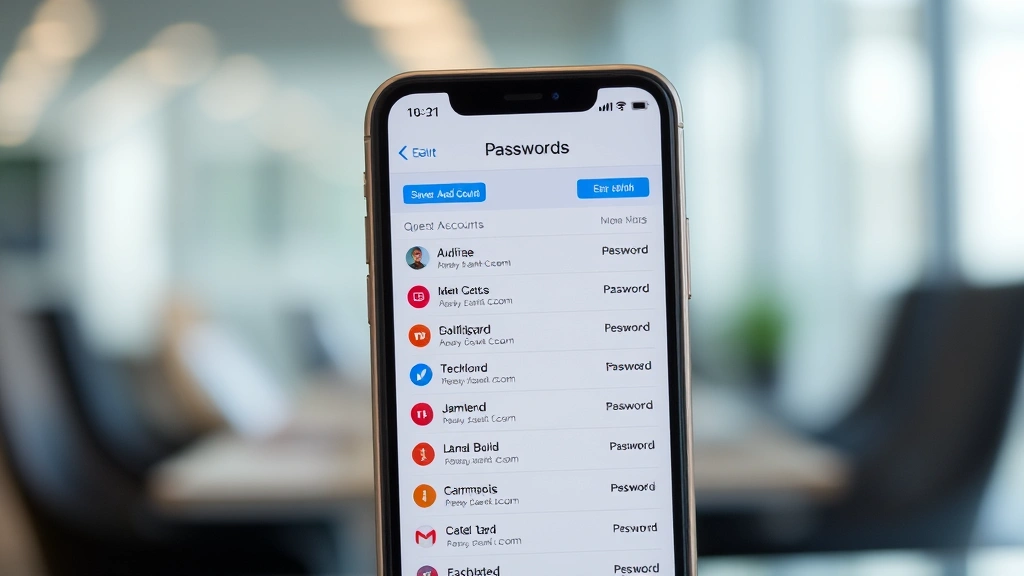
When you encounter a login screen in Safari or an app, your iPhone’s autofill feature may prompt you to use a saved password. This is another way how to find saved passwords on iPhone, especially if you’re actively using an account. The autofill suggestion shows your saved credentials right when you need them.
Open Safari or any app with a login form. Tap the username or email field, and if a password is saved, you’ll see a suggestion appear above the keyboard. Tap the suggestion to autofill both the username and password. If no suggestion appears, it means no password is saved for that account. You can then create a new one, and Safari will ask if you want to save it for future use.
This method is particularly convenient because it combines discovery with functionality—you find and use your password simultaneously. However, if you simply want to view a password without logging in, the Settings Passwords method is more direct. Autofill is ideal for verifying credentials while actively accessing accounts.
Method 4: Safari Password Manager
Safari has its own dedicated password management interface that functions alongside the main Passwords app. To access Safari-specific passwords, open Safari and tap the Bookmarks icon (looks like an open book) at the bottom of the screen. Select “Passwords” from the menu that appears. Authenticate with Face ID, Touch ID, or your passcode.
This view shows only passwords saved through Safari, not those from other apps or iCloud Keychain. You can search for specific passwords, view details, or delete entries. Many users prefer managing Safari passwords this way because it’s app-specific and keeps web credentials separate from app credentials. You can copy passwords directly from this interface or edit saved usernames and URLs.
According to Consumer Reports, Safari’s password manager receives regular security updates and is regularly audited for vulnerabilities. This makes it a reliable option for managing web-based credentials, though the centralized Passwords app in Settings offers a more comprehensive view of all saved credentials across your device.
Method 5: Third-Party Password Managers
While Apple’s native options are robust, many users prefer third-party password managers like 1Password, Dashlane, or LastPass for additional features. These apps offer advanced functionality such as password strength analysis, breach monitoring, and secure password sharing with family members. If you’ve been using a third-party manager, how to find saved passwords on iPhone depends on that specific app’s interface.
To access passwords in third-party managers, open the app and authenticate with your master password or biometric data. Most managers mirror the Settings Passwords interface with search functionality and detailed credential information. The advantage of third-party options is cross-platform compatibility—your passwords sync across Windows, Android, and other non-Apple devices seamlessly.
However, third-party managers require subscription fees and introduce an additional layer of trust. Apple’s native solution is free, deeply integrated with iOS, and requires no subscription. For most users, the built-in Passwords app in Settings provides everything necessary. Third-party managers are best for users with complex password management needs or those in multi-device ecosystems beyond Apple.
Security Best Practices for Saved Passwords
Knowing how to find saved passwords on iPhone is only half the equation—protecting them is equally critical. Always ensure Face ID or Touch ID is enabled on your device, as this adds a biometric security layer. Never share your iPhone passcode with others, as this grants access to all saved passwords. Regularly review your saved credentials and delete any you no longer use to minimize security exposure.
Enable two-factor authentication on all important accounts, especially email and financial services. This adds a second verification step even if someone obtains your password. Update passwords regularly, particularly for sensitive accounts like banking or email. Apple’s Passwords app flags weak passwords automatically, so review these suggestions quarterly and create stronger alternatives.
Be cautious about which networks you connect to when accessing accounts. Avoid logging into sensitive accounts on public WiFi unless using a VPN. When you unhide an app on iPhone or manage other sensitive settings, ensure you’re in a private environment. As Family Handyman emphasizes in their security guides, consistent practices build strong digital hygiene habits.
Troubleshooting Common Issues
Problem: Passwords app not appearing in Settings. Solution: Ensure your iPhone runs iOS 15.1 or later. Update your device through Settings → General → Software Update. If the app still doesn’t appear, restart your iPhone completely.
Problem: Can’t authenticate with Face ID or Touch ID. Solution: Verify these features are enabled in Settings → Face ID & Passcode (or Touch ID & Passcode). Ensure your face or fingerprint is properly registered. If issues persist, disable and re-enable the authentication method.
Problem: Saved passwords not syncing across devices. Solution: Confirm iCloud Keychain is enabled on all devices through Settings → [Your Name] → iCloud. Verify you’re signed into the same Apple ID on each device. Check that two-factor authentication is active. If syncing still fails, sign out of iCloud and sign back in.
Problem: Forgotten passwords not appearing in the Passwords app. Solution: The app only stores passwords you’ve explicitly saved or that Safari auto-saved. If you never saved a password, it won’t appear here. Use account recovery options through the website or app’s “Forgot Password” feature instead. This is different from managing other account features, like when you need to delete duplicate photos on iPhone.
Problem: Weak password warnings appearing frequently. Solution: Review flagged passwords in Settings → Passwords. Tap each weak password and use Apple’s Strong Password generator to create a secure alternative. Update the password on the associated website or app, then update it in the Passwords app. This proactive approach prevents security breaches before they occur.
FAQ
Q: Is it safe to save passwords on my iPhone? A: Yes, Apple’s password storage uses end-to-end encryption. Your data is encrypted on your device and only decrypted when you authenticate with Face ID, Touch ID, or your passcode. Apple cannot access your passwords even if they wanted to.
Q: Can I export my saved passwords from iPhone? A: Not directly through the Passwords app. However, you can manually copy passwords one at a time. For bulk export, consider using third-party password managers that offer export functionality. This is a deliberate security choice by Apple to prevent mass password theft.
Q: What happens if I forget my iPhone passcode? A: You’ll lose access to saved passwords until you reset your device or use recovery mode. This is why maintaining a backup of critical passwords outside your iPhone is prudent. Use iCloud Keychain’s cloud sync as your backup, or maintain a physical record in a secure location.
Q: Can someone access my passwords if they have my iPhone? A: Not without your biometric authentication or passcode. Even with physical access, the encryption prevents unauthorized viewing. This is why enabling Face ID or Touch ID is crucial—it adds an essential security barrier between your device and potential intruders.
Q: How do I delete a saved password? A: Open Settings → Passwords → authenticate → find the password you want to remove → tap “Edit” → select “Delete Password.” Confirm the deletion. The password is immediately removed from all synced devices.
Q: Does iPhone save passwords from apps automatically? A: Not all apps. Only apps that use standard iOS login frameworks trigger automatic password saving. Some apps require manual password entry each time. If an app supports password saving, you’ll see a prompt after logging in asking if you want to save credentials.
Q: Can I access my iPhone passwords from a Mac? A: Yes, through iCloud Keychain. On your Mac, go to System Preferences → iCloud → enable Keychain. Your passwords sync automatically. You can also access them through Safari → Preferences → Passwords on Mac, though the dedicated Passwords app provides easier access on newer macOS versions.
Q: What’s the difference between iCloud Keychain and the Passwords app? A: iCloud Keychain is the cloud synchronization service; the Passwords app is the interface to view and manage those credentials. They work together—Keychain syncs data, and the Passwords app displays it. You need both enabled for full functionality.
Q: How often should I review my saved passwords? A: Review them quarterly or whenever you change important account passwords. Check for weak password warnings monthly. Delete credentials for accounts you no longer use immediately to reduce your attack surface.
Learning how to find saved passwords on iPhone empowers you to manage your digital security effectively. Whether using the native Passwords app, iCloud Keychain, or Safari’s password manager, Apple provides multiple secure methods to store and retrieve your credentials. By following these steps and implementing the security best practices outlined above, you’ll maintain a robust password management system that protects your accounts while keeping access convenient. Remember that consistent password hygiene—regular updates, strong complexity, and two-factor authentication—creates the foundation for true digital security, just as maintaining device settings like how to turn off Apple Watch ensures your entire ecosystem remains secure and optimized.