How to Check What Motherboard I Have: Simple & Essential Guide
Knowing your motherboard model is essential for upgrading components, installing drivers, and troubleshooting hardware issues. Whether you’re planning a CPU upgrade, adding RAM, or diagnosing compatibility problems, identifying your motherboard is the critical first step. In this guide, we’ll walk you through multiple methods to discover exactly what motherboard you have—from built-in Windows tools to physical inspection—so you can make informed decisions about your computer’s hardware.
The quickest way to check what motherboard you have is using Windows’ built-in System Information tool, which displays your motherboard model in seconds without requiring any technical expertise or software downloads.
Tools & Materials You’ll Need
- Computer with Windows, Mac, or Linux operating system
- Administrator access to your system
- Optional: Flashlight (for physical inspection)
- Optional: CPU-Z or GPU-Z software (free downloads)
- Internet connection for driver downloads
- Optional: Thermal paste and tools (if opening the case)
Method 1: Using Windows System Information
The simplest way to check what motherboard you have is through Windows’ built-in System Information utility. This method requires no downloads and works on all Windows versions. Open the Start menu, type “System Information” into the search bar, and press Enter. Once the window opens, look for the “BaseBoard Product” field—this displays your exact motherboard model and manufacturer.
You’ll also see additional details like the BaseBoard Manufacturer and BaseBoard Version. Write down the complete model number, as this information is crucial when searching for drivers or compatibility information. The System Information tool is reliable and provides manufacturer-verified data directly from your system’s firmware.
Step-by-step process:
- Click the Windows Start button
- Type “msinfo32” or “System Information”
- Press Enter to open the utility
- Locate “BaseBoard Product” in the System Summary section
- Note the motherboard model and manufacturer name
- Check “BaseBoard Manufacturer” for the brand confirmation
Method 2: Check Device Manager for Motherboard Details
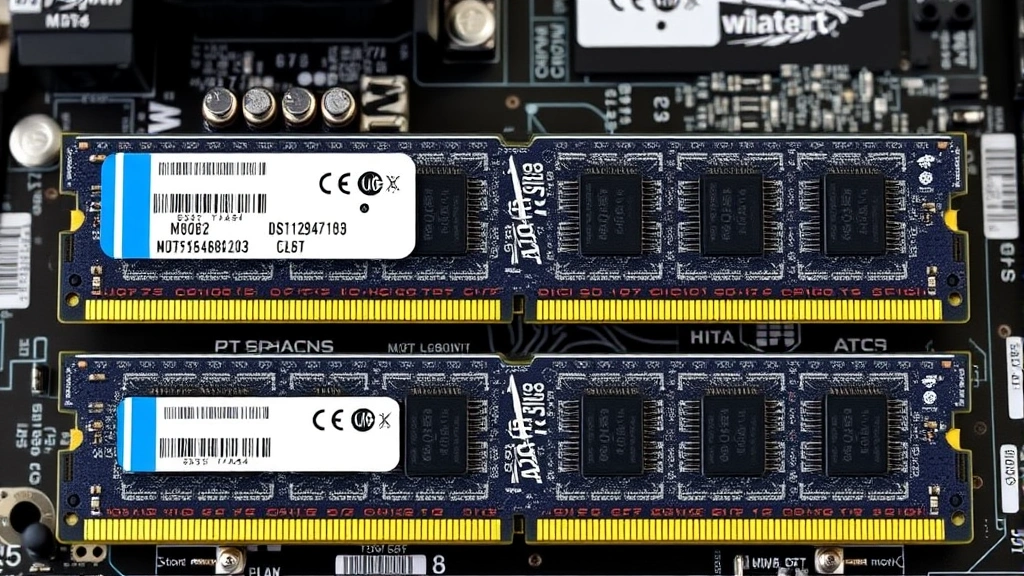
Device Manager offers another native Windows approach to discover how to check what motherboard you have. Right-click the Start button, select “Device Manager,” and look for “System devices” in the list. Expand this category to find entries related to your chipset, which often indicates your motherboard model. While Device Manager may not always display the exact model name, it provides chipset information that helps identify your board.
This method is particularly useful when combined with other techniques. You might see entries like “Intel Z790 Chipset” or “AMD X870 Chipset,” which narrows down your motherboard’s generation and capabilities. Cross-referencing this chipset information with your manufacturer helps confirm your exact model.
What to look for in Device Manager:
- System devices section (expand the arrow)
- Chipset controller entries
- PCI bus or bridge information
- ACPI Power Management controller
Method 3: Using CPU-Z Software
CPU-Z is a free, lightweight utility that provides comprehensive hardware information, including detailed motherboard specifications. Download CPU-Z from a trusted source like CNET, install it, and launch the application. Click the “Mainboard” tab to see your motherboard model, chipset, BIOS version, and other critical details. This tool is particularly valuable because it displays information in an organized, easy-to-read format.
CPU-Z is trusted by millions of users and provides accurate hardware detection. The software is portable, meaning you can run it without installation, and it requires minimal system resources. Professional technicians and enthusiasts frequently use CPU-Z to verify hardware configurations and check what motherboard they have when troubleshooting compatibility issues.
Information CPU-Z displays:
- Exact motherboard model and manufacturer
- Chipset details (North Bridge and South Bridge)
- BIOS version and date
- Supported CPU sockets
- Manufacturing specifications
Method 4: Physical Inspection of Your Motherboard
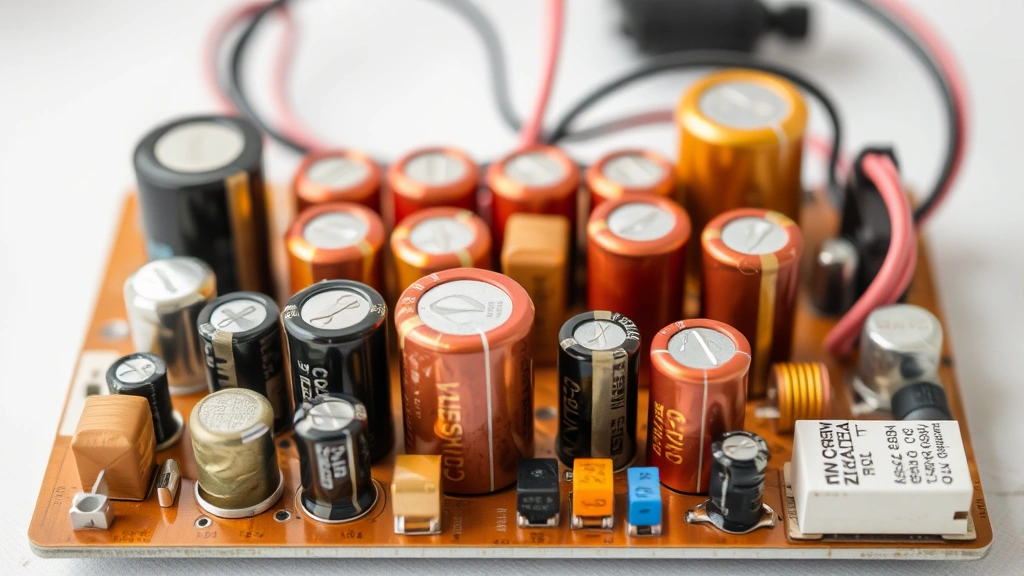
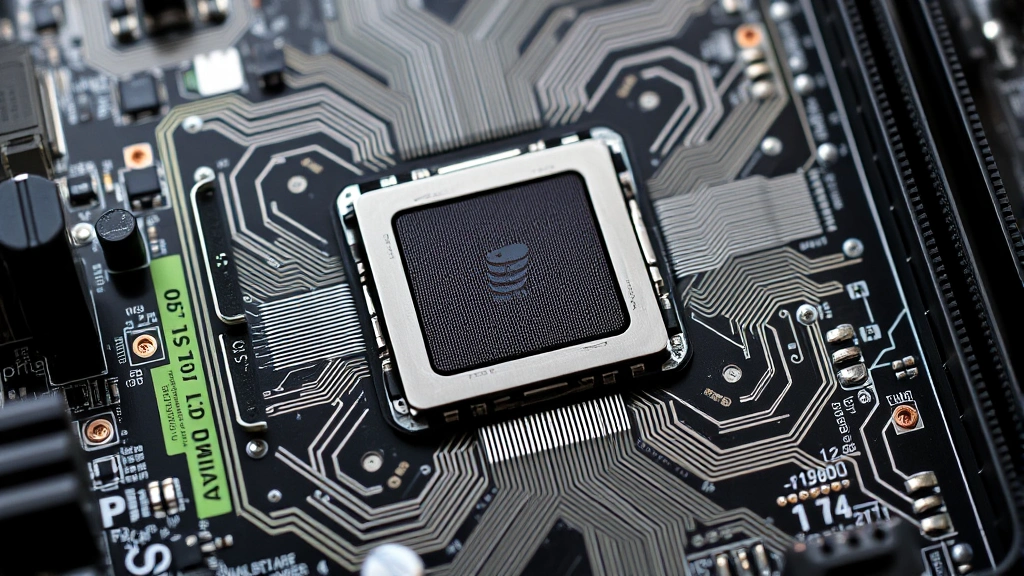
If you’re comfortable opening your computer case, physical inspection provides definitive confirmation of how to check what motherboard you have. Power down your computer completely, unplug all cables, and press the power button several times to discharge residual electricity. Open your case carefully (consult your manual for specific instructions), and locate your motherboard—it’s the large circuit board with numerous components attached.
The motherboard model is typically printed on the board itself in large text. Look for text near the CPU socket or along the edges of the board. You’ll see the manufacturer name (ASUS, MSI, Gigabyte, ASRock) followed by the model designation (like “ROG STRIX Z790-E”). Take a photo with your phone for reference, then carefully reassemble your computer. This method is foolproof but requires basic comfort with computer hardware.
Safety precautions for opening your case:
- Shut down completely and unplug all power cables
- Press the power button 5-10 times to discharge static electricity
- Wear an anti-static wrist strap if available
- Avoid touching components unnecessarily
- Document the location of all cables before disconnecting
- Allow the system to cool for 15 minutes before opening
Method 5: Check Your BIOS Settings
Your BIOS contains detailed motherboard information that you can access during startup. Restart your computer and repeatedly press the Delete key, F2, or F12 (depending on your manufacturer) during the boot sequence to enter BIOS Setup. Once inside, navigate to the Main or System Information section. Your motherboard model, BIOS version, and other hardware details are displayed here.
The BIOS method is particularly useful because it shows information directly from your system firmware. Different manufacturers use different key combinations—ASUS typically uses Delete, MSI uses Delete or F2, and Gigabyte uses Delete. If you’re unsure which key to press, watch your screen during startup for the prompt “Press [Key] to enter Setup.”
BIOS navigation tips:
- Restart and watch for the setup prompt
- Press the indicated key repeatedly (not held down)
- Use arrow keys to navigate menus
- Look for “System Information” or “Main” tab
- Do not change any settings—only view information
- Press Escape or F10 to exit without saving
Identifying Your Motherboard After Discovery
Once you’ve discovered your motherboard model using any of these methods, you have the information needed for several important tasks. Visit the manufacturer’s website and search for your exact model to download the latest drivers, BIOS updates, and documentation. Understanding your motherboard specifications helps when checking CPU temperature or planning hardware upgrades, as different motherboards support different processors and RAM configurations.
Your motherboard model number reveals critical compatibility information. For example, if your motherboard is an ASUS ROG STRIX Z790-E, you know it supports Intel’s 12th and 13th generation processors, DDR5 RAM, and PCIe 5.0 devices. This information is essential before purchasing new components. According to Family Handyman, knowing your exact hardware specifications prevents costly compatibility mistakes.
What to do with your motherboard information:
- Download official drivers from the manufacturer’s support page
- Check maximum RAM capacity and supported speeds
- Verify CPU compatibility before upgrading
- Identify available expansion slots and connectors
- Register your product for warranty information
- Access BIOS updates for stability and security improvements
Common Motherboard Brands & What They Mean
Understanding major motherboard manufacturers helps contextualize your discovery. ASUS is the world’s largest motherboard manufacturer, known for high-quality components and extensive driver support. Their ROG (Republic of Gamers) line targets enthusiasts and gamers, while ProArt boards serve content creators. MSI offers competitive products across all price ranges, with MPG boards for gaming and MEG for extreme overclocking.
Gigabyte provides reliable motherboards with strong BIOS features and customer support. ASRock, the budget-friendly subsidiary of ASUS, delivers excellent value without sacrificing quality. Knowing your manufacturer helps you navigate their support pages and understand the target market for your board. Premium boards typically offer better power delivery, cooling solutions, and feature sets compared to budget alternatives.
Motherboard manufacturer characteristics:
- ASUS: Premium quality, excellent drivers, extensive documentation
- MSI: Competitive pricing, strong gaming focus, good BIOS features
- Gigabyte: Reliable performance, comprehensive support, good value
- ASRock: Budget-friendly, surprising feature sets, solid quality
- Lesser-known brands: Usually OEM (original equipment manufacturer) boards in prebuilt systems
Troubleshooting: When You Can’t Find Your Motherboard Info
If standard methods don’t reveal your motherboard model, try alternative approaches. For prebuilt systems from Dell, HP, or Lenovo, check the manufacturer’s support website using your service tag or serial number—they maintain detailed hardware records. If your system is very old or uses an uncommon motherboard, search your BIOS information online or contact the system manufacturer’s support team directly.
Sometimes Windows System Information displays generic entries instead of specific model numbers, particularly in prebuilt systems. In these cases, CPU-Z usually provides accurate information. If CPU-Z also fails, physical inspection becomes necessary. You might also try command-line tools like “wmic baseboard get product” in Windows Command Prompt, which sometimes displays information that the GUI tools miss.
If you’re still struggling, consider HowStuffWorks for additional troubleshooting guidance. Online computer forums and communities like Reddit’s r/buildapc are also excellent resources when you have unusual hardware configurations.
Alternative troubleshooting steps:
- Use command-line tool: wmic baseboard get product
- Check your original purchase receipt or warranty documentation
- Contact your system manufacturer with your service tag
- Try third-party tools like GPU-Z or HWiNFO64
- Search online forums with your partial hardware information
- Visit the manufacturer’s support page with your service tag
FAQ
Q: Why do I need to know my motherboard model?
A: Knowing your motherboard model is essential for finding compatible drivers, planning hardware upgrades, troubleshooting compatibility issues, and accessing manufacturer support. It’s the foundation of understanding your system’s capabilities and limitations.
Q: Is it safe to open my computer case to check the motherboard?
A: Yes, opening your case is safe if you follow proper precautions. Power down completely, unplug all cables, discharge static electricity, and avoid touching components unnecessarily. Most modern computers are designed for user-serviceable components.
Q: Can I check my motherboard without opening my computer?
A: Absolutely. Windows System Information, Device Manager, CPU-Z, and BIOS Setup all display motherboard information without opening your case. Physical inspection is optional and only necessary if software methods fail.
Q: What’s the difference between chipset and motherboard model?
A: The chipset (like Z790 or X870) is a component on the motherboard that determines core functionality. The motherboard model (like ASUS ROG STRIX Z790-E) is the complete board with specific features, power delivery, and design. Your motherboard model includes the chipset but is more specific.
Q: How often should I update my motherboard drivers?
A: Check for driver updates quarterly or when experiencing hardware issues. Major updates are usually released annually. Once you know how to check what motherboard you have, visiting the manufacturer’s support page monthly takes only minutes.
Q: Can I use this information for warranty claims?
A: Yes. Your motherboard model and serial number are crucial for warranty claims. Keep this information documented along with your original receipt. Most manufacturers allow registration on their websites using your motherboard model.
Q: What if my motherboard model doesn’t appear in any search results?
A: This typically indicates an OEM board or very old hardware. Search using your chipset information instead, or contact your system manufacturer directly. Prebuilt system manufacturers maintain detailed hardware records indexed by service tag.
Q: Does knowing my motherboard help with gaming performance?
A: Indirectly. Your motherboard’s power delivery, cooling, and BIOS features affect CPU and GPU performance. Premium gaming motherboards provide better stability for overclocking and feature robust power management, which is why identifying your specific model matters when optimizing performance.