How to BCC in Outlook: Essential Tips for Easy Emails
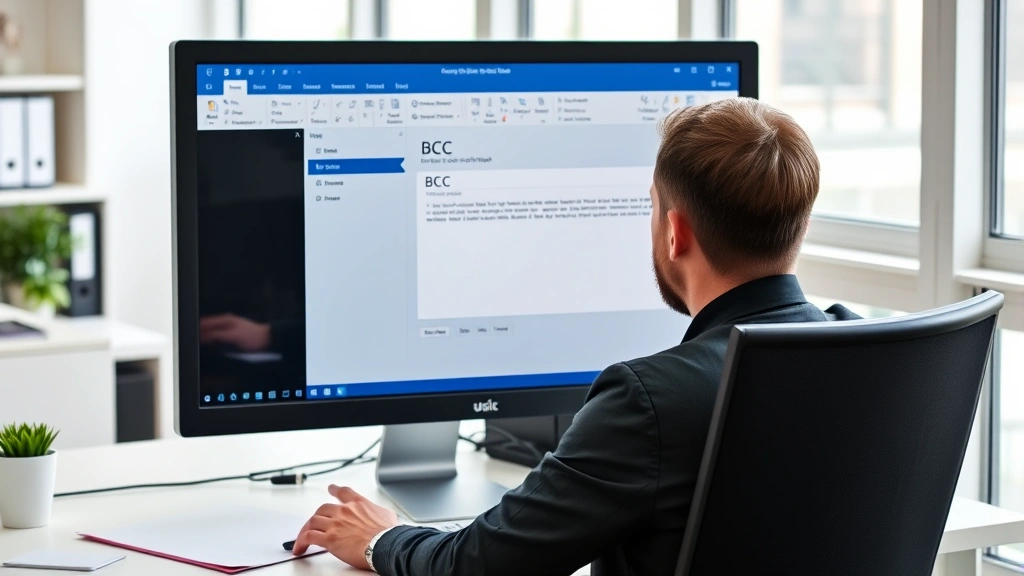
Sending emails to multiple recipients without revealing everyone’s addresses is a common need in professional and personal communication. Learning how to BCC in Outlook is one of the most important email management skills you can master. BCC, which stands for “Blind Carbon Copy,” allows you to send messages to additional recipients without showing their email addresses to other recipients on the message.
Quick Answer: To BCC in Outlook, open a new email, click the “BCC” button in the message composition area (or press Ctrl+Shift+B on Windows), enter recipient addresses in the BCC field, and send as normal. If you don’t see the BCC option, enable it through the ribbon or options menu. This simple feature protects recipient privacy and maintains professional email etiquette across all Outlook versions.
Tools & Materials You’ll Need
- Outlook (desktop version, web version, or mobile app)
- Valid email addresses for BCC recipients
- Contact list or address book (optional but helpful)
- Basic understanding of email composition
- Access to your Outlook settings or preferences
What is BCC and Why You Need It
BCC is a critical feature in email communication that protects the privacy of recipients. When you use how to BCC in Outlook, you’re sending a copy of your email to additional people without revealing their addresses to the main recipients or to each other. This differs from CC (Carbon Copy), where all recipients can see who else received the message.
Understanding when and why to use BCC is essential for professional communication. Common scenarios include sending newsletters to large groups, forwarding sensitive information to select individuals, or protecting the privacy of multiple recipients who don’t need to know about each other. According to WikiHow’s comprehensive email guides, proper use of BCC demonstrates email etiquette and respects recipient privacy.
The practical benefits of learning how to BCC in Outlook include reducing email clutter, preventing “reply all” chaos, maintaining confidentiality, and complying with privacy regulations like GDPR. When you BCC someone, they receive the email but their address remains hidden from all other recipients, making it ideal for administrative notifications or sensitive communications.
How to Enable BCC in Outlook
Many users don’t see the BCC option immediately when composing an email in Outlook. The method to enable it depends on your Outlook version. In Outlook 2019, 2021, and Microsoft 365 desktop versions, the BCC field is typically hidden by default to simplify the compose interface.
For Outlook Desktop (Windows): Open a new email message, look at the ribbon at the top, and click the “Options” tab. In the “Show Fields” section, you’ll find the “BCC” button. Click it to reveal the BCC field in your compose window. Once enabled, the BCC field will remain visible for future emails in that session.
For Outlook Desktop (Mac): Click “Message” in the menu bar while composing an email, then select “BCC Recipients” from the dropdown. This toggles the visibility of the BCC field. Alternatively, use the keyboard shortcut Command+Shift+B to quickly enable the BCC field.
If you’re using an older version of Outlook, the process may differ slightly. You might need to access the View menu or right-click on the compose area to find the option to show BCC. The key is that how to BCC in Outlook starts with making sure the field is visible in your compose window.
Step-by-Step: Sending an Email with BCC
Now that you understand what BCC is and how to enable it, let’s walk through the complete process of sending an email using the BCC feature in Outlook.
- Open a new email message: Click “New Email” or press Ctrl+N to start composing a message.
- Enable the BCC field: If not already visible, click the “Options” tab and select “BCC” to display the field.
- Fill in the To field: Enter the primary recipient’s email address. This person will see their own address and any CC recipients, but not BCC recipients.
- Add CC recipients (optional): If you want some recipients to be visible to all others, enter their addresses in the CC field.
- Enter BCC recipients: Click in the BCC field and type the email addresses of people who should receive the email privately. You can enter multiple addresses separated by semicolons.
- Compose your message: Write your subject line and email body as you normally would.
- Review before sending: Double-check that you’ve entered the correct addresses in each field, especially the BCC field since recipients won’t see each other.
- Click Send: Press Ctrl+Enter or click the Send button to deliver your email to all recipients.
The beauty of learning how to BCC in Outlook is that the process is straightforward once you know where to find the BCC field. All recipients will receive your message, but only the person in the To field and CC field will see the complete recipient list.

BCC Best Practices and Etiquette
Understanding how to BCC in Outlook is one thing, but using it appropriately is another. Email etiquette dictates that you should use BCC thoughtfully and transparently when possible. Never use BCC to hide important information from people who should know about it, as this can damage trust and professional relationships.
Best practices for BCC usage include:
- Use BCC for newsletters or mass communications where recipients don’t need to see each other’s addresses
- BCC your manager or supervisor when appropriate for record-keeping, but consider whether they truly need to be hidden
- Never BCC someone to secretly monitor conversations or gather information deceptively
- Avoid BCC when collaboration or transparency is important to the email’s purpose
- Use BCC to protect sensitive personal information like home addresses or phone numbers
- When BCC’ing multiple people, ensure your message makes sense for all recipients
- Document your use of BCC if it relates to compliance or legal matters
According to Lifehacker’s communication guides, proper email etiquette means being transparent about your use of BCC when it affects business relationships. If you’re BCC’ing someone for legitimate reasons like archival or oversight, it’s often better to mention it upfront rather than hide it completely.
When learning how to BCC in Outlook, remember that this feature exists to protect privacy and maintain professional standards, not to deceive. Use it responsibly to build trust and credibility in your professional communications.
Using BCC on Outlook Mobile
The Outlook mobile app for iOS and Android has made it easier than ever to manage your emails on the go. Learning how to BCC in Outlook on mobile devices follows a similar process to the desktop version, with slight interface differences.
For Outlook Mobile (iOS): Open the Outlook app, tap the compose button (pencil icon), and start creating a new email. Tap the “To” field to see additional options including “CC” and “BCC.” Select “BCC” to add hidden recipients. Enter their email addresses, compose your message, and send as normal.
For Outlook Mobile (Android): Open the Outlook app and tap the compose button. Tap on the recipient field, and you’ll see options to add “To,” “CC,” and “BCC” recipients. The BCC option is typically visible by default on Android, making it even easier to implement this feature on mobile devices.
The mobile interface for how to BCC in Outlook is intuitive and requires fewer steps than the desktop version. This makes it convenient to send private emails even when you’re away from your computer. However, be extra careful when using BCC on mobile devices, as the smaller screen can make it easier to accidentally select the wrong recipient.
One advantage of using BCC on mobile is that you can quickly send emails to multiple people without creating a lengthy recipient list that clutters your compose window. This is particularly useful for business professionals who send frequent emails from their smartphones or tablets.
BCC in Outlook Web Access
Outlook Web Access (OWA), also known as Outlook on the web, is the browser-based version of Outlook that you can access from any device with internet connectivity. The process for how to BCC in Outlook web version is slightly different from the desktop application.
To use BCC in Outlook Web: Sign into your Outlook account through a web browser, click “New Message” to start composing an email. In the compose window, you’ll see the “To” field. Click on the “To” field or look for a dropdown arrow that reveals additional recipient options including “CC” and “BCC.” Click “BCC” to add hidden recipients, enter their email addresses, and proceed with composing your message as usual.
The web version of Outlook makes the BCC feature readily accessible without requiring you to enable it through menu options. This is one advantage of using Outlook on the web compared to the desktop application. The interface is clean and intuitive, making it easy to understand where each recipient field goes.
Many professionals prefer using how to BCC in Outlook through the web interface when they’re working from multiple computers or devices. Since OWA stores your emails in the cloud, you have access to all your messages and folders regardless of where you’re working. This flexibility makes BCC functionality consistent across all your devices.
Troubleshooting BCC Issues
Sometimes users encounter problems when trying to use how to BCC in Outlook. Understanding common issues and their solutions can save you time and frustration.
Problem: BCC field doesn’t appear even after clicking Options: Try closing and reopening Outlook, or restart your computer. In some cases, the application needs to refresh to display all interface elements properly. If the problem persists, check that you’re using the latest version of Outlook by going to File > Office Account > Update Options.
Problem: BCC recipients are receiving duplicate emails: This sometimes happens if you have rules or forwarding set up in your account. Check your email rules by going to File > Manage Rules & Alerts and review any automated forwarding that might be causing duplicates.
Problem: Recipients can see BCC addresses: This is rare but can happen if your email is forwarded or if recipients use “Reply All.” Remind recipients not to use Reply All when responding to emails sent with BCC recipients. You can also add a note in your email explaining the BCC usage if necessary.
Problem: BCC field shows in compose but emails aren’t sending to BCC recipients: Verify that you’ve entered valid email addresses in the BCC field. Check for typos, extra spaces, or formatting errors. If addresses are correct, try clearing your Outlook cache by restarting the application.
As noted by HowStuffWorks’ technology troubleshooting section, most email issues can be resolved by updating your software and checking your account settings. If problems persist, contact your IT department or Microsoft support for additional assistance.
FAQ
Q: Can BCC recipients see that they were BCC’d?
A: No, BCC recipients cannot see that they were BCC’d, nor can they see other BCC recipients. They receive the email just like regular recipients, but without knowing who else received it. This is the primary purpose of the BCC feature.
Q: What’s the difference between BCC and CC?
A: CC (Carbon Copy) recipients are visible to all other recipients, while BCC (Blind Carbon Copy) recipients are hidden. Use CC when you want transparency about who’s receiving the email, and BCC when you want to protect recipient privacy.
Q: Is it unethical to use BCC?
A: No, BCC is a legitimate feature designed for privacy protection. However, it’s unethical to use BCC deceptively to spy on conversations or hide information from people who should know about it. Use BCC transparently and for legitimate purposes.
Q: Can I use BCC in Outlook on my phone?
A: Yes, both iOS and Android versions of Outlook support BCC functionality. The process is similar to the desktop version but adapted for mobile interfaces.
Q: How many people can I BCC on a single email?
A: Most email providers, including Outlook, allow you to BCC dozens or even hundreds of recipients on a single email. However, for very large mailing lists, consider using a dedicated mailing list feature or email marketing service for better performance.
Q: Will BCC recipients see my other BCC recipients if they reply?
A: No, if a BCC recipient replies to your email, they’re only replying to you (the sender), not to all recipients. This is another privacy protection built into the BCC feature.
Q: Can I recall an email after sending it with BCC?
A: Yes, Outlook has a recall feature that works with BCC emails. Learn more about this in our guide on how to recall an email in Outlook, which covers the recall process in detail.
Q: Should I use BCC for business emails?
A: Yes, BCC is appropriate for many business scenarios including newsletters, administrative notifications, and sensitive communications. However, avoid using BCC in situations where transparency and collaboration are important.
Q: How do I set up an automatic BCC for all outgoing emails?
A: In Outlook desktop, go to File > Options > Mail > Compose messages, and look for forwarding or archival options. You can also use rules to automatically BCC specific types of emails to a particular address.
Understanding how to BCC in Outlook is a valuable skill that enhances your email management capabilities. Whether you’re sending newsletters, protecting recipient privacy, or managing professional communications, the BCC feature provides a simple solution. For additional email management tips, check out our guide on how to set out of office in Outlook to learn how to manage your email presence when you’re away.
By mastering this feature and following best practices, you’ll communicate more professionally and protect the privacy of your email recipients. The process of learning how to BCC in Outlook takes just minutes, but the benefits will serve you throughout your professional career. Start using BCC today to enhance your email management and demonstrate your commitment to email etiquette and privacy protection.
For more information on email best practices, consult Family Handyman’s communication guides or Consumer Reports’ technology reviews for comprehensive coverage of email management tools and techniques.