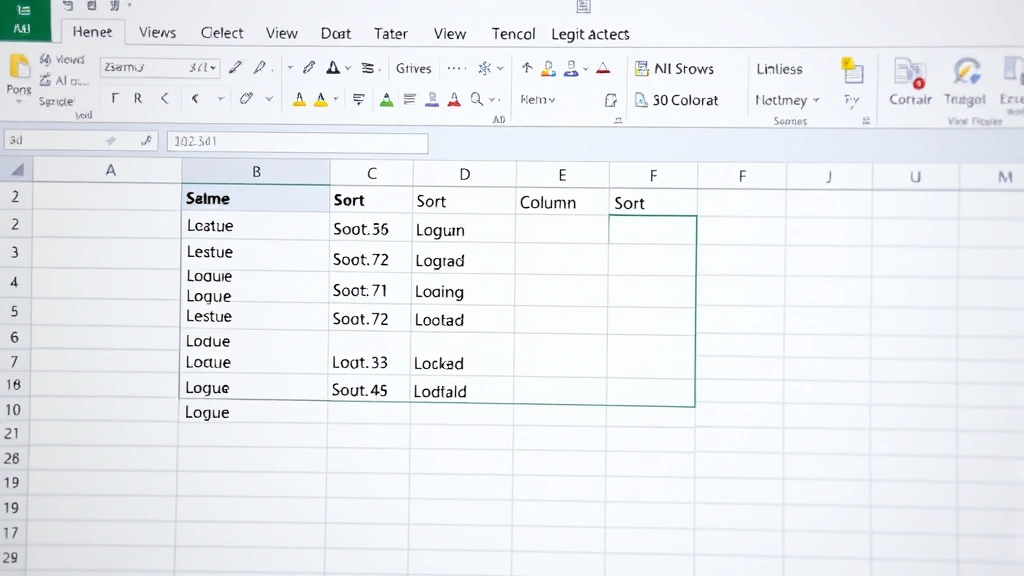
How to Alphabetize in Excel: Essential Tips for Easy Success
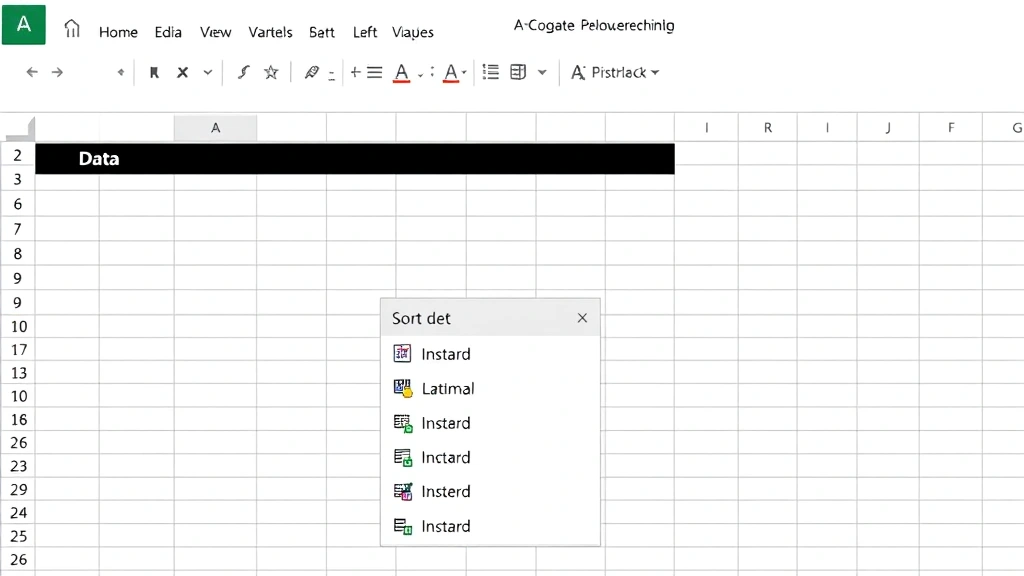
Sorting data alphabetically in Excel is one of the most fundamental skills for organizing spreadsheets efficiently. Whether you’re managing customer lists, inventory databases, or project names, knowing how to alphabetize in Excel saves time and keeps your data clean and accessible. This guide walks you through every method—from simple A-Z sorts to complex multi-column arrangements—so you can master alphabetization like a pro.
The quick answer: Select your data range, click the Data tab, choose Sort A to Z (or Sort Z to A), and Excel instantly alphabetizes your content. For more control, use the advanced sort dialog to handle multiple columns and preserve data relationships.
Tools & Materials You’ll Need
- Microsoft Excel (any recent version: 2016, 2019, 2021, or Office 365)
- A spreadsheet with data to alphabetize
- Basic understanding of selecting cells and ranges
- Optional: helper columns for complex sorting scenarios
Basic A-Z Alphabetical Sort
The simplest way to alphabetize in Excel starts with selecting your data. Click on any cell within the column you want to sort, then navigate to the Data tab on the ribbon. You’ll see sorting buttons that make alphabetizing in Excel incredibly straightforward. The Sort A to Z button arranges your data in ascending alphabetical order, while Sort Z to A reverses the order.
For best results when alphabetizing in Excel, select the entire data range including headers. If you have multiple columns, Excel is smart enough to keep related data together. For example, if you have customer names in column A and their phone numbers in column B, sorting by names will automatically rearrange the phone numbers to stay with the correct customer.
Click the Sort A to Z button and watch Excel instantly alphabetize your column. This method works perfectly for single-column datasets or when you want to sort by the first column only. The process takes seconds and requires no advanced settings or formula knowledge.

Advanced Sort with Multiple Columns
When you need more control over how to alphabetize in Excel, the advanced sort dialog is your best friend. Select your entire data range (including headers), then click Data > Sort (not the quick A-Z button). This opens a dialog where you can specify multiple sort levels.
In the dialog, set your primary sort column—this is the column you want to alphabetize first. Then add secondary and tertiary sort levels if needed. For instance, you might alphabetize by last name first, then by first name second. This creates a perfectly organized employee or customer list. Each sort level can be ascending (A-Z) or descending (Z-A), giving you complete flexibility.
The advanced sort dialog also includes a checkbox for “My data has headers.” Always check this box if your first row contains column titles, as it prevents Excel from sorting your headers into the data. This is crucial for maintaining spreadsheet integrity when alphabetizing in Excel with professional datasets.
According to WikiHow’s comprehensive guides, proper data organization starts with understanding sort hierarchies. By mastering multi-column sorting, you’ll handle even complex datasets with confidence.
Preserving Data Relationships During Sorting
One of the biggest concerns when learning how to alphabetize in Excel is accidentally breaking data relationships. Imagine sorting a customer list by name but forgetting to include the email column—you’d end up with mismatched data. To prevent this, always select your entire data range before sorting.
Excel’s default behavior is to keep entire rows together when you alphabetize in Excel. When you select a range and sort, every column in that range moves together, maintaining the relationship between names, emails, phone numbers, and other linked information. This is why selecting the full dataset—not just one column—is essential.
If you’re working with headers, Excel recognizes them and excludes them from the sort automatically (when you check the “My data has headers” option). This prevents your column titles from getting shuffled into the data. For complex spreadsheets with multiple data sections, consider freezing rows in Excel to keep headers visible while you work, or locking rows in Excel to prevent accidental modifications.
Custom Sort Orders and Case Sensitivity
Excel’s default alphabetization treats uppercase and lowercase letters the same way, which works fine for most situations. However, if you need case-sensitive sorting, you’ll need to use a different approach. The standard sort function in Excel doesn’t offer a case-sensitive option directly, but you can work around this using helper columns with formulas.
For custom sort orders, Excel allows you to create custom lists. If you have categories that don’t follow alphabetical order (like “High, Medium, Low” or “Q1, Q2, Q3, Q4”), you can define these as custom lists and sort by them. Access custom lists through File > Options > Advanced > Edit Custom Lists. This is particularly useful when you need to alphabetize in Excel while maintaining non-alphabetical priority sequences.
When sorting mixed data types, Excel places numbers before letters. If your data contains both numbers and text, be aware that “1” will appear before “A” even though you’re alphabetizing. Plan your data structure accordingly, or use helper columns to separate numeric and alphabetic data before sorting.
Common Sorting Problems and Solutions
Problem: Only part of your data sorted. This happens when you select just one column instead of the entire range. Solution: Click anywhere in your data, then use Data > Sort to let Excel automatically detect your full data range. Always verify the selection includes all related columns.
Problem: Headers got mixed into your sorted data. You forgot to check “My data has headers” in the sort dialog. Solution: Press Ctrl+Z to undo, reopen the sort dialog, and enable the headers checkbox. When alphabetizing in Excel with properly formatted data, this prevents headers from being treated as data.
Problem: Numbers aren’t sorting correctly (“10” appears before “2”). Excel is treating numbers as text. Solution: Format the column as numbers before sorting, or use a helper column with the VALUE function to convert text numbers to actual numbers. This is especially important when alphabetizing in Excel with numeric data mixed in.
Problem: Special characters and accents sort unexpectedly. Excel follows a specific collation order for special characters. Solution: If you need precise control over how special characters sort, use the advanced sort dialog and test your results. For critical datasets, consider removing or standardizing special characters before sorting.
If you’re dealing with duplicate entries while alphabetizing, you might want to find duplicates in Excel first to clean your data. A clean dataset sorts more predictably and produces better results.
Best Practices for Alphabetizing Large Datasets
When working with large spreadsheets, take these steps before alphabetizing in Excel. First, create a backup copy of your original data. Sorting is reversible with Ctrl+Z, but having a backup provides peace of mind. Second, remove any blank rows or columns that might interfere with sorting.
For massive datasets (thousands of rows), Excel still handles sorting efficiently, but preview your sort settings carefully. Use the sort dialog’s preview feature to confirm your sort levels are correct before applying. When alphabetizing in Excel with sensitive data, double-check that you’re sorting the right column and that all necessary data is included in your selection.
Consider adding a helper column with row numbers before sorting if you might need to restore the original order later. After sorting, you can re-sort by this helper column to return to the original sequence. This is especially useful in financial or audit contexts where data order matters.
If you regularly alphabetize in Excel and need to maintain multiple sort orders, create separate sheets for different views of the same data. This lets you have an alphabetized version and an original-order version without constantly re-sorting. You might also explore adding drop-down lists in Excel to standardize data entry, which makes sorting more reliable by reducing inconsistent entries.
Quick Keyboard Shortcuts for Sorting
Speed up your workflow by learning keyboard shortcuts for alphabetizing in Excel. After selecting your data range, press Alt+D to open the Data menu, then S for Sort. This opens the sort dialog much faster than clicking through the ribbon, especially useful when you’re alphabetizing in Excel repeatedly throughout your day.
Unfortunately, Excel doesn’t have a direct keyboard shortcut for the quick A-Z sort button, but using the menu shortcut above is nearly as fast. On Mac, the equivalent is Cmd+Option+R for sort ascending, though this varies by Excel version.
Pro tip: Learn to use Ctrl+Shift+End to select from your current position to the last cell with data. This ensures you capture your entire dataset before sorting, preventing the common mistake of partial sorting. Combine this with the sort dialog shortcut, and you’ll alphabetize in Excel like an expert in seconds.
FAQ
Can I alphabetize in Excel without selecting the data first? Yes, if you click on any cell within your data range and use the sort dialog, Excel will auto-detect your data range. However, manually selecting ensures you’re sorting exactly what you intend.
Does alphabetizing in Excel work with filtered data? Yes, sorting filtered data sorts only the visible rows. The hidden rows remain in their original position. If you want to sort all data, remove filters first.
What’s the difference between Sort A to Z and the Sort dialog? Sort A to Z quickly sorts by the selected column in ascending order. The sort dialog offers more control, including multiple sort levels, custom orders, and header handling options.
Can I undo a sort if I make a mistake? Absolutely. Press Ctrl+Z immediately after sorting to restore your previous data order. Excel maintains undo history for multiple steps.
How do I alphabetize in Excel while keeping certain rows at the top? Use the sort dialog and check “My data has headers” to keep headers fixed. For other rows you want to keep at the top, manually move them after sorting, or use a helper column with numbers to control sort order.
Does alphabetizing in Excel affect formulas? No, formulas adjust automatically when rows move. Cell references update to maintain the formula’s relationship to the data.
As reviewed by Family Handyman’s organizational guides, proper data management starts with understanding your tools. Excel sorting is just the beginning—combine it with skills like locking cells in Excel to protect important data after organizing it.
For additional resources on data organization, HowStuffWorks provides detailed tutorials on spreadsheet management. Whether you’re alphabetizing in Excel for personal projects or professional datasets, these fundamental techniques will serve you well throughout your career.