How to Add a Line in Word: Easy & Essential Guide
Adding lines in Microsoft Word is one of the most fundamental formatting skills you’ll need, whether you’re creating forms, organizing documents, or simply improving visual structure. Learning how to add a line in Word takes just seconds, and mastering the various methods gives you professional-looking documents instantly. From simple horizontal lines to decorative borders, Word offers multiple straightforward approaches that work on both Windows and Mac versions.
Quick Answer: The fastest way to add a line in Word is using the keyboard shortcut: type three hyphens (—) or three underscores (___) and press Enter. For more control, use the Insert menu → Shapes → Line tool, or apply borders through the Design tab. Each method serves different purposes depending on your document needs.
Tools & Materials You’ll Need
- Microsoft Word (any recent version: 2019, 2021, or Microsoft 365)
- A computer with Windows or Mac operating system
- Basic keyboard access
- Optional: drawing tablet for custom line angles
The Keyboard Shortcut Method (Fastest)
The absolute quickest way to add a line in Word is using the automatic line feature built into the software. This method requires zero menu navigation and works consistently across all Word versions. Simply position your cursor where you want the line to appear, then type three consecutive hyphens (—) or three underscores (___) on a blank line and press Enter.
Word automatically converts these characters into a full-width horizontal line that spans the page. This technique is perfect for separating sections, creating visual breaks, or quickly dividing your document into distinct areas. The line appears immediately after you press Enter, and you can continue typing below it. According to WikiHow’s comprehensive guides, this auto-formatting feature is one of Word’s most underutilized productivity tools.
Pro tip: If you don’t want the automatic line to form, immediately press Ctrl+Z to undo it. You can also disable this feature in Word settings if you frequently type multiple hyphens for other purposes. For creating multiple lines quickly, repeat this process on separate paragraphs throughout your document.
This method works best when you need simple, clean horizontal lines without customization. It’s ideal for resumes, form templates, and professional documents where consistency matters. The line automatically adjusts to your page margins, so you don’t need to worry about manual sizing.

Using Insert Shapes to Add Lines
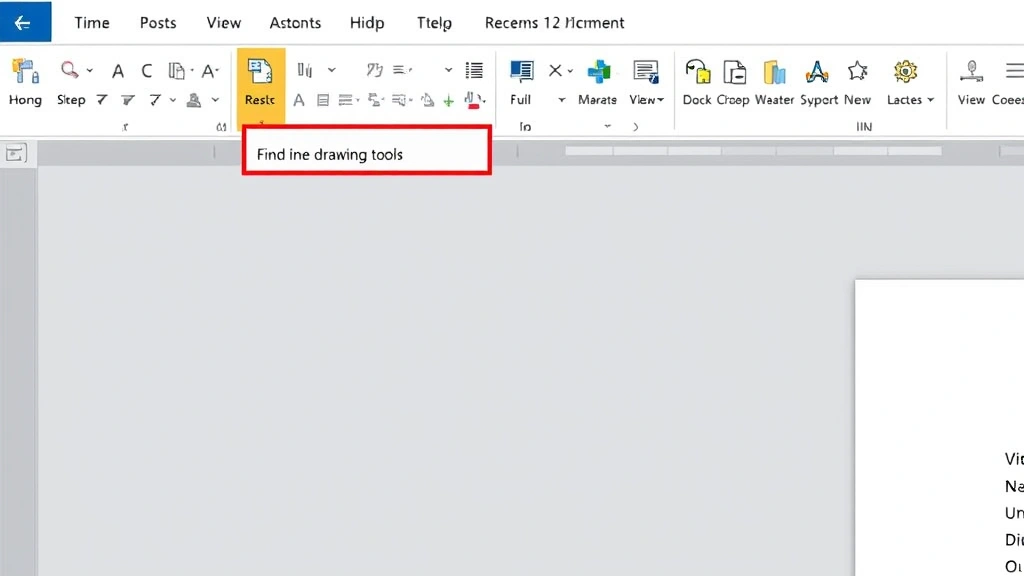
For greater control over line placement, angle, and appearance, the Insert Shapes method gives you professional-grade customization options. Navigate to the Insert tab in the ribbon menu, then click Shapes in the Illustrations group. A dropdown menu appears showing various shape options, including a Line tool near the top of the list.
Click the Line option, and your cursor transforms into a crosshair. Click and drag on your document to draw a line at any angle or length you prefer. This method lets you create diagonal lines, curved paths, or lines positioned exactly where you want them. Release the mouse button to complete the line, and it becomes a selectable object you can move, resize, or format further.
The Insert Shapes method also provides access to connector lines, which are particularly useful for flowcharts and organizational diagrams. You can hold Shift while dragging to constrain lines to perfectly horizontal, vertical, or 45-degree angles. As noted by The Spruce’s design resources, precise line placement significantly improves document aesthetics and readability.
Once you’ve drawn a line using this method, right-click it to access formatting options. You can change the color, thickness, style (solid, dashed, dotted), and add arrowheads if needed. This flexibility makes the Insert Shapes method ideal for technical documents, diagrams, and creative layouts where how to add a line in Word requires artistic control.
Adding Lines Through Borders
The Borders method is perfect when you want to add lines around paragraphs, tables, or text boxes. This approach integrates lines directly into your document structure rather than treating them as separate objects. Select the text or paragraph where you want lines to appear, then navigate to the Home tab and locate the Borders button in the Paragraph group.
Click the dropdown arrow next to Borders to reveal options including Top Border, Bottom Border, Left Border, Right Border, and All Borders. You can select any combination of these options to create custom line configurations around your selected content. This method is particularly effective for highlighting important information, creating text boxes, or emphasizing specific paragraphs.
For more advanced border customization, click “Borders and Shading” at the bottom of the dropdown menu. This opens a dialog box where you can specify line style, color, width, and exact placement. You can create decorative borders with different line styles on each side, or apply shadow and 3D effects for visual depth. This technique works seamlessly with tables, making it invaluable for document organization and data presentation.
The Borders method ensures your lines stay attached to specific content. If you move or copy that text, the lines move with it, maintaining your document’s structural integrity. This approach is superior to manual line insertion when you’re working with content that might be edited or repositioned later.
Creating Paragraph Lines for Forms
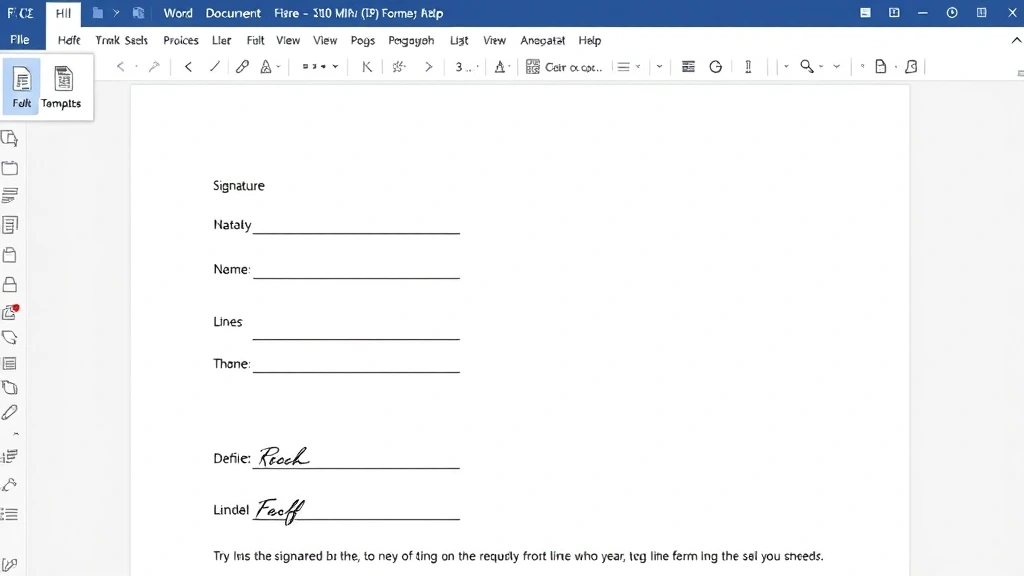
When creating fillable forms or documents requiring signature lines, the paragraph line technique is essential. This method uses the bottom border feature to create lines specifically designed for writing spaces. Select the paragraph where you want the line to appear, go to Home → Borders, and choose “Bottom Border.”
To make form lines more visible and professional, adjust the line weight before applying it. In the Borders and Shading dialog, increase the width to 1.5pt or 2.25pt for prominent, easy-to-see lines. You can also choose line styles like double lines or decorative patterns for specialized forms. This creates the classic underline effect used in official documents, applications, and legal paperwork.
For signature lines specifically, add extra space by increasing the paragraph’s line spacing or adding blank lines within the paragraph. This gives people adequate room to sign or write their information. You can also add text before the line, like “Signature: _______________” to clarify what should be written. This technique is widely used in HR documents, contracts, and medical forms where clear writing spaces are critical.
The paragraph line method maintains consistent spacing and alignment throughout your document. When you need multiple identical lines (like in a checklist or survey), simply copy the formatted paragraph and paste it repeatedly. This ensures all lines match perfectly in style, weight, and length, creating a polished, professional appearance.
Formatting & Customizing Your Lines
Once you’ve added a line to your Word document, extensive formatting options let you customize its appearance to match your design needs. Right-click any line object (created via Insert Shapes) to access the Format Shape menu, where you can modify color, transparency, line weight, and style. Change the color by selecting a preset option or creating a custom color that matches your document’s color scheme.
Line weight (thickness) dramatically affects your document’s visual impact. Thin lines (0.5pt to 1pt) work well for subtle divisions, while thicker lines (2pt to 4pt) create bold, emphatic separations. Dashed or dotted line styles add visual interest and work particularly well in creative documents, informal layouts, or when you want a softer aesthetic than solid lines provide. Experiment with different combinations to find the style that best suits your document’s purpose.
For lines created through borders, access formatting through the Borders and Shading dialog. Here you can apply shadow effects, 3D appearance, or gradient fills for decorative borders. You can also set precise measurements for line spacing from your text, ensuring professional alignment and readability. These customization options make it easy to create branded documents that reflect your organization’s visual identity.
When working with multiple lines, maintain consistency by using the same formatting across all similar elements. Create a template with your preferred line style so you can quickly apply it to new documents. This consistency strengthens your document’s professional appearance and makes information easier to scan and understand. Learning to format lines effectively is crucial to mastering how to add a line in Word at an advanced level.
Troubleshooting Common Line Issues
Sometimes lines don’t appear as expected or behave unexpectedly in Word. If your keyboard shortcut line didn’t form, ensure you used exactly three hyphens or underscores on a completely blank line, with nothing before or after them. If it still doesn’t work, check that AutoFormat is enabled in Word Options under Proofing → AutoCorrect Options → AutoFormat As You Type.
If a line appears but seems to have disappeared or is hidden behind other content, it might be formatted with white color or placed behind text. Select the line and check its formatting properties. Ensure the line color is set to black or your desired color, and adjust the text wrapping if it’s a shape-based line. Use the Arrange menu to bring lines forward or send them backward relative to other document elements.
When lines don’t span the full page width as expected, check your document’s margins and indentation settings. Lines respect paragraph indentation, so if your paragraph has left or right indentation applied, the line will be shorter. Reset indentation to zero if you want full-width lines, or intentionally use indentation to create shorter lines for specific design effects.
If you’re having trouble selecting a line you’ve drawn, try clicking directly on the line itself rather than near it. Thin lines can be difficult to select; temporarily increase the thickness to make selection easier, then adjust it back down. If a line still won’t select, it might be locked or part of a group. Check the Format menu for lock options or use Ctrl+A to select all objects and then deselect unwanted items.
Advanced Line Techniques
For sophisticated document designs, combine multiple line methods to create complex visual structures. Use borders for text boxes while adding shape lines for decorative elements, creating layered visual hierarchies. This technique works particularly well in newsletters, marketing materials, and professional reports where visual sophistication matters.
Create custom line patterns by combining solid lines with text boxes and shapes. For example, add a solid line, then place a colored shape over it with transparent fill to create a two-tone effect. Experiment with line opacity and layering to achieve subtle visual effects that enhance readability without overwhelming your document. According to HowStuffWorks’ design principles, strategic use of lines guides reader attention and improves information hierarchy.
For documents requiring consistent line formatting across multiple pages, create a custom template with predefined line styles. Use the Developer tab to add form controls that automatically insert formatted lines when clicked. This automation saves time when creating repetitive documents like invoices, contracts, or survey forms. You can also use Quick Tables to store frequently used line configurations for instant insertion.
Advanced users can leverage VBA macros to automate complex line insertion and formatting tasks. Macros let you create custom buttons that insert perfectly formatted lines with a single click, significantly speeding up document creation workflows. This approach is ideal for organizations that regularly create standardized documents with specific line requirements.
FAQ
Q: What’s the easiest way to add a line in Word?
A: Type three hyphens (—) or underscores (___) on a blank line and press Enter. Word automatically converts them into a full-width horizontal line instantly.
Q: Can I add diagonal or curved lines in Word?
A: Yes, use Insert → Shapes → Line and drag at any angle. You can also select curved line options from the Shapes menu for custom curved paths.
Q: How do I make a line for signature spaces in forms?
A: Select the paragraph, go to Home → Borders → Bottom Border. Adjust the line weight in Borders and Shading dialog for a more prominent signature line.
Q: Why isn’t my automatic line appearing?
A: Ensure you typed exactly three hyphens or underscores on a completely blank line. Check that AutoFormat is enabled in Word Options → Proofing → AutoCorrect Options.
Q: Can I change line color and thickness?
A: Yes. Right-click any shape line to access Format Shape, where you can modify color, weight, style, and transparency to your preferences.
Q: How do I add lines around a paragraph?
A: Select the paragraph, go to Home → Borders, and choose which borders you want (top, bottom, left, right, or all). Customize in Borders and Shading dialog.
Q: Can I use lines in tables?
A: Absolutely. Use Table Design tab to modify table borders, or insert shape lines within table cells for custom line placement and styling.
Q: What’s the difference between shape lines and border lines?
A: Shape lines are independent objects you can move and rotate freely. Border lines are attached to text or paragraphs and move with that content, maintaining structural relationships.
For additional guidance on document formatting, explore resources like Family Handyman’s how-to approach and Consumer Reports’ detailed reviews of productivity software. You might also find helpful information about related spreadsheet tasks, such as how to freeze cells in Excel or how to create a dropdown in Excel when working with complex documents that integrate multiple applications.
Mastering how to add a line in Word opens countless possibilities for document design and organization. Whether you’re creating professional reports, fillable forms, or creative layouts, these techniques provide the foundation for polished, visually appealing documents. Start with the keyboard shortcut method for quick results, then explore advanced techniques as your confidence grows. With practice, adding lines becomes second nature, allowing you to focus on your document’s content rather than formatting challenges. Remember that consistency in line style and placement significantly enhances your document’s professionalism and readability, making these formatting skills essential for anyone who regularly creates Word documents.