How to Rotate Screen on Chromebook: Easy & Perfect Guide
Rotating your Chromebook screen can be incredibly useful when presenting, reading documents, or adjusting your workspace setup. Whether you’re working with portrait or landscape orientation, knowing how to rotate screen on chromebook is a simple skill that enhances productivity and comfort. This guide walks you through every method available, from keyboard shortcuts to accessibility settings, ensuring you find the perfect solution for your needs.
Quick Answer: To rotate your Chromebook screen, use the keyboard shortcut Ctrl + Shift + Refresh (or Ctrl + Shift + F5) to rotate 90 degrees clockwise. You can also access rotation settings through the Display menu in your Chromebook’s settings, or enable screen rotation through accessibility features. Most modern Chromebooks support auto-rotation with compatible hardware.
Tools & Materials You’ll Need
- A Chromebook (any model running Chrome OS)
- Keyboard access
- Administrator access to settings (for some methods)
- Optional: External monitor with rotation support
- Optional: Tablet or touchscreen Chromebook for auto-rotation features
Keyboard Shortcuts for Screen Rotation
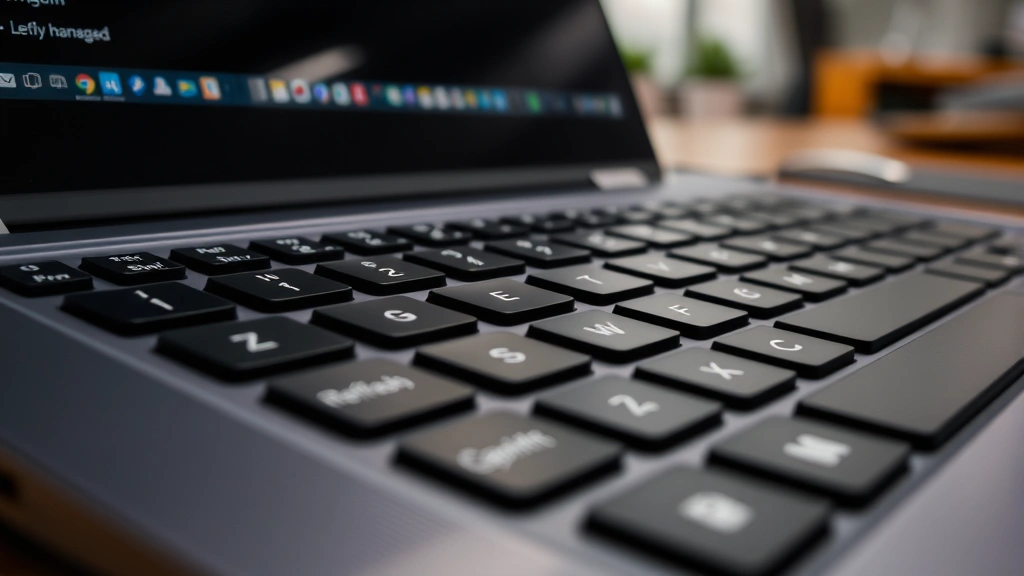
The fastest way to rotate your screen on a Chromebook is using keyboard shortcuts. The primary shortcut for how to rotate screen on chromebook is Ctrl + Shift + Refresh, where the Refresh key is located at the top of your keyboard (typically replacing the F3 key). This command rotates your display 90 degrees clockwise with each press, allowing you to cycle through portrait and landscape modes quickly.
If your Chromebook has an older keyboard layout, you might use Ctrl + Shift + F5 instead, which performs the same rotation function. Press the combination once to rotate 90 degrees, twice for 180 degrees, three times for 270 degrees, and four times to return to the original orientation. This method works on virtually all Chromebook models and requires no menu navigation.
For users who frequently need to rotate their display, memorizing this keyboard shortcut saves significant time. Unlike traditional laptops, Chromebooks make screen rotation accessible without diving into complicated settings menus. The shortcut works regardless of what application you’re currently using, making it ideal for quick adjustments during work.
Using Display Settings to Rotate
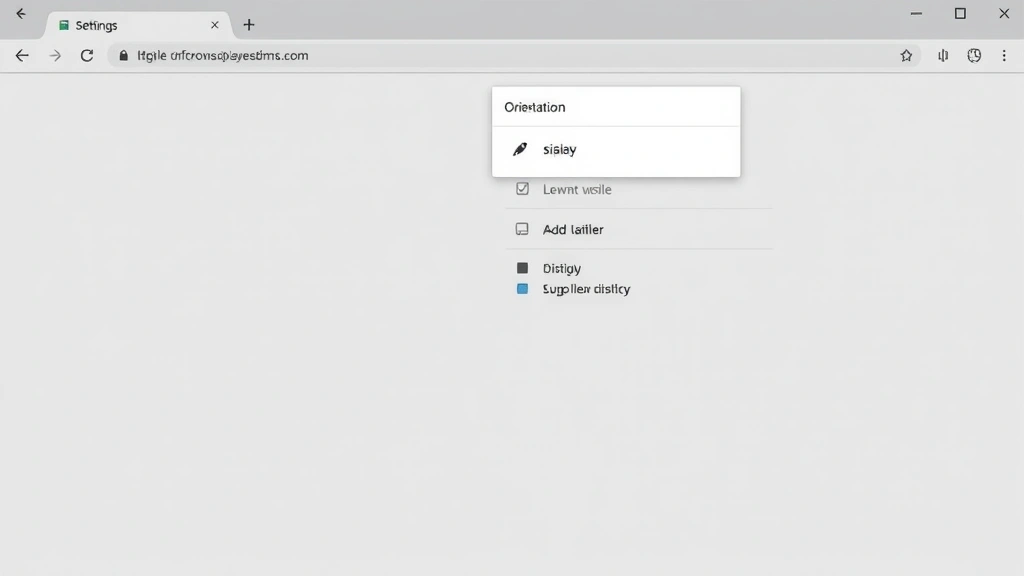
For a more permanent rotation setting, you can access your Chromebook’s display settings directly. Click the system tray in the bottom-right corner of your screen, then select the Settings gear icon. Navigate to Device in the left sidebar, then click Displays. This opens your display configuration panel where how to rotate screen on chromebook becomes a visual process.
In the Displays menu, you’ll see a dropdown menu labeled Orientation. Click this dropdown to see available rotation options: Standard (0°), Rotate 90°, Rotate 180°, and Rotate 270°. Select your preferred orientation, and the change applies immediately. This method is particularly useful if you want to keep your screen rotated for an extended period without repeatedly using keyboard shortcuts.
The Display Settings approach gives you more control and visibility over your rotation choice. You can also adjust other display settings simultaneously, such as resolution and scaling, making this method ideal for comprehensive workspace customization. If you’re working with an external monitor, separate rotation options appear for each connected display.
Accessibility Features Method
Chromebooks include accessibility features that can facilitate screen rotation for users with specific needs. To access these, click the system tray, select Settings, and navigate to Accessibility in the left sidebar. Under the Display section, you’ll find options related to screen orientation and display customization.
The accessibility method for how to rotate screen on chromebook is particularly valuable if you’re using assistive technologies or need consistent orientation changes throughout your workday. Some accessibility features allow you to set custom keyboard shortcuts for rotation, making the process even more efficient. This approach also provides options for users who may have difficulty accessing standard settings menus.
Additionally, accessibility settings often include options for display magnification and high-contrast modes that work seamlessly with screen rotation. If you’re customizing your Chromebook for accessibility purposes, exploring these settings ensures you get the most functionality from your device. Many users find that combining accessibility features with standard rotation methods provides the most comprehensive solution.
Enabling Auto-Rotation on Tablet Chromebooks
If you own a convertible or tablet Chromebook with built-in sensors, you can enable automatic screen rotation. This feature detects your device’s physical orientation and adjusts the display accordingly, eliminating the need for manual rotation. To enable auto-rotation, access your Settings menu and navigate to Device, then Displays.
Look for an option labeled Rotate with device or Auto-rotate and toggle it on. Once enabled, your Chromebook automatically rotates the screen when you physically rotate your device. This feature works best with tablet-mode Chromebooks or convertible models with accelerometers. The automatic how to rotate screen on chromebook functionality significantly enhances usability for presentations, reading, and collaborative work.
Auto-rotation is particularly useful in educational and business settings where you might frequently switch between portrait and landscape modes. The feature respects your manual rotation choices, so if you disable auto-rotation through settings, the automatic feature won’t override your preference. Testing this feature with your specific Chromebook model ensures optimal performance.
Rotating External Monitor Display
When connecting an external monitor to your Chromebook, you can rotate the external display independently from your Chromebook’s built-in screen. Connect your monitor via HDMI, USB-C, or wireless connection, then access your display settings as described earlier. In the Displays menu, you’ll see both your internal display and external monitor listed separately.
Click on the external monitor’s settings to access its individual rotation options. Apply your desired rotation angle to the external display without affecting your Chromebook’s screen. This flexibility is invaluable for professionals who use their Chromebook with external monitors for document review, coding, or content creation. Understanding how to rotate screen on chromebook with multiple displays ensures you maximize your workspace efficiency.
Some external monitors also have physical rotation buttons or on-screen display menus that allow hardware-level rotation. Combining Chromebook software rotation with monitor hardware rotation gives you complete control over your visual workspace. If your external monitor supports pivot stands, you can achieve 90-degree physical rotation while maintaining software settings for optimal display compatibility.
Troubleshooting Screen Rotation Issues
If the keyboard shortcut isn’t working, ensure you’re using the correct key combination for your specific Chromebook model. Some older models use different function keys, so verify your keyboard layout. Try using the Settings method instead, which typically works across all Chromebook variants. If rotation options don’t appear in your Display settings, your device may not support this feature.
Screen rotation might be disabled through parental controls or administrative settings if your Chromebook is managed by an organization. Contact your administrator to request rotation feature access. Additionally, certain applications may override rotation settings, so try rotating in a different app or on the desktop to isolate the problem.
If auto-rotation isn’t functioning on a tablet Chromebook, check that your device’s accelerometer is functioning properly. Restart your Chromebook and verify that the “Rotate with device” option is enabled. Sometimes clearing your browser cache and cookies, similar to the process described in our guide on how to clear cache on iPad, can resolve display-related issues on Chromebooks.
Advanced Rotation Options
For power users, Chrome OS offers command-line tools and developer options for screen rotation customization. Access the developer console by pressing Ctrl + Alt + T to open Crosh (Chrome OS shell), then use rotation commands for advanced configuration. This method requires technical knowledge but provides granular control over display settings.
You can also use the xrandr command in Crosh to query and modify display properties, including rotation angles. This advanced approach to how to rotate screen on chromebook is ideal for developers and technical users who need precise control over their display configuration. Remember that command-line changes may reset after a system update, so document your preferred settings for future reference.
For those managing multiple Chromebooks, understanding these advanced options enables consistent device configuration across your organization. Many IT administrators use these tools to standardize rotation settings and accessibility features across managed Chromebook fleets.
Frequently Asked Questions
Can all Chromebooks rotate their screen?
Most modern Chromebooks support screen rotation through keyboard shortcuts and display settings. However, some older models or Chromebooks with specific hardware limitations may not support this feature. Check your device’s specifications or try the keyboard shortcut to verify compatibility.
Will rotating my screen affect my applications?
No, rotating your screen won’t damage applications or affect their functionality. Some apps may adjust their layout to accommodate the new orientation, while others maintain their interface. Web applications typically adapt well to screen rotation.
How do I lock my screen rotation on a tablet Chromebook?
Disable the “Rotate with device” option in your Display settings to lock the current orientation. This prevents automatic rotation while allowing manual rotation through keyboard shortcuts or settings menus.
What should I do if my external monitor won’t rotate?
First, verify your monitor supports software rotation through its on-screen menu. Check that your Chromebook recognizes the monitor in Display settings. If the rotation option is grayed out, your monitor may not support this feature, or you may need to update drivers (though Chromebooks typically handle this automatically).
Can I set different rotation angles for different workspaces?
Chrome OS doesn’t natively support workspace-specific rotation settings. However, you can quickly switch rotation angles using keyboard shortcuts or settings, making it easy to adjust for different tasks throughout your day.
Is screen rotation available on Chromebox devices?
Chromeboxes, being desktop devices without built-in displays, don’t have native screen rotation features. However, you can rotate external monitors through their individual settings or hardware controls.
According to WikiHow, mastering device-specific features like screen rotation significantly improves user productivity. For additional Chromebook tips, consult Instructables, which offers comprehensive guides on Chrome OS customization. If you’re experiencing broader display issues, HowStuffWorks provides detailed explanations of display technology and troubleshooting methods. For accessibility-focused solutions, Good Housekeeping offers practical device setup advice, and Consumer Reports reviews Chromebook features and performance.
Related Guides
If you’re interested in other Chromebook customization techniques, check out our guide on how to right click on a Chromebook, which covers essential navigation skills. For users working with multiple devices, understanding how to format SD card can help manage external storage across your devices. Additionally, those managing smart home devices alongside their Chromebooks might find our guides on how to reset Firestick remote and how to connect Roku to WiFi without remote helpful for comprehensive device management.
Conclusion
Learning how to rotate screen on chromebook opens up new possibilities for how you use your device. Whether you prefer quick keyboard shortcuts, detailed settings menus, or automatic rotation on tablet models, Chrome OS provides flexible options for every user. Start with the method that feels most natural to you, and don’t hesitate to explore other approaches as your needs evolve. With these techniques in your toolkit, you’ll maximize your Chromebook’s versatility and comfort for any task.