How to Pair Beats Headphones: Easy Steps for Perfect Sound
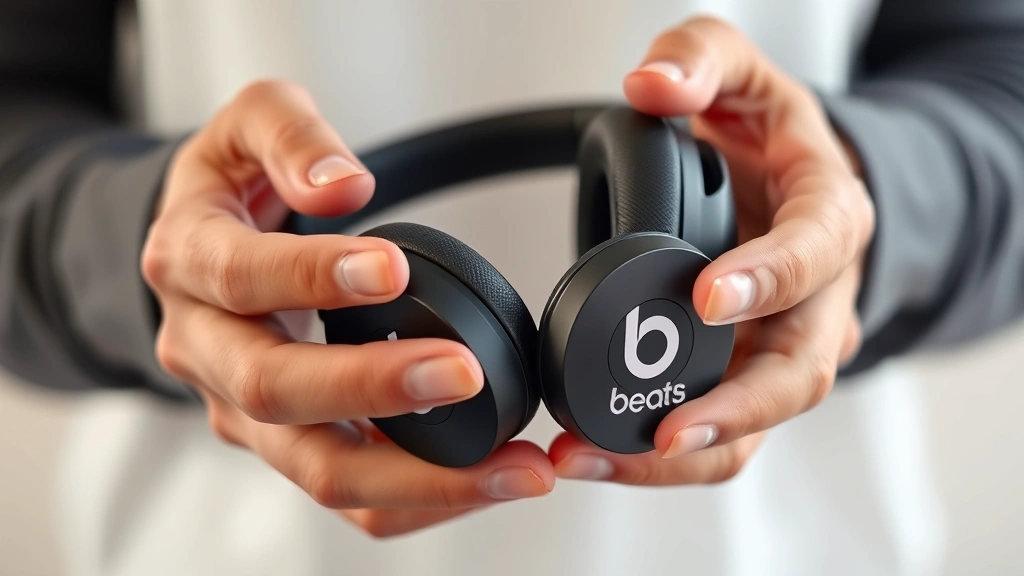
Getting your Beats headphones connected to your device should be seamless and intuitive. Whether you’re using AirPods Pro, Beats Studio Pro, or any other model in the Beats lineup, the pairing process is straightforward once you know the essential steps. This comprehensive guide walks you through everything you need to know to pair Beats headphones quickly and troubleshoot common connection issues.
Quick Answer: To pair Beats headphones, enable Bluetooth on your device, press and hold the power button on your Beats until the LED light blinks, then select your Beats from the available Bluetooth devices list. For Apple devices, bring your Beats near an unlocked iPhone or Mac to trigger automatic pairing. The entire process typically takes under two minutes and requires no additional software installation.
Tools & Materials You’ll Need
- Beats headphones (fully charged)
- Device to pair with (iPhone, Mac, Android, Windows PC, or tablet)
- Bluetooth capability enabled on your device
- USB charging cable (if battery is depleted)
- Optional: iCloud account for seamless Apple ecosystem pairing
Prepare Your Beats Headphones
Before you attempt to pair Beats headphones, ensure they’re properly charged and ready for connection. Most Beats models have a battery indicator that shows remaining charge level. If your headphones are low on battery, plug them into a power source using the included USB charging cable. A full charge ensures stable connectivity and prevents unexpected disconnections during the pairing process.
Locate the power button on your specific Beats model—this is typically found on the ear cup or side of the headphones. Check your user manual if you’re unsure about the exact location. Some newer Beats models feature touch controls, while older versions have physical buttons. Familiarize yourself with the button layout before starting the pairing process to avoid confusion.
If your Beats have been previously paired with another device, you may want to clear the pairing history first. This prevents automatic reconnection to old devices. Most Beats models allow you to reset Bluetooth connections by holding the power button for 10-15 seconds until you see a specific LED pattern. Consult your model’s documentation for precise reset instructions, as procedures vary between Beats Studio Pro, Beats Fit Pro, and other variants.
Enable Bluetooth on Your Device
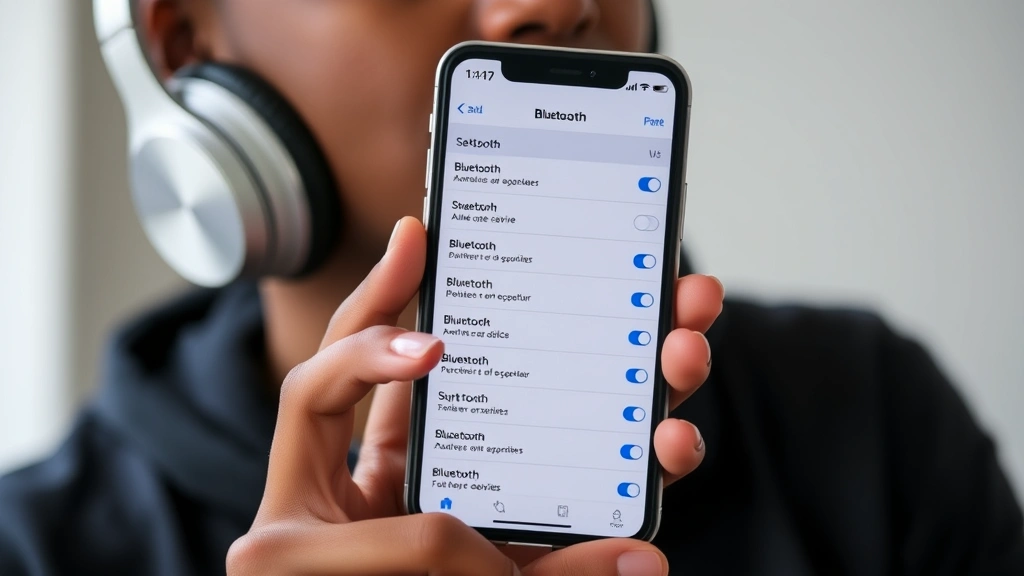
Activate Bluetooth on the device you want to connect your Beats to before initiating the pairing sequence. On most devices, you’ll find Bluetooth settings in the main settings menu or quick settings panel. How to pair Beats headphones successfully depends entirely on having Bluetooth enabled and set to discoverable mode on your receiving device.
On smartphones and tablets, swipe down from the top of the screen to access quick settings, then tap the Bluetooth icon to enable it. On computers, access Bluetooth settings through the system preferences or settings menu. Make sure your device’s Bluetooth is set to be discoverable by other devices—this typically happens automatically when Bluetooth is turned on, but some devices require manual adjustment.
Keep your device within 10 meters (33 feet) of your Beats headphones during the pairing process. This distance ensures a strong signal and reduces the likelihood of connection failures. Remove any physical obstructions between the headphones and device, as walls and metal objects can interfere with Bluetooth signals. Once Bluetooth is enabled on your device, you’re ready to activate pairing mode on your Beats.
Pair with iPhone or Mac
Apple devices offer the smoothest pairing experience for Beats headphones due to the integration between Beats and Apple’s ecosystem. For iPhone and iPad users, bring your unlocked Beats headphones near your device while holding down the power button. After 5-10 seconds, you should see an animation on your screen showing the Beats with a pairing prompt. Tap “Connect” to complete the pairing instantly.
This seamless pairing feature works because Beats are owned by Apple and utilize the company’s proprietary H1 or W1 chip for faster connection. If you have multiple Apple devices linked to the same iCloud account, your Beats will automatically appear in the Bluetooth settings across all your devices. This means you won’t need to repeat the pairing process for each Apple device—they’ll all recognize your Beats once the initial pairing is complete.
For Mac users, the process is similarly straightforward. Open System Preferences, navigate to Bluetooth, and ensure Bluetooth is enabled. Put your Beats into pairing mode by holding the power button, then select your Beats from the list of available devices. Click “Connect” to establish the connection. Mac integration also allows you to switch between your Mac and iPhone automatically when you use your Beats with different applications.
If you’re using an older Mac model or Beats without the H1/W1 chip, you may need to manually enter a pairing code. The code is typically “0000” or “1234,” but check your specific model’s documentation. After entering the code, your Beats will be permanently paired with that Mac and will automatically connect when within range and Bluetooth is enabled.
Pair with Android or Windows
Android and Windows users can absolutely pair Beats headphones, though the process involves a few more manual steps compared to Apple devices. On Android phones, open Settings, navigate to Bluetooth, and ensure it’s enabled. Put your Beats into pairing mode by pressing and holding the power button until the LED light flashes (usually 5-10 seconds). Your Beats should appear in the list of available devices on your Android phone.
Tap your Beats model name from the list to initiate pairing. You may be prompted to confirm the pairing or enter a PIN code. Most Beats models use “0000” as the default PIN, but some newer models pair without requiring a code. Once you see “Connected” next to your Beats name in the Bluetooth settings, the pairing is complete. Your Android device will remember this pairing and automatically connect to your Beats in the future when both Bluetooth is enabled.
Windows PC users should access Bluetooth settings through Settings > Devices > Bluetooth & other devices. Click “Add Bluetooth or other device” and select “Bluetooth” from the options. Put your Beats into pairing mode and select them from the list of available devices. Windows will handle the connection automatically, and your Beats will appear as a connected audio device. You can then set your Beats as the default audio output device in your sound settings.
One advantage of pairing Beats headphones with Android and Windows devices is the ability to pair with multiple devices simultaneously. Unlike some Apple features, you can connect your Beats to an Android phone and Windows laptop at the same time, switching between them manually through Bluetooth settings. This flexibility makes Beats a versatile choice for users with diverse device ecosystems.
Troubleshoot Connection Problems
If you’re having difficulty getting your Beats headphones to pair, several common issues can be resolved with basic troubleshooting. First, ensure both your Beats and the device you’re pairing with have Bluetooth enabled and are in close proximity. If pairing still fails, try restarting both devices completely. Power off your Beats, turn off Bluetooth on your device, wait 30 seconds, then turn everything back on and attempt pairing again.
Clear the Bluetooth cache on your device if you’re experiencing persistent connection issues. On Android, go to Settings > Apps > Show System Apps, find Bluetooth, and clear its cache. On Windows, remove the Beats from your paired devices list and start fresh. On Mac, delete the Bluetooth plist file from Library/Preferences and restart your computer. These steps remove corrupted pairing data that might be preventing successful connection.
If your Beats won’t enter pairing mode, the battery might be depleted. Charge your Beats for at least 15 minutes before trying again. Some Beats models have a specific LED pattern indicating pairing mode—white or blue flashing lights typically mean the headphones are ready to pair. If you see a different pattern, consult your model’s user manual to understand what the LED is indicating.
For persistent problems, perform a factory reset on your Beats. The exact procedure varies by model, but typically involves holding the power button for 10-15 seconds until you see a specific LED sequence. Factory resetting erases all pairing history and returns your Beats to their original state. After resetting, you can start the pairing process fresh. If problems continue after factory reset, your Beats may have a hardware issue requiring professional service.
Manage Multiple Device Connections
Once you’ve successfully paired Beats headphones with one device, you can pair them with additional devices to create a multi-device ecosystem. Most Beats models can maintain pairing information for up to 8 different devices, though they typically connect to only one device at a time. To pair with a second device, simply put your Beats back into pairing mode and repeat the pairing process on the new device.
On Apple devices, your Beats will automatically sync across all devices connected to the same iCloud account. This means your iPhone, iPad, Mac, and Apple Watch will all recognize your Beats without requiring individual pairing steps. You can switch between devices seamlessly by simply starting audio playback on a different Apple device—your Beats will automatically disconnect from the current device and connect to the new one.
For mixed ecosystems (combining Apple and Android devices, for example), you’ll need to manually manage connections. Switch between devices by accessing Bluetooth settings and selecting which device your Beats should connect to. Some Beats models include a dedicated app that helps manage multiple connections, allowing you to see which devices your Beats are paired with and easily switch between them.
If you want to completely remove a device from your Beats’ pairing list, access your Beats’ Bluetooth settings and select the option to forget or unpair that device. This is useful if you’re selling an old device or want to prevent accidental reconnection. After removing a device, you’ll need to go through the full pairing process again if you ever want to reconnect those Beats to that device.
Optimize Sound Quality After Pairing
After successfully pairing your Beats headphones, you can optimize audio performance for the best listening experience. First, ensure you’re using the latest firmware for your Beats by checking the Beats app on your device. Firmware updates often include audio improvements and bug fixes that enhance connectivity and sound quality. The Beats app (available on iOS and Android) shows your headphones’ battery level and provides access to advanced settings.
Adjust the audio settings on your device to complement your Beats’ capabilities. Most Beats models feature noise cancellation and transparency modes—experiment with these settings to find your preferred listening environment. In the Beats app, you can customize sound profiles and enable features like spatial audio on compatible Apple devices. These adjustments significantly impact your listening experience and allow you to tailor audio to your preferences.
Position your Beats correctly for optimal sound delivery. Ensure the ear cups fit snugly and create a proper seal in your ears, as this directly affects bass response and overall audio quality. If your Beats include adjustable features like ear fin sizing or band tension, take time to customize these for comfort and acoustic performance. Proper fit ensures you’re experiencing the headphones’ full audio potential.
Keep your Beats clean to maintain sound quality over time. Gently wipe the ear cups and headband with a soft, dry cloth regularly. Avoid exposing your Beats to moisture or extreme temperatures, as these can degrade internal components and affect audio performance. Store your Beats in a protective case when not in use to prevent damage and maintain their longevity.
FAQ
Why won’t my Beats pair with my device?
If your Beats won’t pair, ensure both devices have Bluetooth enabled and are within 10 meters of each other. Try putting your Beats back into pairing mode by holding the power button longer. If this doesn’t work, restart both devices and attempt pairing again. For persistent issues, perform a factory reset on your Beats according to your model’s instructions. According to WikiHow, most Bluetooth pairing failures resolve after clearing cache or performing a full reset.
Can I pair my Beats with multiple devices simultaneously?
Beats can be paired with multiple devices, but typically connect to only one at a time. On Apple devices connected to the same iCloud account, your Beats will seamlessly switch between them. For Android and Windows, you’ll need to manually switch connections through Bluetooth settings. Some Beats models support dual pairing with specific device combinations.
How do I know if my Beats are in pairing mode?
Most Beats display a flashing LED light when in pairing mode—typically white or blue flashing. The exact pattern varies by model, so check your user manual for your specific Beats’ pairing indicator. If you don’t see the expected LED pattern after holding the power button, your Beats may not be entering pairing mode, and you should try charging them or performing a reset.
Do I need an app to pair Beats headphones?
No app is required to pair Beats headphones—the process works through standard Bluetooth technology. However, the Beats app (available on iOS and Android) provides additional features like firmware updates, sound customization, and battery monitoring. Installing the app is optional but recommended for accessing all your Beats’ capabilities.
How long does it take to pair Beats headphones?
Pairing typically takes 30 seconds to 2 minutes depending on your device and Beats model. Apple devices with H1/W1 chips pair almost instantly through the automatic setup screen. Android and Windows devices may take slightly longer as they require manual selection from a device list. If pairing takes more than 5 minutes, something is likely wrong and you should restart the process.
What should I do if my Beats keep disconnecting?
Frequent disconnections often indicate interference or outdated firmware. Update your Beats to the latest firmware using the Beats app. Move away from potential interference sources like microwaves, routers, and wireless speakers. If disconnections persist, try forgetting your Beats from your device’s Bluetooth settings and re-pairing them fresh. According to Consumer Reports, persistent disconnection issues may indicate a hardware problem requiring professional service.
Can I pair Beats with my smartwatch?
Yes, many Beats models can pair with smartwatches, particularly Apple Watch. The pairing process is the same as with phones—enable Bluetooth on your watch, put your Beats in pairing mode, and select them from the available devices list. Apple Watch users benefit from seamless integration when using the same iCloud account as their iPhone and Mac.
How do I reset my Beats if I forgot the pairing PIN?
Perform a factory reset on your Beats to clear all pairing information and PINs. Hold the power button for 10-15 seconds until you see the reset LED pattern (typically a specific color sequence). After reset, your Beats will return to their original state and can be paired with any device without requiring a PIN. Check your model’s documentation for the exact reset procedure.
Why is my Beats showing as paired but not producing sound?
If your Beats are connected but producing no sound, check that they’re set as your device’s default audio output. On your device, go to sound settings and select your Beats as the active audio device. Ensure the volume on both your Beats and device is turned up. Try disconnecting and reconnecting to refresh the connection. As noted by Lifehacker, audio issues often resolve after toggling Bluetooth off and on.
Can I pair my Beats with a computer without the Beats app?
Yes, you can pair your Beats with Windows and Mac computers using standard Bluetooth without installing any app. The pairing process works through your computer’s native Bluetooth settings. However, installing the Beats app provides additional features and ensures your firmware stays updated. The app is optional but beneficial for full functionality.
Understanding how to pair Beats headphones removes the mystery from the connection process and ensures you can quickly get your headphones working with any device. Whether you’re using Apple devices, Android, or Windows, the fundamental process remains straightforward. For additional guidance on connecting Apple devices, you might also find our guide on how to connect Apple Pencil to iPad helpful for understanding Apple’s ecosystem connectivity. Similarly, if you’re managing multiple Apple devices, our article on how to turn off Apple Watch covers device management strategies. For those with comprehensive Apple setups, learning to reset AirTag demonstrates similar pairing concepts across Apple’s product line.
Take time to explore your Beats’ features after successful pairing, and don’t hesitate to consult your model’s specific documentation for advanced settings. With proper pairing and setup, your Beats will deliver exceptional audio quality and seamless connectivity across all your devices.