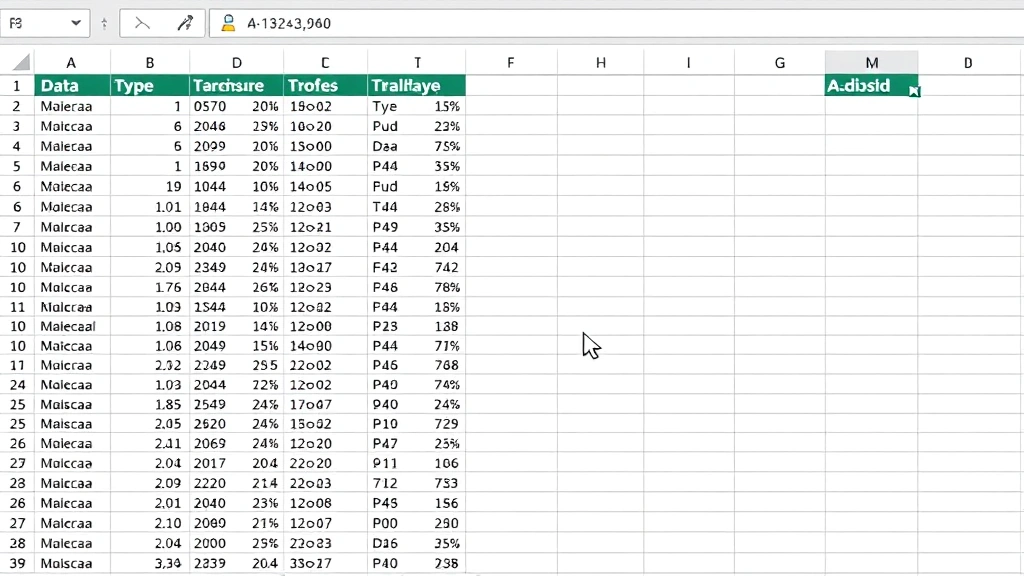
How to Move Columns in Excel: Easy & Essential Guide

Reorganizing your spreadsheet doesn’t have to be complicated. Learning how to move columns in Excel is one of the most practical skills for managing data efficiently. Whether you’re rearranging financial reports, organizing customer databases, or cleaning up research data, moving columns saves time and keeps your information logically structured. This guide walks you through every method—from simple drag-and-drop to advanced cut-and-paste techniques—so you can reorganize your spreadsheets with confidence.
Quick Answer: The fastest way to move columns in Excel is to right-click the column header, select “Cut,” then right-click where you want it and choose “Insert Cut Cells.” Alternatively, click and drag the column header to a new position. Both methods take seconds and preserve all your data and formatting intact.
Tools & Materials You’ll Need
- Microsoft Excel (any recent version: 2016, 2019, Office 365, or Excel Online)
- A spreadsheet with data in multiple columns
- A mouse or trackpad for drag-and-drop operations
- Basic keyboard skills (Ctrl+X for cut, Ctrl+V for paste)
- Optional: A second monitor for easier visibility of large spreadsheets
Method 1: Drag and Drop Columns
The drag-and-drop method is the most intuitive way to move columns in Excel for quick reorganization. This technique works best when you can see both the source and destination columns on your screen. Simply click the column header letter (A, B, C, etc.) to select the entire column, then drag it to the new location. Excel will display a visual indicator showing where the column will land.
To execute this method, first identify the column you want to move and click its header letter once to highlight the entire column in blue. Position your mouse pointer on the column header border until you see the cursor change to a move icon (four-directional arrow). Click and hold, then drag the column left or right to your desired position. Release the mouse button when the column outline appears in the correct spot. Your data and all formatting remain intact during this operation.
Pro tip: If you’re moving a column far to the right and can’t see the destination on screen, drag the column to the edge of the window. Excel will automatically scroll horizontally, allowing you to position it precisely where needed.
Method 2: Cut and Paste Columns
The cut-and-paste method provides more control when moving columns in Excel, especially for complex spreadsheets with formulas and dependencies. This approach uses keyboard shortcuts that work consistently across all Excel versions. Start by clicking the column header to select the entire column, then press Ctrl+X to cut it (you’ll see the column border change to a dashed line).
Next, click the column header where you want the column to appear. Press Ctrl+V to paste. Excel will insert your column at the new location and shift existing columns accordingly. This method preserves all formatting, formulas, and data relationships. Unlike drag-and-drop, cut-and-paste works smoothly even when columns aren’t visible on the same screen, making it ideal for large spreadsheets with many columns.
One advantage of this technique is that you can cut a column, navigate to a different worksheet or workbook, and paste it there. This flexibility makes it perfect for consolidating data from multiple sources or reorganizing complex projects.
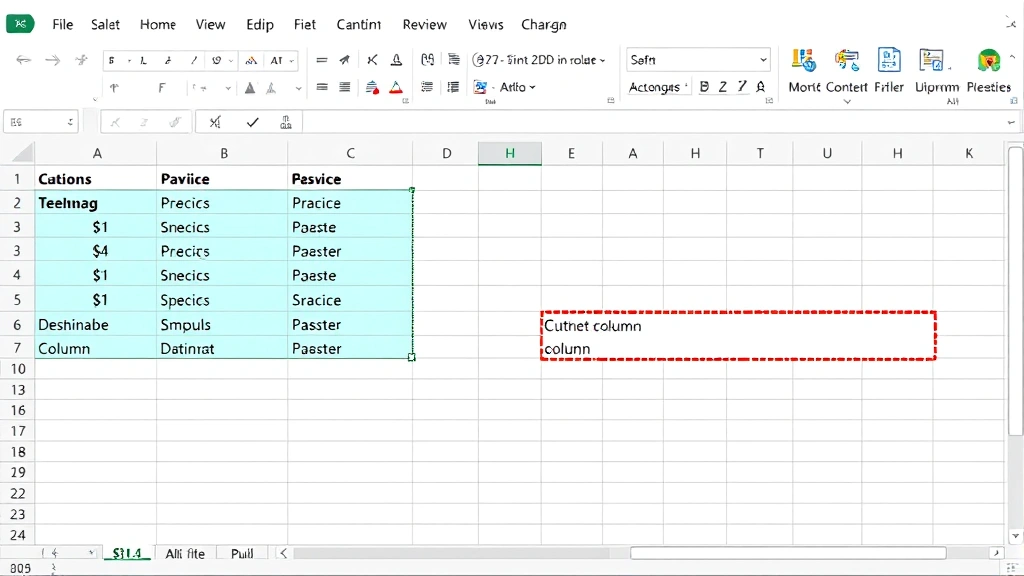
Method 3: Use Insert Cut Cells
The “Insert Cut Cells” option is the most powerful way to move columns in Excel because it automatically shifts surrounding columns without overwriting data. Right-click the column header you want to move and select “Cut” from the context menu. Then right-click the column header where you want to insert it and choose “Insert Cut Cells.” This ensures no data is accidentally replaced.
This method is particularly useful when working with densely populated spreadsheets where columns contain critical information. The “Insert Cut Cells” option prevents the common mistake of overwriting existing data when moving columns. Excel handles all the shifting automatically, so you don’t need to manually rearrange surrounding columns. Your formulas adjust automatically, and any references to moved columns update accordingly.
Method 4: Move Multiple Columns at Once
When you need to move columns in Excel as a group, selecting multiple columns first saves significant time. Click the first column header you want to move, then hold Shift and click the last column in the group. All columns between them will highlight in blue. Now you can drag this entire group to a new location or use cut-and-paste to move them together.
This technique is invaluable for reorganizing related data. For example, if you have quarterly sales data in columns D, E, F, and G, you can select all four columns and move them to the beginning of your spreadsheet as a unit. The relative order of columns within the group remains unchanged, and all data stays synchronized. This prevents the accidental separation of related information that often causes errors in data analysis.
To move non-adjacent columns (columns that aren’t next to each other), hold Ctrl while clicking individual column headers. Once you’ve selected all the columns you need, cut and paste them together. This approach is more reliable than drag-and-drop for non-contiguous selections.
Method 5: Move Columns in Excel Online
Excel Online offers similar functionality for moving columns in Excel through your web browser. The drag-and-drop method works identically: click the column header, drag it to the new position, and release. Excel Online displays the same visual indicators as the desktop version, making the process intuitive even for users unfamiliar with web applications.
For cut-and-paste in Excel Online, right-click the column header and select “Cut.” Then right-click the destination column and choose “Paste.” Keyboard shortcuts (Ctrl+X and Ctrl+V) also work in most browsers. The main difference is that Excel Online may require a moment to sync changes to the cloud, so wait for the confirmation message before closing your browser tab.
Excel Online is perfect for quick edits when you’re away from your desktop or collaborating with team members in real-time. However, for complex spreadsheets with many columns or intricate formulas, the desktop version of Excel provides faster performance and more advanced options.
Common Mistakes to Avoid When Moving Columns
One frequent error is forgetting to select the entire column before moving it. Clicking a single cell and dragging it moves only that cell, not the whole column. Always click the column header letter to select the complete column from top to bottom. Another common mistake is accidentally overwriting data by pasting into a column that already contains information. Use “Insert Cut Cells” instead of regular paste to prevent this problem.
Users sometimes forget that moving columns affects formulas that reference those columns by position. If your spreadsheet contains formulas like =SUM(A1:A10), moving column A will update the formula automatically. However, if you have formulas referencing specific column positions (like “Column 3”), those references won’t update automatically. Always verify your formulas after moving columns to ensure they still calculate correctly.
Another pitfall is moving columns in a shared workbook without considering how it affects other users or automated processes. If your spreadsheet feeds data to reports or other workbooks, moving columns might break those connections. Communicate changes to your team and test the impact before making major reorganizations in production spreadsheets.
Advanced Tips for Column Management
For better organization, consider using Excel’s “Freeze Panes” feature alongside column movement. As explained in our guide on how to freeze a row in Excel, freezing key identifier columns (like customer names or product codes) prevents them from scrolling off-screen when you move other columns. This maintains data context even in wide spreadsheets.
If you frequently reorganize columns, create a template spreadsheet with your preferred column order. This saves time for recurring tasks and ensures consistency across multiple reports. You can also use Excel’s sort and filter features as an alternative to moving columns—sometimes reordering data within columns is more efficient than rearranging the columns themselves.
When working with large datasets, consider using named ranges for important columns. Instead of referencing “Column D,” create a named range called “Sales_Data.” When you move columns, update the named range definition once, and all formulas automatically reference the correct location. This approach is particularly valuable for complex spreadsheets with many interdependent calculations.
For related organizational tasks, you might want to explore how to merge two columns in Excel for combining data, or learn about how to add a drop-down list in Excel for creating validated data entry fields. Additionally, understanding how to freeze cells in Excel helps protect important columns while you reorganize others.
According to WikiHow, mastering basic Excel operations like column movement is fundamental to spreadsheet productivity. As Lifehacker notes, efficient spreadsheet management saves hours of work monthly. Family Handyman readers often use Excel for project planning, making column organization essential for tracking budgets and timelines.
For comprehensive spreadsheet training, HowStuffWorks offers detailed explanations of Excel functionality, while Consumer Reports has reviewed productivity software including Excel alternatives. Understanding how to move columns in Excel is just the beginning of mastering spreadsheet organization and data management.
FAQ
Can I undo moving a column if I make a mistake?
Yes! Press Ctrl+Z immediately after moving a column to undo the action. Excel maintains an undo history for multiple actions, so you can undo several column moves if needed. However, once you close the file without saving, you cannot undo changes from the previous session.
Does moving a column affect formulas that reference it?
Excel automatically updates most formula references when you move columns. However, if your formulas reference columns by position (like INDEX or OFFSET functions), you may need to manually adjust them. Always verify calculations after moving columns in formula-heavy spreadsheets.
What’s the difference between moving and copying a column?
Moving removes the column from its original location and places it elsewhere. Copying creates a duplicate while keeping the original column in place. Use Ctrl+X to cut (move) or Ctrl+C to copy. For moving columns, always use cut rather than copy to avoid duplicate data.
Can I move columns in a protected worksheet?
No, moving columns is disabled in protected worksheets. You must unprotect the worksheet first by going to Review > Unprotect Sheet, then move your columns, and reprotect if needed. This protection prevents accidental reorganization of carefully structured data.
Is there a limit to how many columns I can move at once?
Excel allows you to select and move all columns in a worksheet simultaneously if needed. The practical limit depends on your computer’s memory and the complexity of your data. Most users won’t encounter performance issues when moving standard column groups of 10-50 columns.
How do I move columns while keeping them frozen?
Frozen columns (set via View > Freeze Panes) can be moved just like regular columns. However, the freeze will apply to the new position. If you want to move a frozen column, unfreeze first, move the column, then refreeze at the desired location.