How to Make a Copy of a Word Document: Simple & Essential Guide
Need to duplicate a Word document quickly? Whether you’re creating a template, backing up important files, or starting a new project based on an existing document, knowing how to make a copy of a Word document is an essential skill. This guide walks you through multiple methods—from the simplest right-click approach to advanced cloud-based options—so you can choose the technique that works best for your workflow.
Quick Answer: The fastest way to make a copy of a Word document is to right-click the file in File Explorer (Windows) or Finder (Mac), select “Copy,” then “Paste” in the same folder. Alternatively, open the document in Word, go to File > Save As, choose a new location and filename, then click Save. For cloud-stored documents, use OneDrive or SharePoint’s built-in duplication features for seamless syncing across devices.
Tools & Materials You’ll Need
- Microsoft Word (desktop or online version)
- File Explorer (Windows) or Finder (Mac)
- OneDrive, SharePoint, or Google Drive account (optional, for cloud copies)
- Sufficient storage space on your computer or cloud service
- Administrator access (if copying to restricted folders)
Method 1: Copy via File Explorer or Finder
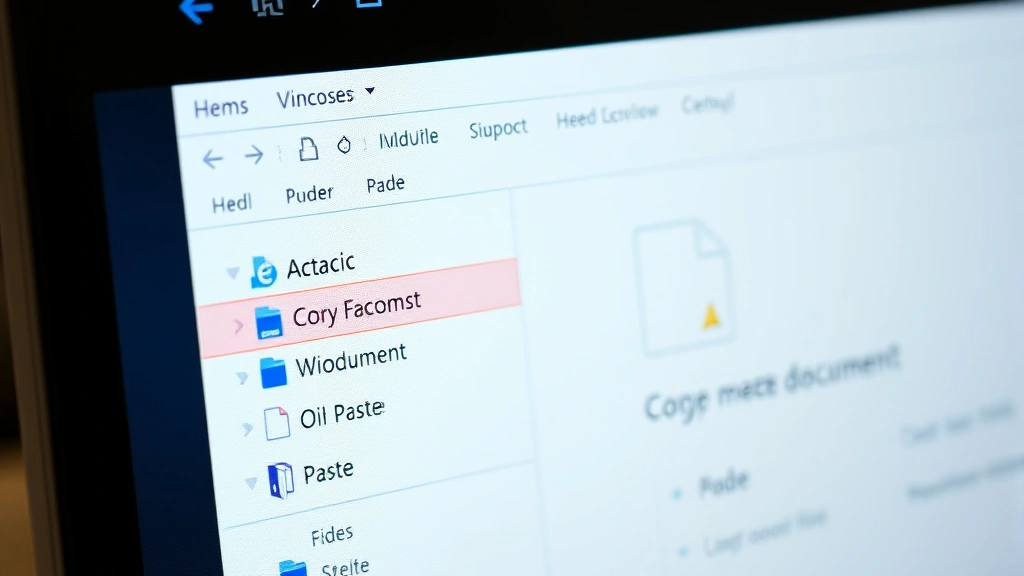
The most straightforward way to make a copy of a Word document is using your operating system’s file manager. This method requires no Word software interaction and works for any file type. Navigate to the folder containing your Word document, then right-click the file to reveal the context menu.
Select Copy from the menu, then right-click in an empty area of the same folder (or a different location if preferred). Choose Paste, and your system will automatically create a duplicate file with “Copy of” or a similar prefix in the filename. You can then rename the new file to something more meaningful by right-clicking and selecting Rename.
Windows users: Open File Explorer, locate your .docx or .doc file, right-click it, and select Copy. Right-click the destination folder and choose Paste. The duplicate appears instantly.
Mac users: Open Finder, find your Word document, right-click it, and select Duplicate. A copy appears in the same folder with “copy” appended to the filename. This is the fastest Mac method for creating duplicates.
Key advantage: This method works offline and doesn’t require Word to be installed or running, making it ideal for quick backups or when Word is acting sluggish.
Method 2: Use Save As Within Word
Opening your Word document and using the Save As feature gives you more control over the copy’s location and naming. This method is particularly useful when you want to make a copy and immediately start editing it without switching between applications.
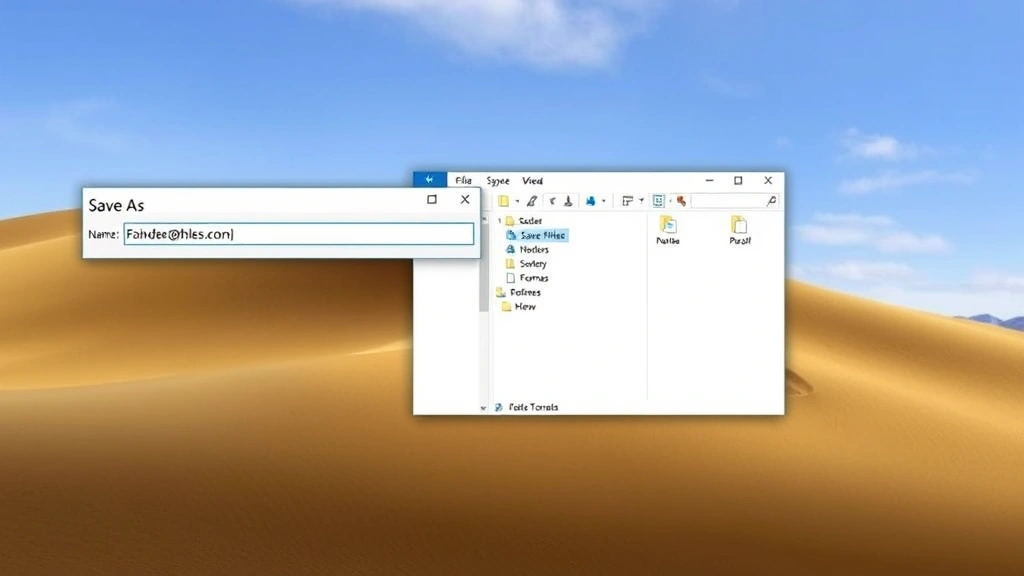
Open your Word document, then click File in the top-left menu. Select Save As from the dropdown options. A dialog box appears showing your current file location. Choose where you want to save the copy—you can select a different folder or keep it in the same directory as the original.
In the filename field, enter a new name for your copy. Word automatically appends the .docx extension, so you only need to type the document name. Click the Save button, and Word creates your duplicate while closing the original document and opening the newly saved copy. This is how to make a copy of a Word document while maintaining version control.
Pro tip: Use descriptive naming conventions like “Document_Draft2” or “Document_Final” to track different versions of your work. This prevents accidentally editing the wrong file version.
Format preservation: Save As maintains all formatting, images, and embedded content from the original document, ensuring your copy is identical to the source file.
Keyboard shortcut: Press Ctrl+Shift+S (Windows) or Command+Shift+S (Mac) to open Save As directly without navigating through menus.
Method 3: Duplicate Files in Cloud Storage
If your Word documents are stored in OneDrive, SharePoint, or other cloud services, you have built-in duplication features that sync across all your devices. This approach is ideal for collaborative work or when you need automatic backups. Open OneDrive in your web browser, locate the Word document you want to copy, and right-click it to see available options.
Select Copy to or Make a copy (depending on your OneDrive version) from the context menu. A dialog appears asking where you want the copy saved—choose the same folder or a different location. OneDrive automatically names the copy with “copy of” in the filename, which you can customize immediately after creation.
SharePoint users: Navigate to your document library, select the Word file, click the three-dot menu icon, and choose Copy. Select your destination folder and confirm. SharePoint handles the duplication seamlessly while maintaining version history.
Benefits of cloud duplication: Your copy syncs automatically to all signed-in devices, you maintain a centralized backup, and you can share copies with team members instantly. This method is superior for remote teams or when you need how to make a copy of a Word document that’s accessible everywhere.
Version control: Cloud storage platforms maintain detailed version histories, so you can recover previous iterations of your copy if needed. This adds an extra layer of document protection.
Method 4: Create Reusable Copies as Templates
When you need to make a copy of a Word document that you’ll use repeatedly as a starting point, converting it to a template is an excellent strategy. Templates allow you to create copies with consistent formatting and content structure every time. Open your Word document, then go to File and select Save As.
In the Save As dialog, look for the File Format dropdown menu (currently showing “Word Document”). Click this dropdown and select Word Template (.dotx) for modern Word versions or Word 97-2003 Template (.dot) for older compatibility. Choose a logical location—Word typically suggests the Templates folder, which is perfect for easy access.
Save your template with a clear, descriptive name. Now, whenever you want to create a new document based on this template, open Word and select File > New. Search for your custom template by name, click it, and Word creates a fresh copy with all your template’s formatting and content. This approach is far superior to manually copying documents when you use the same structure repeatedly.
Template benefits: Ensures consistency across all documents created from the template, saves setup time on repetitive projects, and prevents accidental edits to your master template file.
Method 5: Batch Copy Multiple Documents
If you need to make copies of several Word documents at once, batch processing saves significant time compared to copying files individually. In File Explorer or Finder, navigate to the folder containing your documents. Click the first document, then hold Ctrl (Windows) or Command (Mac) while clicking additional files to select multiple documents.
Once all desired files are highlighted, right-click and select Copy. Navigate to your destination folder, right-click, and select Paste. Your system creates copies of all selected documents simultaneously, preserving their original filenames with a “Copy of” prefix. You can then rename each copy individually or use batch rename tools for more efficient renaming.
Windows batch rename: Select all copied files, press F2, type a new name with a number placeholder (like “Document #”), and press Enter. Windows automatically numbers each file sequentially.
Advanced option: Power users can use command-line tools or third-party file managers for even faster batch operations, though the graphical method works well for most users.
Best Practices for Document Management
Developing good document management habits prevents confusion and ensures you can always find the correct version of your files. When you make a copy of a Word document, establish a clear naming convention immediately. Include dates, version numbers, or descriptive labels: “ProjectName_v1_2024-01-15” or “ClientProposal_Draft_Final” help you identify documents at a glance.
Create a logical folder structure that mirrors your workflow. For example, organize by project, client, or department, then subdivide into subfolders like “Drafts,” “Final,” and “Archive.” This organization system makes locating specific copies effortless, especially when managing dozens of related documents.
Regularly clean up unnecessary copies to conserve storage space and reduce clutter. Review your documents monthly and move outdated versions to an archive folder or external drive. This practice is especially important if you frequently make copies of a Word document for testing or experimentation.
Backup strategy: Always maintain at least one backup copy of critical documents in a separate location—either cloud storage, external drive, or both. This protects against accidental deletion or hardware failure.
Collaborative documents: When sharing copies with team members, use cloud storage with permission controls rather than email attachments. This ensures everyone works from the latest version and prevents conflicting edits.
According to Family Handyman‘s guide on digital organization, maintaining consistent file structures reduces errors and improves team efficiency. Similarly, WikiHow recommends version control practices for document management.
Troubleshooting Common Issues
“File already exists” error: This occurs when you try to paste a copy in a location where a file with the same name already exists. Rename your copy before pasting, or paste into a different folder first.
Copy appears incomplete: If your copied document seems to be missing content, the copy process may have been interrupted. Delete the incomplete copy and try again, ensuring you’re not running other resource-intensive applications.
Permission denied messages: You may lack write access to the destination folder. Try saving your copy to Documents or Desktop instead, or contact your IT administrator if copying to network drives.
Slow copying on large files: Massive Word documents with embedded media take longer to copy. Be patient and avoid using your computer for other tasks during the copy process. Consider splitting large documents into smaller files if this becomes a recurring issue.
Cloud sync delays: When copying documents in OneDrive or SharePoint, allow a few seconds for the copy to appear on all devices. If it doesn’t appear after a minute, refresh your browser or restart the application.
As detailed in Consumer Reports‘ technology troubleshooting section, most file management issues resolve by ensuring adequate storage space and checking user permissions.
FAQ
Q: Does making a copy of a Word document create a separate file or just a shortcut?
A: Making a copy creates a completely separate, independent file. Changes to the copy don’t affect the original, and vice versa. This is different from creating a shortcut, which merely points to the original file.
Q: Can I make a copy of a Word document that’s currently open?
A: Yes. Use Save As to create a copy while the document is open. Word will close the original and open the new copy, allowing you to edit the duplicate immediately.
Q: What’s the difference between copying and duplicating in Mac Finder?
A: Duplicate creates an instant copy in the same folder with minimal steps. Copy/Paste offers more flexibility because you can paste into different locations. Both create identical independent files.
Q: Will copying a Word document preserve all formatting and embedded objects?
A: Absolutely. Copying creates an exact replica of the original file, including all formatting, images, tables, headers, footers, and any embedded content. Nothing is lost in the duplication process.
Q: Is it better to copy documents locally or use cloud storage?
A: Local copying is faster and works offline. Cloud copying is better for collaboration, automatic backups, and accessing files across devices. Use both: keep working copies locally and backup copies in cloud storage.
Q: Can I automate the process of making multiple copies of a Word document?
A: Yes. Advanced users can create batch scripts using PowerShell (Windows) or Terminal (Mac). For most users, batch selection and paste in File Explorer is sufficient and user-friendly.
Q: What file formats can I use when copying Word documents?
A: You can copy .docx, .doc, .docm (macro-enabled), and .dotx (template) files. All formats duplicate identically, preserving their specific features and capabilities.
Q: How do I prevent accidental overwrites when making copies?
A: Always rename copies immediately after creation. Use descriptive names that indicate the version or purpose. Enable read-only mode on original files if you want extra protection against accidental edits.
For additional guidance on document management, consult The Spruce‘s organization tips or Lifehacker‘s productivity resources. If you’re also managing your document formatting, our guide on how to double space in Word can help ensure your copies maintain consistent formatting. For those working with sensitive documents, learn about how to encrypt email in Outlook for secure sharing, and explore our tutorial on how to cite a YouTube video for academic document preparation.
Conclusion: Knowing how to make a copy of a Word document is fundamental to efficient document management. Whether you prefer the simplicity of File Explorer, the control of Save As, or the convenience of cloud duplication, you now have multiple methods to choose from based on your specific needs. Start with the method that feels most natural to your workflow, and remember that consistent naming and organization practices will save you countless hours searching for files in the future. Implement these strategies today and take control of your document library.