How to Jailbreak a Firestick: Easy & Essential Guide
Jailbreaking a Firestick unlocks access to third-party apps and streaming services beyond Amazon’s official app store. While the term “jailbreak” sounds technical, the process is straightforward and takes just 15-20 minutes. This guide walks you through every step, from enabling unknown sources to installing your first custom app, plus essential safety considerations you need to know.
Quick Answer: To jailbreak a Firestick, enable “Unknown Sources” in Settings, install a file manager app, download an APK installer like Downloader or ES File Explorer, and then sideload third-party apps. The entire process requires no technical expertise—just follow our step-by-step instructions below. Before you start, understand that modifying your device may void warranties and expose you to security risks, so proceed with caution and use trusted sources only.
Tools & Materials You’ll Need
- Amazon Firestick (any generation: Lite, 4K, Max, or Fire TV Cube)
- Remote control with pairing capability (or learn how to pair your Firestick remote if needed)
- Stable WiFi internet connection
- APK downloader app (Downloader, ES File Explorer, or Kodi)
- File manager application
- USB drive (optional, for offline APK transfers)
- Computer or smartphone (to research trusted APK sources)
What Is Jailbreaking a Firestick?
Jailbreaking a Firestick means removing Amazon’s software restrictions so you can install apps outside the official Amazon Appstore. When you jailbreak your device, you enable “Unknown Sources”—a setting that allows installation of applications from third-party developers. This process is often called “sideloading” and gives you access to streaming apps, entertainment platforms, and tools that Amazon doesn’t officially distribute through its store.
The key difference between jailbreaking and rooting: jailbreaking modifies software permissions, while rooting gives you administrative access to the operating system itself. For most users, jailbreaking a Firestick is the safer, simpler approach. How to jailbreak a Firestick doesn’t require technical coding skills—it’s a user-friendly process that anyone can complete in minutes.
According to WikiHow’s comprehensive tech guides, sideloading apps is a common practice among power users who want expanded functionality from their streaming devices. The process respects your device’s core operating system while simply expanding what you can install.
Legal & Safety Considerations Before You Start
Before you learn how to jailbreak a Firestick, understand the legal and practical implications. Jailbreaking itself is legal in most countries, including the United States. However, using jailbroken devices to access pirated content, subscription services without payment, or copyrighted material illegally is not legal. Amazon’s terms of service may be violated, potentially voiding your warranty.
Security risks include malware exposure from untrusted APK sources, data theft, and system instability. Only download apps from reputable developers and established communities. Avoid clicking suspicious links or downloading from unknown websites. Consider using a VPN service to protect your privacy and IP address while using third-party apps, as some streaming applications operate in legal gray areas.
As reviewed by Consumer Reports, modifying devices can increase cybersecurity vulnerabilities. Always research app sources thoroughly and maintain backups of your Firestick settings before making major changes.
Step 1: Enable Unknown Sources on Your Firestick
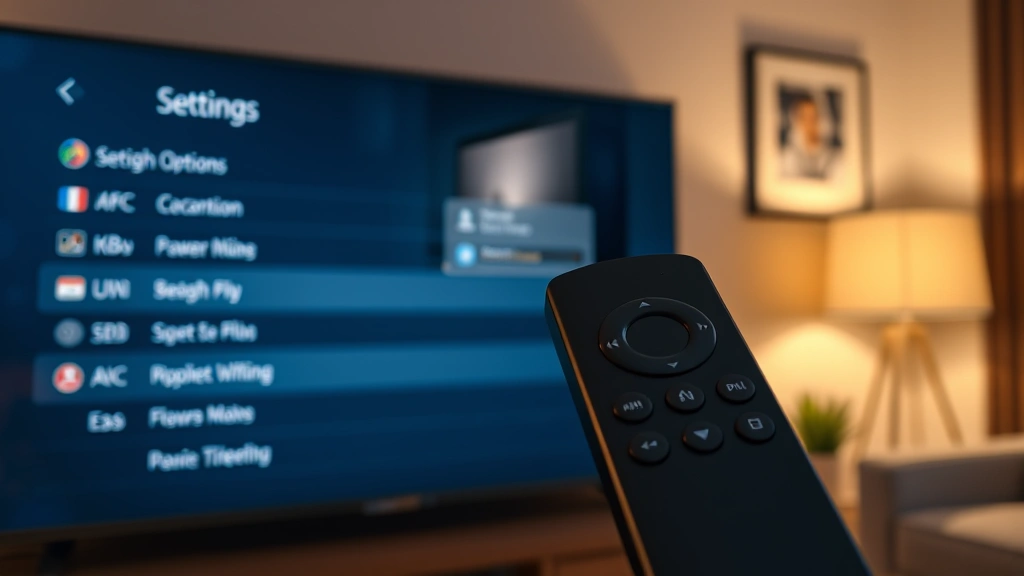
Enabling Unknown Sources is the foundation for how to jailbreak a Firestick. This setting tells your device to accept apps from sources other than the Amazon Appstore. Start by grabbing your Firestick remote and navigating to the home screen. From the home menu, scroll right to access the Settings option—it typically appears as a gear icon.
Once in Settings, scroll down and select “My Fire TV” (or “Device” on older models). Next, choose “Developer Options.” If Developer Options doesn’t appear, go back to Settings and look for “About” or “System.” In Developer Options, you’ll find the toggle for “Unknown Sources.” Select it and confirm by pressing the right arrow on your remote. You should see a warning message—read it carefully, then select “Turn On” to enable Unknown Sources.
After enabling Unknown Sources, your Firestick will accept APK files from external sources. This is the critical first step in how to jailbreak a Firestick safely. If you’re having trouble navigating menus, you might benefit from learning how to reset your Firestick remote to ensure smooth control throughout the process.
Step 2: Install a File Manager App
A file manager is essential for how to jailbreak a Firestick because it lets you browse, locate, and install APK files on your device. The most popular file manager for Firestick is ES File Explorer, though Downloader and Total Commander are solid alternatives. Start by opening the Amazon Appstore on your Firestick and searching for “ES File Explorer.”
Select the app and choose “Download” or “Get.” The installation process takes 2-3 minutes depending on your internet speed. Once installed, open ES File Explorer and familiarize yourself with its interface. The app displays your device’s file structure, allowing you to navigate folders, view installed apps, and manage storage. If ES File Explorer isn’t available in your region, search for “Downloader” instead—it’s equally capable and widely trusted by the Firestick community.
After installing your file manager, test it by opening the app and navigating to the “Local” section. You should see folders like “Android,” “data,” and “storage.” This confirms the app is working correctly and ready for the next step in how to jailbreak a Firestick.
Step 3: Download an APK Installer Application
An APK installer is the tool that actually installs third-party apps on your Firestick. The most recommended installer for how to jailbreak a Firestick is Downloader, which is lightweight and user-friendly. Search for “Downloader” in the Amazon Appstore, install it, and open the app. Downloader allows you to paste URLs directly into your Firestick, automatically downloading and installing APK files.
Another excellent option is Kodi, a powerful media center application that serves as both an installer and entertainment hub. Kodi is free, open-source, and widely used by Firestick enthusiasts. To install Kodi, use your Downloader app to paste the official Kodi installation link. The process is straightforward: open Downloader, select the URL input field, paste the link using your remote keyboard, and press download.
For users wanting maximum control, Aptoide is a third-party app store that functions similarly to the Amazon Appstore but with thousands of additional applications. How to jailbreak a Firestick using Aptoide involves downloading its APK file through Downloader, then installing it through your file manager. Always verify you’re downloading from official sources—check the developer’s website before pasting any URL.
Step 4: Sideload Third-Party Apps & Streaming Services
Now that you’ve enabled Unknown Sources and installed an APK manager, you’re ready to sideload apps. This is where how to jailbreak a Firestick becomes practical and rewarding. Popular apps to sideload include Kodi (for media streaming), Terrarium TV or similar apps (for entertainment content), and specialized tools like Plex (for personal media servers).
Using Downloader is the simplest method: open the app, select the URL field, paste your APK link, wait for download completion, and select “Install.” The app will appear in your Firestick’s app library within seconds. Using ES File Explorer requires more steps: download the APK file to your device, navigate to the file location through the file manager, and tap the APK to trigger installation.
For offline installation, you can download APK files on your computer, transfer them to a USB drive, connect the USB drive to your Firestick (using a USB adapter), and install through your file manager. This method works well if your internet connection is unstable. Remember that how to jailbreak a Firestick safely depends on choosing reputable apps—stick with well-known developers and established communities.
After installation, your new apps appear in the “Apps” section of your Firestick home screen. You can organize them by pinning favorites to your home row or creating custom folders. Most users install 3-5 primary apps to avoid cluttering their interface and slowing down device performance.
Troubleshooting Common Jailbreak Issues
Installation fails or APK won’t install: First, verify that Unknown Sources is still enabled in Developer Options. Sometimes the setting reverts after system updates. Check your internet connection speed—slow connections may timeout during downloads. Try downloading the APK file again from a different source. If the file is corrupted, your Firestick will reject it automatically.
Apps crash or freeze after installation: Clear the app’s cache by going to Settings → Apps → Manage Installed Applications, selecting the problematic app, and choosing “Clear Cache.” If crashes persist, uninstall and reinstall the app. You might also need to free up storage space—check Settings → Storage to see available capacity. Firestick devices typically need at least 500MB free space for optimal performance.
Firestick runs slowly after jailbreaking: Too many installed apps consume RAM and storage. Uninstall apps you don’t actively use. Restart your Firestick by unplugging it for 30 seconds, then plugging it back in. Disable background app refresh in Settings → Apps → Manage Installed Applications. If performance remains poor, consider a factory reset—though this will remove all installed apps and require reinstallation.
Remote control becomes unresponsive: You may need to reset your Firestick remote if it stops responding during or after jailbreaking. Hold the Home and Back buttons simultaneously for 10 seconds until the remote light flashes, then re-pair it with your device through Settings → Controllers & Bluetooth Devices.
Amazon Appstore apps disappear: This occasionally happens after enabling Unknown Sources, though it’s rare. Restart your Firestick and check for system updates. Go to Settings → My Fire TV → About → Check for Updates. Install any available updates, which often restore Appstore functionality.
According to Lifehacker’s troubleshooting guides, most Firestick issues resolve with simple restarts and cache clearing. If problems persist, factory reset is your safest option—it’s reversible and restores your device to original condition.
FAQ
Is jailbreaking a Firestick legal? Yes, jailbreaking your Firestick is legal in the United States and most countries. However, using it to access pirated content or unauthorized subscription services is illegal. Always use jailbroken devices responsibly and respect copyright laws.
Will jailbreaking void my Firestick warranty? Potentially, yes. Amazon’s warranty terms may be violated by modifying software. However, if you factory reset your device before returning it, Amazon typically cannot detect that it was jailbroken. Keep this in mind if you plan to use warranty services.
Can I undo jailbreaking and return to stock settings? Absolutely. Go to Settings → My Fire TV → Reset to Factory Defaults. This removes all sideloaded apps and restores your Firestick to original condition. Your device will function normally afterward, and Unknown Sources will be disabled.
What’s the difference between jailbreaking and rooting? Jailbreaking enables sideloading through software settings, while rooting grants administrative system access. For Firestick, jailbreaking is safer and sufficient for most users. Rooting requires more technical knowledge and carries greater security risks.
Can I use a VPN with my jailbroken Firestick? Yes, and it’s recommended for privacy protection. Install a VPN app through sideloading, or configure your VPN at the WiFi router level so all connected devices use it. This protects your IP address and encrypts your streaming activity.
How often should I update sideloaded apps? Check for updates manually within each app, as sideloaded apps don’t receive automatic updates like Amazon Appstore apps. Visit the developer’s website periodically to download newer versions. Set reminders monthly to check for critical security updates.
Is it safe to download APK files from third-party websites? Only download from official developer websites or trusted communities like Reddit’s r/Firestick. Avoid random download sites, as they may contain malware. Always scan files with antivirus software on your computer before transferring to your Firestick.
What happens if I install too many apps on my Firestick? Storage and RAM become limited, causing slowdowns and crashes. Firestick devices have 8GB-16GB storage depending on the model. Keep only essential apps installed and uninstall unused ones regularly. Monitor available storage in Settings → Storage.
Can I sideload apps on Fire TV Cube the same way as Firestick? Yes, Fire TV Cube uses the same operating system and jailbreaking process. The steps for how to jailbreak a Firestick apply directly to Fire TV Cube, Fire TV Stick 4K, and all other Fire TV devices. The process is identical across all models.
Do I need a computer to jailbreak my Firestick? No, you can jailbreak using just your Firestick and remote. Apps like Downloader allow direct APK installation without a computer. However, having a computer available makes it easier to research sources and download APK files safely before transferring them.
Final Thoughts on Jailbreaking Your Firestick
How to jailbreak a Firestick is a straightforward process that expands your device’s capabilities significantly. By following these steps—enabling Unknown Sources, installing a file manager, downloading an APK installer, and sideloading apps—you unlock access to thousands of applications beyond Amazon’s official store. The entire process takes 15-20 minutes and requires no technical expertise.
Remember that with greater freedom comes greater responsibility. Choose trusted app sources, maintain security awareness, and respect copyright laws. Regularly monitor your device’s performance and uninstall apps you no longer use. If you encounter issues, our troubleshooting section covers the most common problems and solutions.
For additional technical guidance on related topics, you might explore The Spruce’s home technology resources or Family Handyman’s DIY guides for broader smart home integration advice. Whether you’re interested in media streaming, productivity apps, or entertainment tools, jailbreaking your Firestick opens a world of possibilities while keeping your device secure and functional.