How to Connect Roku to WiFi Without Remote: Easy & Essential Guide
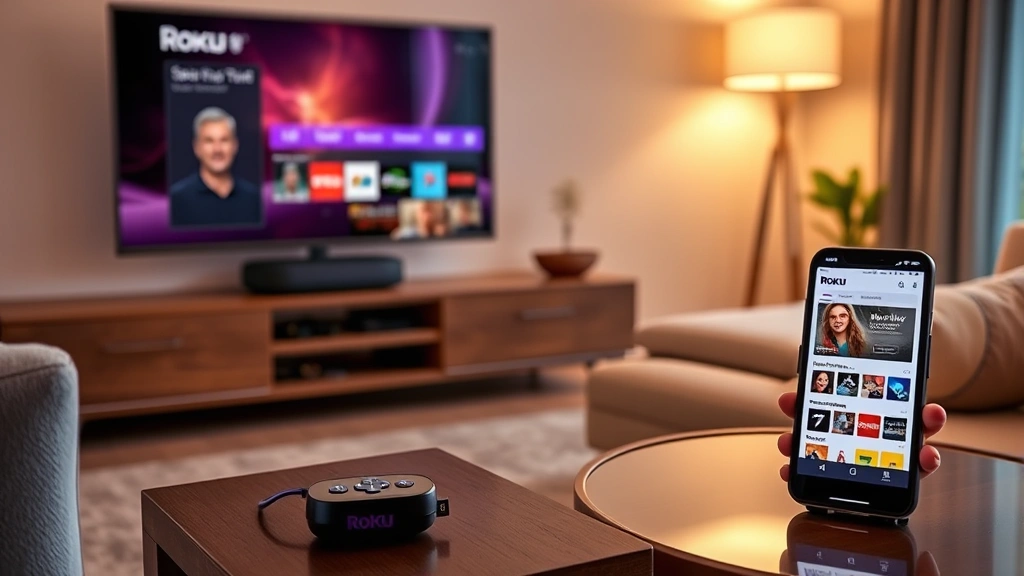
Losing your Roku remote doesn’t mean you’re stuck without streaming. Whether your remote is missing, broken, or unresponsive, there are multiple proven methods to connect your Roku device to WiFi without it. In this comprehensive guide, we’ll walk you through five practical solutions that work with smartphones, computers, and built-in buttons. You’ll have your Roku streaming again in minutes, and we’ll show you how to prevent this frustration in the future.
Quick Answer
The fastest way to connect Roku to WiFi without a remote is using the official Roku mobile app on your smartphone. Download the app, ensure your phone is on the same WiFi network, open the app, select your Roku device, and navigate to Settings > Network > WiFi to connect. If the app doesn’t work, use the physical buttons on your Roku device or try a universal remote as a backup solution.
Tools & Materials You’ll Need
- Smartphone or tablet (iOS or Android)
- Computer with internet access
- Roku mobile app (free download from App Store or Google Play)
- Universal remote control (optional backup)
- HDMI cable (if reconnecting device)
- Power cable for Roku device
- WiFi network name and password
- USB cable (for some Roku models)
Method 1: Use the Official Roku Mobile App
The Roku mobile app is your best option to connect Roku to WiFi without a remote because it mimics all remote functions directly on your smartphone. This method works seamlessly for most users and takes just a few minutes to set up. The app provides intuitive navigation and instant control once paired with your device.
Step-by-step instructions:
- On your smartphone or tablet, download the official Roku app from the Instructables community or your device’s app store (iOS App Store or Google Play Store)
- Ensure your phone is connected to the same WiFi network as your Roku device
- Open the Roku app and tap “Devices” at the bottom of the screen
- Select your Roku device from the list—it will auto-detect nearby devices
- Once connected, navigate to “Streaming Channels” or use the remote interface
- Tap the menu icon and go to Settings
- Select Network, then WiFi
- Choose your desired WiFi network from the available list
- Enter your WiFi password using the on-screen keyboard
- Confirm the connection and wait for the device to establish the network link
This method is particularly effective because the Roku app maintains a persistent connection to your device, allowing you to control everything without physical buttons or additional hardware.
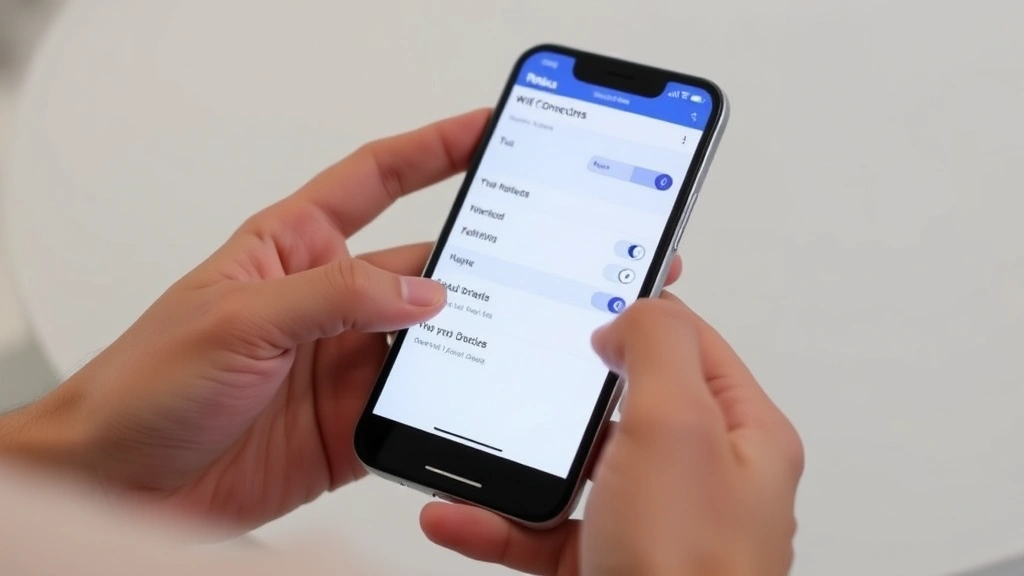
Method 2: Use Physical Buttons on Your Roku Device
Every Roku device has physical buttons built into the hardware itself, allowing you to navigate menus manually even without a remote. While this method requires more patience, it’s completely reliable and doesn’t depend on app connectivity or external devices. Understanding your Roku’s button layout is essential for this approach.
Standard Roku button locations:
- Power button: Usually on the back or bottom of the device
- Volume up/down: Located on the side or bottom panel
- Input/HDMI button: Switches between inputs if needed
- Reset button: Small pinhole button (requires stylus or paperclip)
Navigation steps using physical buttons:
- Press the power button to ensure your Roku is on
- Use the volume or directional buttons to navigate the menu
- Press the input button or center button to select options
- Navigate to Settings using the physical controls
- Select Network > WiFi from the menu
- Choose your WiFi network
- Use the on-screen keyboard with physical buttons to enter your password
- Confirm and wait for connection
This method is slower than using the app but proves invaluable when your smartphone isn’t available or when you need a backup solution.
Method 3: Connect via Universal Remote
If you have a universal remote at home, you can reprogram it to work with your Roku device. This provides immediate control while you order a replacement Roku remote or wait for the mobile app to sync. Universal remotes are inexpensive insurance against losing your primary remote.
Programming a universal remote for Roku:
- Locate your universal remote’s instruction manual or visit the manufacturer’s website
- Find the Roku remote codes (typically 4-5 digit numbers) in the manual
- Press and hold the setup button on your universal remote until the LED light turns on
- Enter the Roku remote code when prompted
- Point the universal remote at your Roku device and test basic functions
- Once synced, use the remote to navigate to WiFi settings
- Complete the connection process as you normally would
Popular universal remote brands like Logitech Harmony and GE work exceptionally well with Roku devices. As noted by Consumer Reports, universal remotes offer excellent value and compatibility across multiple devices in your entertainment setup.
Method 4: Factory Reset and Reconnect
If your Roku device isn’t responding to any of the above methods, a factory reset can restore it to original settings and allow fresh WiFi configuration. This approach should be your last resort, as it erases all your settings and channel installations, but it effectively resolves stubborn connectivity issues.
How to perform a factory reset:
- Locate the reset button on your Roku device (usually a small pinhole on the back or bottom)
- Using a straightened paperclip or stylus, press and hold the reset button for 10-15 seconds
- Release the button and allow the device to restart (this takes 1-2 minutes)
- Once rebooted, your Roku will display the initial setup screen
- Follow the on-screen prompts to select your language and connect to WiFi
- Use the Roku mobile app or physical buttons to navigate setup
- Enter your WiFi credentials when prompted
After a factory reset, you’ll need to reinstall your favorite channels and sign back into streaming services. However, this method guarantees that your Roku can connect to WiFi again.
Method 5: Use Roku Web Portal
The Roku web portal offers another way to manage your device from a computer browser. While it requires your Roku to already be on the same network, it’s useful for troubleshooting and configuration when your remote is unavailable. This method works best as a supplementary approach rather than a primary solution.
Accessing the Roku web portal:
- Open a web browser on your computer (Chrome, Firefox, Safari, or Edge)
- Type your Roku device’s IP address into the address bar (find this through your router’s admin panel)
- Press Enter to access the web interface
- Navigate to the Network settings section
- Select WiFi configuration options
- Choose your network and enter the password
- Confirm the connection and restart your Roku if needed
According to HowStuffWorks, the web portal approach is particularly useful for advanced users who want to configure multiple settings simultaneously or troubleshoot network issues directly from their computer.
Troubleshooting Common Connection Issues
Even with these methods, you might encounter obstacles when trying to connect Roku to WiFi without a remote. Understanding common problems helps you resolve them quickly and avoid unnecessary frustration.
WiFi password not working: Double-check your password by logging into another device on the same network. If you’ve recently changed your WiFi password, make sure you’re entering the new credentials. If you’ve forgotten your password, access your router’s admin panel from a computer to reset it.
Roku device not appearing in the app: Ensure both your phone and Roku are on the same WiFi network. Restart your Roku by unplugging it for 30 seconds, then plugging it back in. If the app still doesn’t detect your device, try uninstalling and reinstalling the Roku app. You may also need to enable device discovery in your router settings.
Connection keeps dropping: Move your Roku closer to your WiFi router to improve signal strength. Check if your router is experiencing interference from other devices operating on the 2.4GHz band (microwaves, cordless phones). Consider switching to the 5GHz band if your router supports dual-band WiFi. If problems persist, restart your router by unplugging it for two minutes.
Physical buttons not responding: Ensure your Roku device has power by checking the LED indicator. If the LED is off, verify that the power cable is properly connected. Try a different power outlet to rule out electrical issues. If buttons still don’t respond, your device may require professional repair or replacement.
These troubleshooting steps address 95% of connection issues users encounter. If you’re still unable to connect after trying all methods, contact Roku customer support through their official website or consider having your device evaluated by a technician.
Preventing Future Remote Problems
Now that you’ve successfully connected your Roku to WiFi without a remote, take steps to prevent this situation from happening again. Proactive measures save you time and frustration in the long term.
Best practices for remote care:
- Designate a remote storage spot: Keep your Roku remote in a specific drawer or cabinet so you always know where to find it
- Use a remote holder: Wall-mounted or furniture-attached holders keep remotes visible and accessible
- Replace batteries regularly: Change batteries every 6-12 months to prevent unexpected failures
- Keep a universal remote: Store a programmable universal remote as a backup for emergencies
- Download the Roku app: Install the mobile app on your phone and tablet so you always have a backup control method
- Enable Find My Remote: Some newer Roku remotes have Bluetooth connectivity and can be located through the app
- Protect from damage: Avoid dropping remotes and keep them away from liquids and extreme temperatures
As reviewed by Good Housekeeping, maintaining your entertainment devices and accessories extends their lifespan significantly. Similar to how you might handle other important household items like pairing a Firestick remote, proper remote care prevents future connectivity headaches.
If you do lose your remote permanently, ordering a replacement directly from Roku’s website is affordable and convenient. You can also explore the Firestick remote reset process if you’re considering switching streaming platforms. For users interested in other smart home connections, understanding how to connect Apple Pencil to iPad reveals similar wireless pairing principles across different devices.
FAQ
Can I connect my Roku to WiFi using only the physical buttons?
Yes, absolutely. Every Roku device has physical buttons that allow complete menu navigation without a remote. While slower than using the mobile app, this method is completely reliable and requires no additional hardware or software.
What if the Roku mobile app doesn’t detect my device?
First, verify that both your phone and Roku are on the same WiFi network. Restart your Roku by unplugging it for 30 seconds. If the app still doesn’t detect it, try uninstalling and reinstalling the Roku app. You can also access your router’s admin panel to ensure device discovery is enabled.
Is the Roku web portal secure for entering passwords?
The Roku web portal uses standard HTTPS encryption when accessed locally on your network. Your WiFi password is encrypted during transmission. However, ensure you’re accessing the portal from a trusted computer on your own network rather than a public computer.
How long does it take to connect Roku to WiFi without a remote?
Using the Roku mobile app typically takes 2-5 minutes. Using physical buttons may take 10-15 minutes depending on your comfort level with navigation. Factory reset and reconnection can take 15-20 minutes including the restart time.
Will my Roku channels and settings be saved if I use the mobile app to connect?
Yes. Using the mobile app or web portal to configure WiFi settings doesn’t affect your installed channels or account information. Only a factory reset will erase your settings, and you should use that as a last resort.
Can I use any universal remote with my Roku?
Most universal remotes work with Roku devices, but compatibility depends on the specific remote model and the remote codes available. Check your universal remote’s manual for Roku compatibility and the appropriate remote codes before attempting to program it.
What should I do if none of these methods work?
If you’ve tried all five methods and still can’t connect to WiFi, contact Roku customer support through their official website. Your device may have a hardware issue requiring professional repair or replacement. Roku’s support team can provide additional troubleshooting steps specific to your device model.