How to Clear App Cache on iPhone: Easy & Essential Tips
Your iPhone apps accumulate cache files over time, consuming precious storage space and potentially slowing down performance. Learning how to clear app cache on iPhone is one of the simplest yet most effective maintenance tasks you can perform. In just a few minutes, you can free up gigabytes of storage and restore your device’s snappy responsiveness. This guide walks you through multiple methods to clear app cache, from individual app management to system-wide solutions.
Quick Answer: The fastest way to clear app cache on iPhone is through Settings > General > iPhone Storage, where you can offload or delete apps to remove their cached data. Alternatively, delete and reinstall specific apps, or use the built-in cache-clearing features within individual applications. For a complete refresh, you can reset all settings or perform a factory reset, though this is more drastic.
Tools & Materials You’ll Need
- iPhone with iOS 15 or later
- Wi-Fi connection (recommended for large downloads)
- Apple ID and password (if reinstalling apps)
- 15-30 minutes of time
- Optional: iCloud backup access
Understanding iPhone App Cache
App cache consists of temporary files that applications store on your device to load faster and function more smoothly. When you use social media apps, streaming services, or web browsers, they save images, videos, login credentials, and other data locally. This system works wonderfully until cache files accumulate into hundreds of megabytes or even gigabytes, consuming storage space and potentially causing performance issues.
Understanding how to clear app cache on iPhone requires knowing that cache differs from app data. Cache is temporary and can be safely deleted without losing important information, while app data includes your settings, preferences, and saved content. Most users benefit from clearing cache monthly or quarterly, depending on usage patterns. According to WikiHow’s comprehensive guide, regular cache clearing is essential smartphone maintenance.
The good news is that clearing cache won’t delete your photos, messages, or personal files. It simply removes temporary files that apps no longer actively use. Think of it like clearing your browser history and temporary internet files on a computer—your bookmarks and saved passwords remain intact.
Method 1: Clear Cache Through iPhone Storage Settings
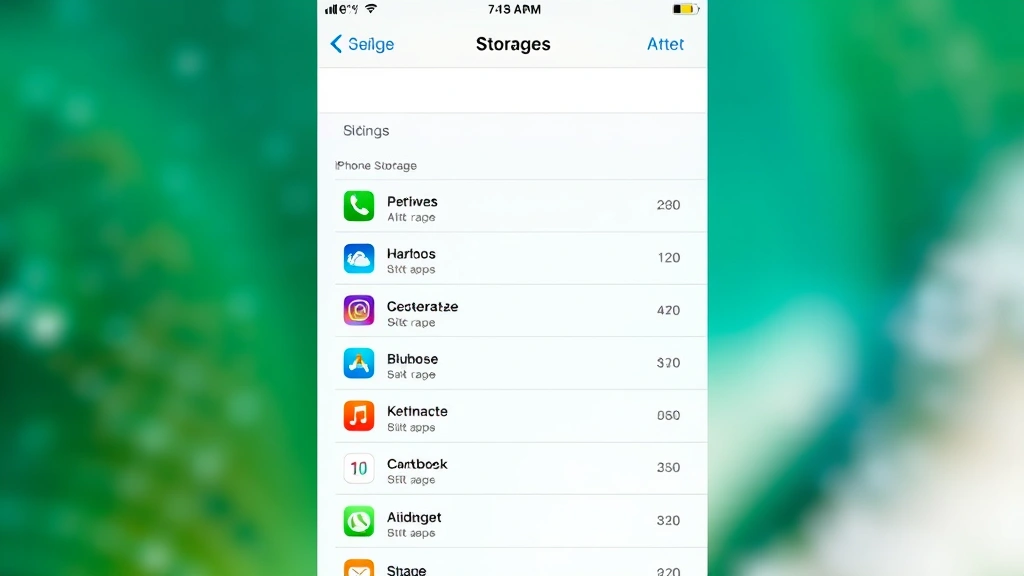
This is the most straightforward method for how to clear app cache on iPhone. Apple’s built-in storage management system identifies apps consuming the most space and offers quick solutions.
- Open Settings on your iPhone
- Navigate to General
- Tap iPhone Storage (displays total storage usage)
- Wait for the list to load—apps appear ranked by size
- Select any app consuming excessive storage
- Review the app size and cached data breakdown
- Tap Offload App or Delete App
- Choose Offload App to preserve data, or Delete App to remove everything
- Reinstall if you selected offload
The iPhone Storage menu is your dashboard for understanding what’s consuming space. Apps like Instagram, TikTok, and Spotify frequently accumulate gigabytes of cache. By reviewing this list regularly, you’ll spot problematic apps before they significantly impact your device’s performance. The Spruce’s tech guides recommend checking this menu monthly for optimal device health.
Method 2: Delete and Reinstall Apps
One of the most effective ways to learn how to clear app cache on iPhone is the delete-and-reinstall method. This completely removes all cached data associated with an app.
- Long-press the app icon on your home screen
- Select Remove App from the menu
- Tap Delete App to confirm
- Choose Delete when prompted about removing the app from iPhone
- Open the App Store
- Search for the app by name
- Tap the cloud icon or Get button
- Authenticate with Face ID, Touch ID, or Apple ID password
- Wait for installation to complete
This method guarantees complete cache removal since you’re essentially starting fresh with the app. It’s particularly useful for apps that frequently crash or load slowly. The reinstallation process typically takes 2-5 minutes depending on app size and internet speed. Your app data will redownload when you log back in, so you won’t lose any personal information.
Method 3: Clear Cache Within Individual Apps
Many apps include built-in cache-clearing options. Checking individual apps is an underrated approach to how to clear app cache on iPhone that preserves your data while removing temporary files.
For Social Media Apps (Instagram, Facebook, TikTok):
- Open the app and navigate to Settings or Profile
- Look for “Storage,” “Cache,” or “Data Usage”
- Select “Clear Cache” or “Clear Cached Data”
- Confirm the action
For Browsers (Safari, Chrome, Firefox):
- Open Settings > [App Name]
- Tap “Clear Browsing Data” or similar option
- Select “Cached Images and Files”
- Choose a time range (Last Hour, Today, All Time)
- Confirm deletion
For Streaming Apps (Netflix, Spotify, YouTube):
- Access app Settings or Account menu
- Find “Storage,” “Downloads,” or “Cache”
- Select “Clear Cache” or “Remove Downloads”
- Confirm the action
This method is gentler than uninstalling because it preserves your login sessions and preferences. You won’t need to re-enter passwords or reset configurations. Many users prefer this approach for apps they use daily, as it maintains continuity while still freeing up storage space.
Method 4: Use Offload App Feature
The Offload App feature is Apple’s elegant solution for managing storage while preserving app data. This is an underutilized method for how to clear app cache on iPhone that deserves more attention.
- Go to Settings > General > iPhone Storage
- Select the app you want to offload
- Tap Offload App
- Confirm by tapping Offload App again
- The app icon remains on your home screen but appears grayed out
- Tap the grayed-out icon to reinstall the app with cached data cleared
Offloading removes the app while keeping its associated data. When you reinstall it later, your settings and preferences return, but cache files are gone. This is perfect for apps you use occasionally but want to keep readily accessible. The process takes just seconds and frees up significant storage immediately.
Method 5: Reset Network Settings
Sometimes learning how to clear app cache on iPhone means addressing network-related cache that affects app performance. Resetting network settings clears Wi-Fi passwords, Bluetooth connections, and network cache.
- Open Settings > General > Transfer or Reset
- Tap Reset
- Select Reset Network Settings
- Enter your passcode when prompted
- Confirm the reset action
- Your iPhone will restart
After resetting network settings, you’ll need to reconnect to Wi-Fi networks and re-pair Bluetooth devices. This method is particularly helpful if apps are loading slowly or experiencing connectivity issues. It clears DNS cache and network-related temporary files that individual app cache clearing might miss. As noted by HowStuffWorks, network optimization is crucial for overall device performance.
Preventing Excessive Cache Buildup
The best approach to cache management is prevention. Implementing these habits reduces the need for aggressive cache clearing.
- Enable Automatic App Offloading: Go to Settings > App Store and toggle “Offload Unused Apps” to automatically remove apps you haven’t used recently
- Limit Video Streaming Quality: Reduce streaming quality in Netflix, YouTube, and similar apps to decrease cache accumulation
- Disable Auto-Download: Turn off automatic photo and video downloads in social media apps
- Clear Browser Cache Monthly: Set a calendar reminder to clear Safari or Chrome cache regularly
- Manage Downloads: Regularly delete downloaded files from email and messaging apps
- Review Storage Settings Quarterly: Check iPhone Storage settings every three months to identify problematic apps
These preventative measures work in tandem with your cache-clearing efforts. By reducing cache accumulation at the source, you’ll spend less time managing storage and more time enjoying your device. Family Handyman’s tech maintenance guides emphasize the importance of regular device upkeep.
When to Clear App Cache
Understanding when to clear app cache is just as important as knowing how. Different situations call for different approaches.
Clear Cache When:
- iPhone storage is below 10% available space
- Apps are loading noticeably slower than usual
- Apps frequently crash or freeze
- You notice unusual battery drain
- You haven’t cleared cache in over three months
- Preparing to sell or trade in your iPhone
- After major iOS updates that might cause compatibility issues
Don’t Worry About Clearing Cache When:
- You have more than 20% available storage
- Apps are functioning normally and responsively
- You just cleared cache within the past month
- You’re about to use data-heavy apps like mapping or video editing
Timing is important because clearing cache right before using storage-intensive apps might cause temporary slowness as the app rebuilds its cache. Plan cache clearing during maintenance windows, perhaps Sunday evenings when you’re less likely to need intensive app functionality.
FAQ
Will clearing app cache delete my photos or messages?
No. Cache clearing only removes temporary files. Your photos, messages, contacts, and personal data remain completely intact. Cache is separate from app data and user content.
How much storage can I typically free up by clearing cache?
This varies significantly depending on usage. Casual users might free up 500MB to 2GB, while heavy users of social media and streaming apps can recover 5-10GB or more. Check iPhone Storage settings to see which apps are consuming the most space.
Do I need to clear cache on a new iPhone?
No. New iPhones have minimal cache since apps haven’t had time to accumulate temporary files. Start regular cache clearing after three to six months of use.
Is it safe to use third-party cache-cleaning apps?
Apple doesn’t provide third-party apps with deep system access needed for true cache clearing. Stick with built-in iOS methods. Third-party apps claiming to clean cache are often unreliable or potentially risky.
How often should I clear app cache on iPhone?
Monthly cache clearing is ideal for most users. Heavy app users might benefit from clearing every two weeks, while light users could go quarterly. Monitor your iPhone Storage settings to determine the right schedule for your usage patterns.
Will clearing cache improve iPhone speed?
Yes, clearing excessive cache often improves performance, especially if your device was running low on storage. However, apps may load slightly slower immediately after clearing cache as they rebuild temporary files.
What’s the difference between clearing cache and resetting iPhone?
Clearing cache removes only temporary files while preserving all your data and settings. Resetting erases everything and restores your iPhone to factory conditions. Cache clearing is a safe maintenance task; resetting is a major action with significant consequences.
Can I schedule automatic cache clearing on iPhone?
iOS doesn’t have built-in automatic cache clearing, but you can enable “Offload Unused Apps” in App Store settings to automatically remove apps you haven’t used in a while. Otherwise, manual clearing remains the most reliable method.
Learning how to clear app cache on iPhone is an essential skill that every iPhone user should master. Whether you choose the iPhone Storage method, delete-and-reinstall approach, or individual app cache clearing, you’re taking a proactive step toward maintaining your device’s health and performance. Regular cache management, combined with preventative habits, ensures your iPhone remains fast, responsive, and storage-efficient for years to come. Start with whichever method feels most comfortable, then experiment with others to find your preferred routine. Your iPhone will thank you with snappier performance and reclaimed storage space.
For additional device maintenance tips, check out our guides on how to find hidden apps on iPhone and how to delete stickers on iPhone. If you’re managing multiple devices, our guide on connecting Apple Pencil to iPad provides similar maintenance wisdom for tablet users. You might also find our articles on turning off Find My iPhone and finding blocked numbers on iPhone useful for comprehensive device management. As reviewed by Consumer Reports, regular device maintenance extends longevity and prevents costly repairs.