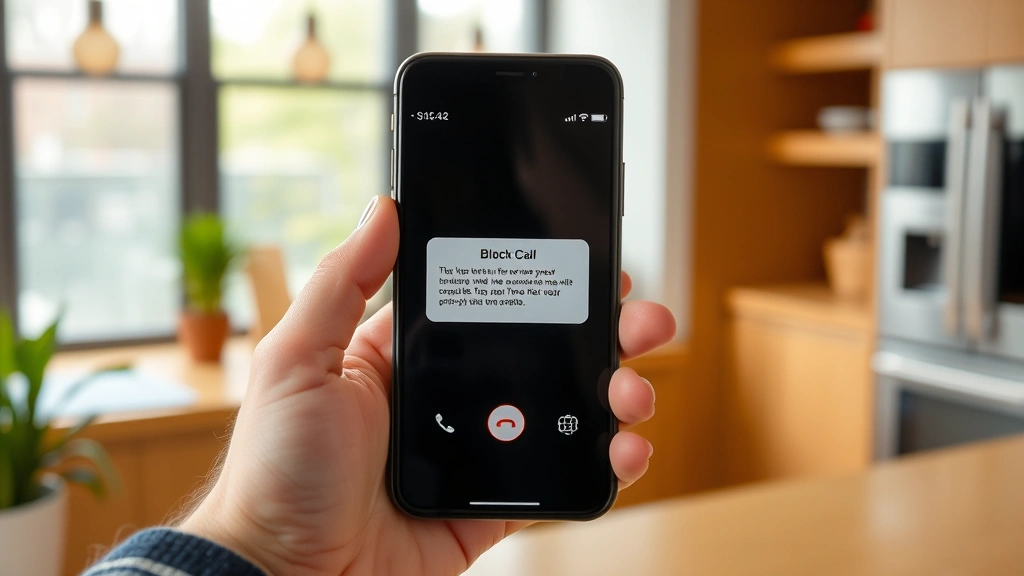
How to Block No Caller ID on iPhone: Best Simple Guide
Receiving calls from unknown numbers with no caller ID can be frustrating and potentially dangerous. Learning how to block no caller ID on iPhone is one of the most effective ways to protect your privacy and reduce unwanted interruptions. Whether you’re dealing with spam calls, scammers, or persistent telemarketers, your iPhone offers built-in features that make blocking these calls simple and straightforward. This comprehensive guide walks you through every method available, from basic settings adjustments to advanced filtering options.
Quick Answer
To block no caller ID calls on iPhone, open Settings → Phone → Silence Unknown Callers to automatically silence calls from unidentified numbers. Alternatively, enable “Filter Unknown Senders” in the Messages app, use Do Not Disturb with custom settings, or enable Focus modes. For maximum protection, combine these methods with the “Call Filter” feature if available in your region, or consider third-party apps designed specifically for call blocking.
Tools & Materials You’ll Need
- iPhone (iOS 13 or later recommended)
- Access to Settings app
- Active phone service
- Optional: Third-party call blocking app from App Store
- Optional: Carrier-specific spam filtering service
Method 1: Use Silence Unknown Callers
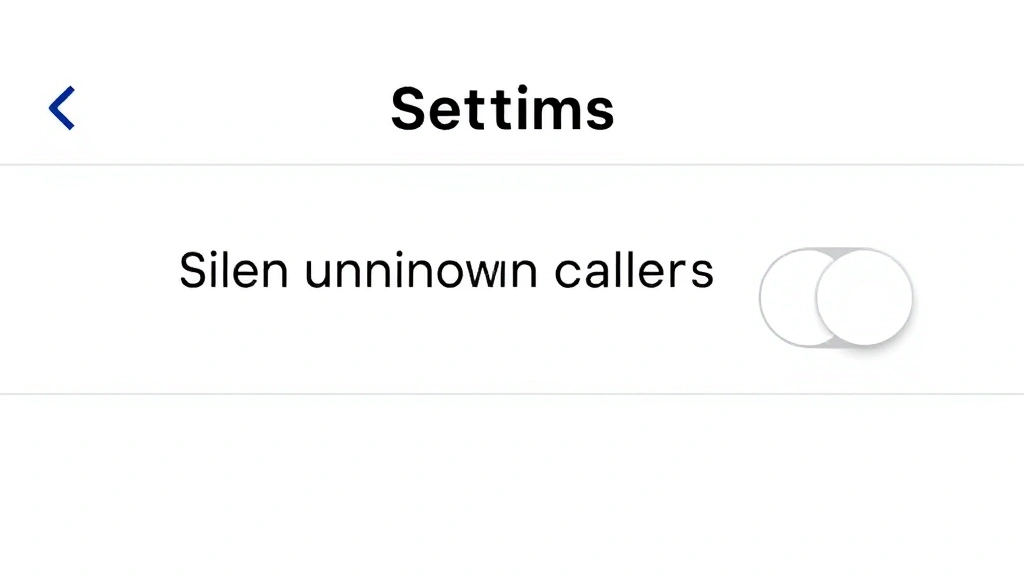
The Silence Unknown Callers feature is Apple’s native solution for blocking no caller ID calls on iPhone. This method automatically sends unknown calls to voicemail while silencing the ringtone, allowing legitimate contacts to reach you while filtering out unwanted callers. It’s the most straightforward approach and requires no additional apps or subscriptions.
To enable this feature, open the Settings app and navigate to Phone. Look for the toggle next to “Silence Unknown Callers” and switch it to the ON position. Once activated, any call from a number not in your contacts, recent calls, or Mail will be silenced and sent directly to voicemail. This feature works seamlessly in the background without affecting your daily iPhone usage.
The advantage of this method is that important calls from known contacts always get through with full ringtone notification. Unknown callers can still leave voicemails, which you can review later to determine if the call was important. This balanced approach protects your peace while ensuring you don’t miss critical communications.
Method 2: Enable Filter Unknown Senders in Messages
Apple’s Filter Unknown Senders feature in the Messages app provides similar protection for text messages as Silence Unknown Callers does for phone calls. This setting separates messages from unknown senders into a dedicated tab, keeping your primary message thread clean and organized.
Access this feature by opening Settings → Messages and toggling on “Filter Unknown Senders.” When enabled, text messages from people not in your contacts will appear in a separate “Unknown Senders” tab rather than your main conversation list. This prevents spam texts and unwanted messages from cluttering your inbox while preserving all incoming messages for your review.
Many users combine this setting with Silence Unknown Callers for comprehensive protection against both calls and texts from unidentified numbers. According to WikiHow’s communication guides, this dual-method approach significantly reduces interruptions from spam and unwanted contacts while maintaining access to important communications.
Method 3: Set Up Do Not Disturb Rules
The Do Not Disturb feature on iPhone offers granular control over which contacts can reach you and when. You can configure it to allow calls only from specific people in your Favorites list while silencing all others, including no caller ID calls. This method is particularly useful during work hours, meetings, or sleep time.
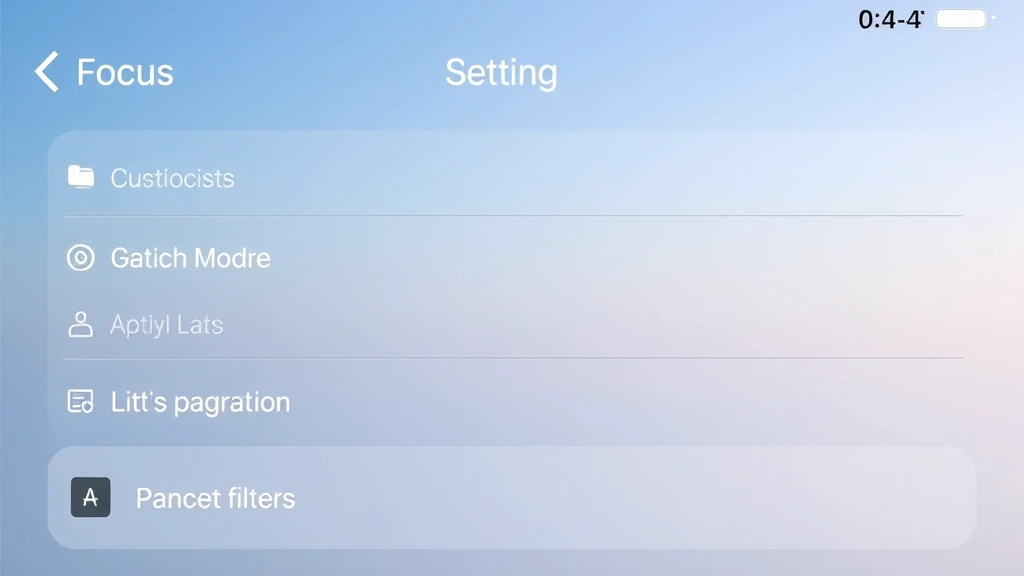
Navigate to Settings → Focus → Do Not Disturb. Tap “Customize” and select which contacts are allowed to call through. You can also set specific times for this rule to activate automatically. By restricting calls to your Favorites list only, you effectively block all no caller ID calls and unknown numbers from disturbing you during designated periods.
This approach gives you flexibility that other blocking methods don’t provide. You can have different rules for work hours, evening time, and weekends. Family members and close friends in your Favorites can always reach you, while all other callers—including those with no caller ID—are silenced and sent to voicemail.
Method 4: Create Custom Focus Modes
iOS Focus modes allow you to create customized communication profiles that automatically activate based on your location, time, or app usage. By setting up a Focus mode specifically designed to block no caller ID calls, you can maintain different filtering rules throughout your day without manual adjustments.
Open Settings → Focus and tap the + icon to create a new Focus. Name it something descriptive like “Work” or “Sleep.” Configure the allowed contacts to include only your Favorites, and set the automation to activate during specific times or when you open certain apps. You can create multiple Focus modes for different scenarios—one for work, one for sleep, and one for personal time.
The power of Focus modes lies in their automation. Once set up, they activate without any action required from you, ensuring consistent protection against no caller ID calls throughout your daily routine. As reviewed by The Spruce’s technology section, custom Focus modes represent one of the most sophisticated built-in privacy tools available on modern iPhones.
Method 5: Use Carrier Call Filtering
Most major carriers—including Verizon, AT&T, and T-Mobile—offer built-in call filtering services that work in conjunction with your iPhone’s native blocking features. These carrier-level solutions use advanced algorithms to identify and block spam calls before they reach your device. Many carriers provide this service for free or at a minimal monthly cost.
Contact your carrier directly or check their website to enable call filtering on your account. Verizon offers “Call Filter,” AT&T provides “Call Protect,” and T-Mobile includes “Scam Shield.” Once activated at the carrier level, these services block known spam numbers and suspicious calls from reaching your iPhone entirely. You can often customize filtering levels to block aggressive calls, suspected spam, or all unknown callers.
The advantage of carrier filtering is that it works before calls even reach your phone, reducing unnecessary network traffic and battery drain. Combined with iPhone’s built-in Silence Unknown Callers feature, carrier filtering provides multi-layered protection. Consumer Reports recommends this two-tier approach for maximum effectiveness against spam and scam calls.
Method 6: Block Individual Numbers
For specific phone numbers that repeatedly call with no caller ID or from known problem sources, you can manually block individual numbers directly through your iPhone. This method creates a permanent block list that prevents those numbers from contacting you through calls, texts, or FaceTime.
To block a number, open the Phone app and find the number in your recent calls list. Tap the information icon (i) next to the number and scroll down to select “Block this Caller.” Alternatively, if you receive a call, you can answer it and then hang up, then block the caller through the recent calls menu. You can also block contacts directly from your Contacts app by selecting a contact, tapping “Edit,” scrolling to the bottom, and choosing “Block this Caller.”
If you need to review or manage your blocked numbers, open Settings → Phone → Blocked Contacts to see your complete block list. You can learn more about managing your blocked contacts by reading our guide on how to find blocked numbers on iPhone. For those who want to review their blocked list in detail, we also offer comprehensive instructions on how to see blocked numbers on iPhone.
Method 7: Third-Party Call Blocking Apps
The App Store offers numerous third-party call blocking applications that provide advanced filtering capabilities beyond Apple’s native features. Apps like RoboKiller, TrueCaller, and Nomorobo use artificial intelligence and crowdsourced data to identify and block spam calls in real-time. These apps often include features like call recording, spam identification databases, and customizable blocking rules.
To use a third-party call blocking app, download it from the App Store and follow the installation prompts. Most apps require you to grant permission to access your call logs and contacts. Once installed, these apps run in the background and automatically block known spam numbers before they reach you. Many offer free versions with basic blocking features and premium subscriptions for advanced functionality.
According to CNET’s technology reviews, top-rated call blocking apps can block up to 95% of spam calls when combined with your carrier’s filtering service. However, they do require granting significant permissions to your contacts and call data, so choose reputable apps with strong privacy policies. For additional management options, you might also want to review our guide on how to unblock a number on iPhone to understand the full spectrum of call management tools available.
Best Practices for Maximum Protection
Combining multiple blocking methods creates the most effective defense against no caller ID calls. Start with Apple’s built-in Silence Unknown Callers feature, enable your carrier’s filtering service, and set up a Focus mode for times when you need absolute peace. This three-layer approach stops most unwanted calls before they cause any disruption.
Regularly review your voicemail to ensure legitimate callers can leave messages. Some important contacts like banks, doctors, or schools may call from numbers not in your contacts. By checking voicemail periodically, you ensure you don’t miss critical communications while maintaining protection against spam.
Keep your iPhone updated with the latest iOS version, as Apple regularly improves privacy and security features. Enable two-factor authentication on your Apple ID and be cautious about sharing your phone number online. The fewer people and services that have your number, the fewer spam calls you’ll receive overall.
Frequently Asked Questions
Will blocking no caller ID calls prevent all unwanted calls?
No single method blocks 100% of unwanted calls, but combining Silence Unknown Callers with your carrier’s filtering service and a third-party app can block 90-95% of spam calls. Some determined scammers use spoofed numbers or numbers in your contacts, which require additional vigilance.
Can I still receive voicemails from blocked no caller ID calls?
Yes, when you use Silence Unknown Callers, blocked calls are sent directly to voicemail. You can listen to these voicemails later to determine if any were legitimate. This allows you to maintain a record while preventing interruptions.
Does Silence Unknown Callers work with international calls?
Silence Unknown Callers primarily targets domestic unknown numbers. International calls may be handled differently depending on your carrier and settings. If you frequently receive calls from international contacts, you may need to add them to your contacts to ensure they get through.
What’s the difference between blocking and silencing calls?
Blocking prevents a specific known number from contacting you at all, while silencing sends calls to voicemail without ringing. Silence Unknown Callers silences all unknown numbers rather than blocking specific contacts. You can manage blocked numbers in your settings.
Will third-party call blocking apps drain my battery?
Most modern call blocking apps are optimized for minimal battery impact, though running any background app uses some battery. The battery drain is typically negligible compared to the benefit of reduced spam calls interrupting your phone use.
Can I whitelist specific numbers to bypass no caller ID blocking?
Yes, by adding numbers to your Contacts or Favorites list, they will bypass Silence Unknown Callers and always reach you with full notification. This allows you to protect yourself from unknown callers while ensuring important contacts get through.
Is it legal to block no caller ID calls?
Yes, it’s completely legal to block calls on your personal device. You have the right to control who can contact you. However, blocking legitimate businesses or services may cause you to miss important information, so periodically check your voicemail.