How to Allow Pop Ups on Safari: Simple & Essential Guide
Safari’s pop-up blocker is a powerful security feature, but sometimes it prevents legitimate pop-ups you actually need. Whether you’re trying to access online banking portals, educational platforms, or web applications, knowing how to allow pop ups on Safari is essential. This guide walks you through every method to enable pop-ups on Mac, iPhone, and iPad, plus troubleshooting tips for when things go wrong.
Quick Answer: On Mac Safari, go to Safari > Settings > Security and uncheck “Block pop-ups.” On iPhone/iPad, open Settings > Safari > Block Pop-ups and toggle it off. You can also allow pop-ups for specific websites by visiting the site, clicking the pop-up icon in the address bar, and selecting “Allow Pop-ups for This Website.”
Tools & Materials Needed
- Mac, iPhone, or iPad running current Safari version
- Internet connection
- Administrator access (for Mac)
- Website URL requiring pop-up access
- 5-10 minutes of your time
Why Safari Blocks Pop-Ups by Default
Safari’s pop-up blocker exists to protect you from malicious advertisements, phishing scams, and unwanted content that can compromise your device’s security. By default, Safari blocks most pop-ups automatically—a feature that has become standard across all modern browsers. According to WikiHow, understanding your browser’s security settings is crucial for maintaining a safe online experience while still accessing legitimate content.
Pop-ups were once the internet’s most notorious nuisance, used primarily for spam and malware distribution. Apple implemented aggressive pop-up blocking to combat this problem. However, many legitimate websites—including banking platforms, appointment schedulers, and document viewers—rely on pop-ups for essential functionality. When you encounter a blocked pop-up on a trusted site, you’ll notice a small icon appearing in Safari’s address bar, indicating that content has been blocked.
The key to managing pop-ups effectively is learning to distinguish between harmful and legitimate pop-ups, then configuring Safari accordingly. This guide explains how to allow pop ups on Safari safely, giving you control over which sites can display pop-ups while maintaining protection against malicious content.
How to Allow Pop-Ups on Mac Safari
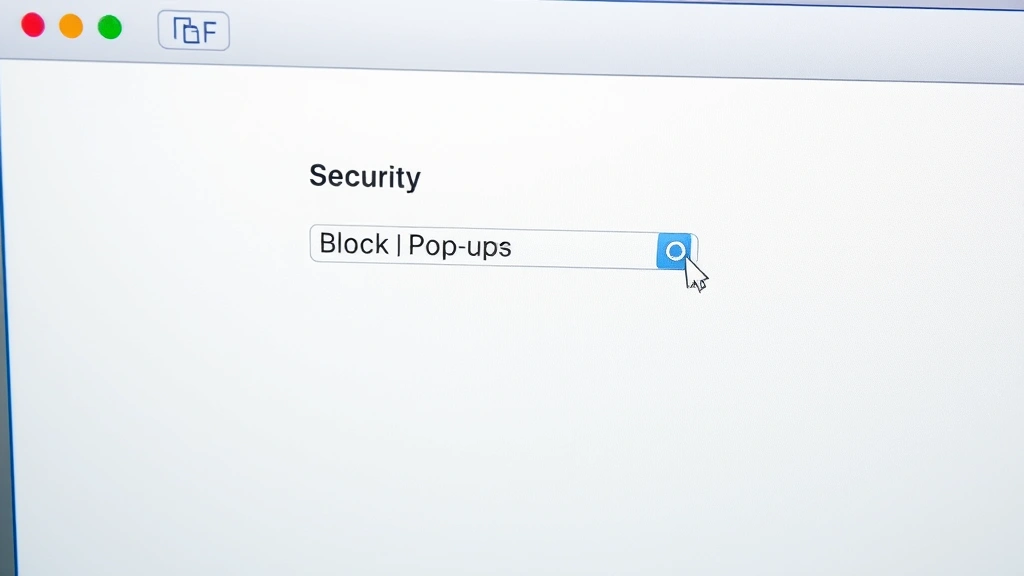
The most straightforward way to allow pop ups on Safari on your Mac is through the Security settings. This method disables pop-up blocking globally, meaning all websites can display pop-ups. Follow these steps carefully:
- Open Safari on your Mac
- Click “Safari” in the top menu bar
- Select “Settings” (or “Preferences” on older macOS versions)
- Navigate to the “Security” tab
- Look for the checkbox labeled “Block pop-ups”
- Uncheck the box to allow all pop-ups
- Close the Settings window—changes save automatically
Once you’ve unchecked “Block pop-ups,” Safari will permit pop-ups from all websites immediately. This is the nuclear option—it provides maximum functionality but offers less protection. If you’re concerned about security, consider using the website-specific method instead, which we’ll cover in detail later. Instructables provides additional browser customization tutorials if you need more advanced configuration.
For users on macOS Monterey or earlier, the process is nearly identical, though the menu structure might vary slightly. If you can’t find the Security tab, try looking under “Privacy” instead. Remember that disabling pop-up blocking affects your entire browsing experience, not just one website.
How to Allow Pop-Ups on iPhone Safari
iPhone users need to access the Settings app rather than Safari’s built-in preferences. Here’s how to allow pop ups on Safari on your iPhone:
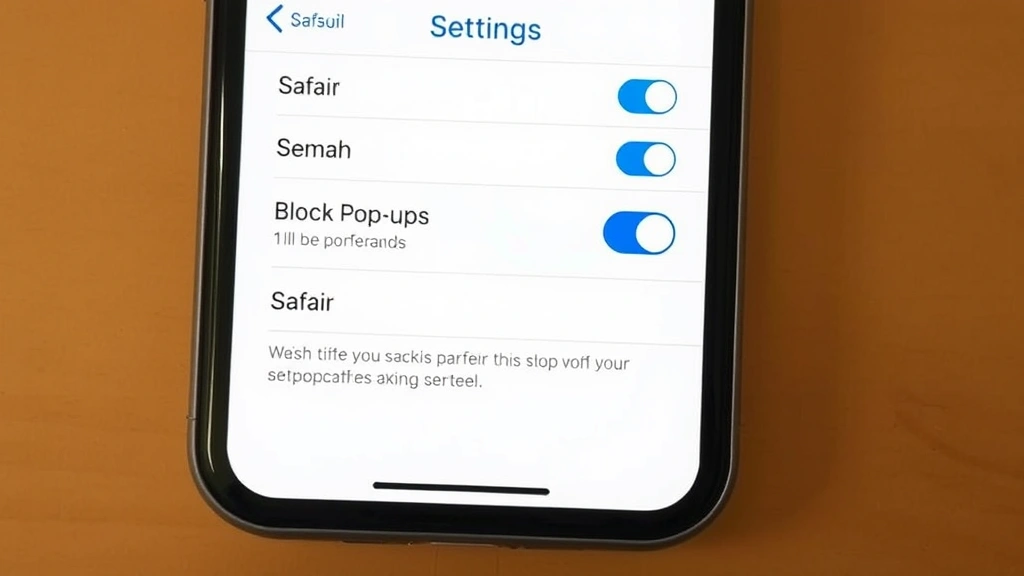
- Open the Settings app on your iPhone
- Scroll down and tap “Safari”
- Look for “Block Pop-ups” in the list
- Tap the toggle switch next to “Block Pop-ups” to turn it off (the switch will turn white/gray)
- Exit Settings—the change takes effect immediately
On iPhone, the pop-up settings are more limited than on Mac. You either block all pop-ups or allow all pop-ups; there’s no granular website-specific control built into iOS Settings. However, you can still use Safari’s address bar method to allow pop-ups for individual sites, which provides a good middle ground between complete blocking and complete allowance.
If you’re running iOS 15 or later, you might notice additional privacy options in Safari settings. These don’t directly affect pop-ups but work alongside the pop-up blocker to enhance your browsing security. Make sure your iPhone is updated to the latest iOS version for the best Safari performance and security features.
How to Allow Pop-Ups on iPad Safari
The iPad process mirrors the iPhone method since both devices run on Apple’s iOS operating system. To allow pop ups on Safari on your iPad:
- Open Settings on your iPad
- Scroll down and select “Safari”
- Find the “Block Pop-ups” toggle
- Switch it off to enable pop-ups
- Return to Safari—pop-ups are now allowed
iPad users often work with productivity apps and web-based tools that require pop-up functionality, making this setting particularly important for tablet users. If you use your iPad for work or education, you might find that allowing pop-ups is essential for accessing certain platforms. The good news is that the process takes less than a minute, and you can toggle it back on at any time if you encounter too many unwanted pop-ups.
For iPad users who want more granular control, consider using the website-specific allowance method described in the next section. This approach lets you maintain pop-up blocking for most sites while enabling them only where needed. If you also use how to turn off iPad features for parental controls or device management, those settings won’t interfere with pop-up permissions.
Allow Pop-Ups for Specific Websites Only
The safest approach to how to allow pop ups on Safari is enabling them for individual websites rather than globally. This method maintains protection against unwanted pop-ups while giving trusted sites access to pop-up functionality. Here’s how:
On Mac Safari:
- Visit the website that needs pop-up access
- Look for a small icon in the address bar (usually a circle with a line through it)
- Click this pop-up blocker icon
- Select “Allow Pop-ups for This Website”
- Refresh the page to see the pop-ups
On iPhone or iPad Safari:
- Navigate to the website requiring pop-ups
- Tap the address bar at the top
- Look for the pop-up blocker icon (appears as a blocked circle)
- Tap it and select “Allow Pop-ups for This Website”
- Refresh the page to load the pop-ups
This website-specific approach is ideal because it gives you fine-grained control. You’re not exposing yourself to pop-ups from random sites—only from the ones you explicitly trust. Safari remembers your choices, so you won’t need to repeat this process for the same website. If you later decide to block pop-ups from a site again, simply follow the same steps and select “Block Pop-ups for This Website.”
Troubleshooting Common Pop-Up Issues
Even after enabling pop-ups, you might encounter issues. Here are solutions to common problems:
Pop-ups Still Not Appearing? First, refresh the page using Command+R (Mac) or the refresh button. Some websites require a fresh page load to trigger pop-ups. If that doesn’t work, check whether you’ve actually allowed pop-ups for that specific website. You can verify this in Safari Settings under “Websites” > “Pop-ups,” where you’ll see a list of sites you’ve granted pop-up access.
Too Many Unwanted Pop-Ups? If you disabled global pop-up blocking and now regret it, simply re-enable it through Settings. Alternatively, block pop-ups for specific problematic sites while keeping them enabled globally. This selective approach lets you maintain functionality where you need it while protecting yourself from spam.
Pop-Ups Open in Background Tabs? Some websites deliberately open pop-ups in background tabs to avoid annoying users. This is normal behavior. Check your Safari tab bar to find these hidden pop-ups. If a website is abusing this behavior, you might want to block pop-ups for that site.
According to Lifehacker, browser settings should be adjusted regularly as websites evolve and your needs change. Don’t hesitate to revisit your pop-up settings if your browsing habits shift.
Pop-Ups Blocked Despite Allowing Them? Some websites use aggressive pop-up scripts that Safari blocks for security reasons, regardless of your settings. This is Safari’s way of protecting you from malicious content. If you trust the website completely, you can disable Safari’s Intelligent Tracking Prevention (ITP) for that site, though this is not recommended for untrusted sites.
Best Practices for Safe Pop-Up Management
Understanding how to allow pop ups on Safari is only half the battle—knowing when and how to do it safely is equally important. Follow these best practices to maintain security while enjoying full website functionality:
Only Allow Pop-Ups for Trusted Websites: Restrict pop-up access to sites you recognize and trust completely. Banks, educational institutions, and established companies are generally safe. Avoid allowing pop-ups for random websites or those with questionable reputations.
Keep Safari Updated: Apple regularly releases security updates that improve Safari’s ability to distinguish between legitimate and malicious pop-ups. Ensure your Mac, iPhone, or iPad runs the latest operating system version. You can check for updates in System Settings (Mac) or Settings (iOS/iPadOS).
Use Additional Security Tools: Consider enabling Safari’s other security features, such as fraudulent website warnings and privacy-preserving ad tracking blocking. These work alongside pop-up settings to create a comprehensive security posture. If you’re interested in broader device security, how to turn off Find My iPhone settings can help you understand Apple’s security ecosystem.
Monitor Your Pop-Up Exceptions List: Periodically review the websites you’ve allowed pop-ups for. If you no longer visit a site or no longer trust it, remove it from your exceptions. On Mac, go to Safari > Settings > Websites > Pop-ups to see and manage this list.
Be Skeptical of Pop-Ups Themselves: Even from allowed sites, be cautious about what pop-ups ask you to do. Legitimate pop-ups typically request information for account verification or display important notifications. Suspicious pop-ups asking for passwords or credit card information should be closed immediately, even if they appear to come from trusted sites.
When to Keep Pop-Ups Blocked
While this guide focuses on enabling pop-ups, it’s equally important to know when keeping them blocked is the better choice. Most users benefit from maintaining Safari’s default pop-up blocking for the majority of their browsing.
Keep Pop-Ups Blocked For:
- Unknown or suspicious websites
- Sites offering free movies, music, or software downloads
- Websites with excessive advertising
- Social media platforms (rarely need pop-ups for legitimate functionality)
- News sites and blogs (pop-ups are usually ads, not essential features)
- Shopping sites that aren’t official retailers
- Any site requesting sensitive personal or financial information via pop-up
The default pop-up blocking in Safari exists for good reason. Malicious actors still use pop-ups to distribute malware, conduct phishing attacks, and redirect users to compromised sites. By keeping pop-ups blocked globally and only allowing them for specific trusted sites, you maintain maximum security while preserving functionality.
If you frequently encounter blocked pop-ups on legitimate sites, it might indicate that you’re visiting sites that aren’t optimized for modern browsers. In such cases, contact the website’s support team and ask them to update their pop-up implementation to comply with current web standards.
FAQ
Q: Can I allow pop-ups for one website without allowing them globally?
A: Yes! This is the recommended approach. Visit the website, click the pop-up blocker icon in the address bar, and select “Allow Pop-ups for This Website.” This method works on Mac, iPhone, and iPad.
Q: Will allowing pop-ups slow down my Safari browsing?
A: Not significantly. Pop-ups themselves don’t consume much bandwidth or processing power. However, some websites use pop-ups to load ads or tracking scripts, which could slightly impact performance. This is another reason to use the website-specific allowance method rather than enabling pop-ups globally.
Q: How do I know if a pop-up is legitimate or malicious?
A: Legitimate pop-ups typically come from the website’s own domain and request reasonable information (like login verification or appointment scheduling). Malicious pop-ups often try to trick you into clicking suspicious links, downloading files, or providing sensitive information. When in doubt, close the pop-up and contact the website directly.
Q: Can I allow pop-ups on Safari but block them on other browsers?
A: Yes. Each browser maintains its own settings independently. Your Safari pop-up preferences don’t affect Chrome, Firefox, or other browsers installed on your device.
Q: Why does Safari block pop-ups even after I’ve allowed them for a website?
A: Some pop-ups are blocked by Safari’s security features before they even reach the pop-up blocker setting. This typically happens with pop-ups containing malicious code or those attempting to redirect you to suspicious sites. Safari’s Intelligent Tracking Prevention (ITP) can also block certain pop-ups. If you absolutely trust the website, you can disable ITP for that site in Settings.
Q: Do I need to allow pop-ups on both Mac and iPhone separately?
A: Yes. Safari settings don’t sync across devices. If you want to allow pop-ups on multiple Apple devices, you’ll need to configure each one individually. The website-specific allowances you make on one device won’t carry over to others.
Q: What’s the difference between pop-ups and pop-unders?
A: Pop-ups appear in front of your current window, while pop-unders open behind it. Safari’s pop-up blocker targets both types, so enabling pop-ups allows both to appear. This is why using website-specific allowances is safer than enabling all pop-ups globally.
Q: Can I set different pop-up rules for different Safari profiles?
A: Safari doesn’t support multiple profiles like some other browsers. However, you can use different user accounts on your Mac, each with separate Safari settings. On iPhone and iPad, you can only have one Safari configuration per device.
Q: How often should I review my pop-up exceptions list?
A: Review it quarterly or whenever you notice unusual pop-up behavior. Remove sites you no longer visit or no longer trust. This maintenance keeps your browsing experience clean and secure.
As reviewed by Consumer Reports, browser security settings should be part of your overall digital safety strategy. Regularly updating your knowledge about these settings helps you stay protected online.
Q: Will clearing my Safari history affect my pop-up allowances?
A: No. Pop-up allowances are stored separately from browsing history. You can clear your history without affecting which websites you’ve allowed pop-ups for. However, if you clear “All history” including cookies and website data, your pop-up exceptions might be cleared on some older Safari versions.
Now that you understand how to allow pop ups on Safari safely and effectively, you can confidently manage your pop-up settings based on your specific needs. Whether you’re accessing online banking, using educational platforms, or working with web applications, you have the knowledge to enable the functionality you need while maintaining your security. Remember that the safest approach is always the website-specific method—allow pop-ups only for sites you trust completely, and keep them blocked everywhere else.
For more information on Safari customization and security, check out The Spruce, which offers comprehensive guides on technology management. If you’re also interested in other Safari features, you might want to learn about how to right click on MacBook to access additional browser options, or explore how to update apps on iPhone to ensure Safari stays current with the latest security patches.