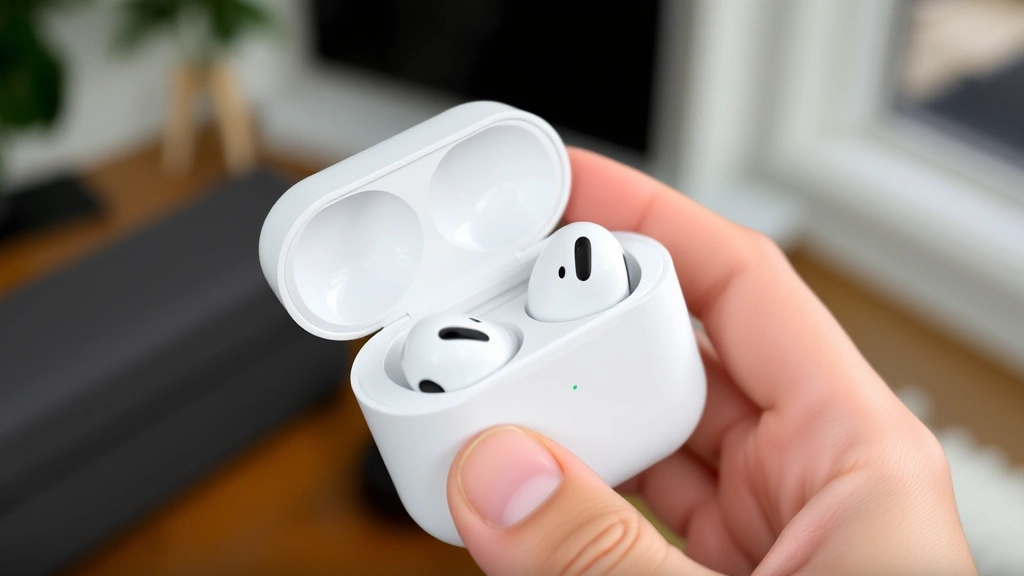
How to Reset AirPods Pro: Simple & Essential Guide
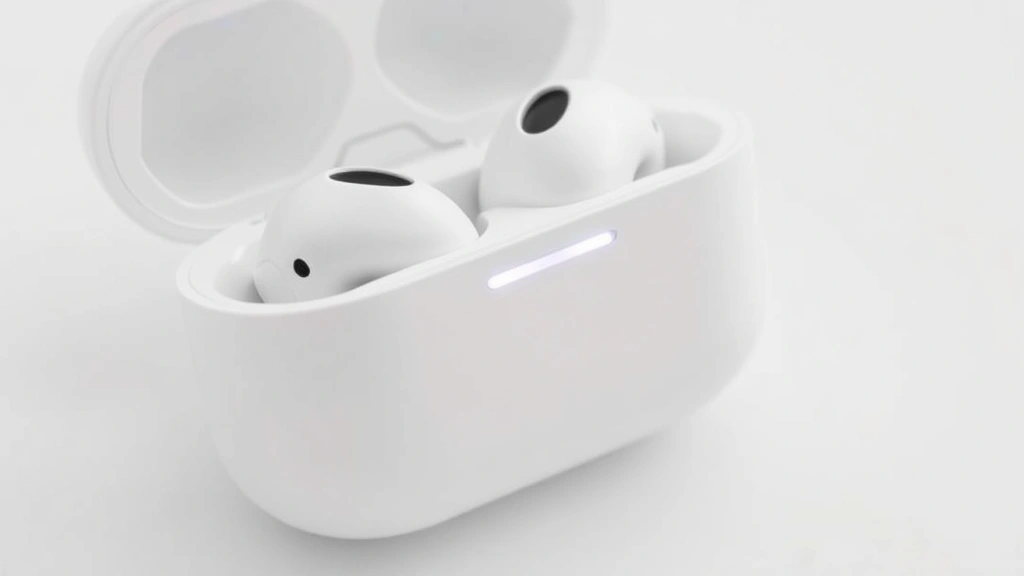
AirPods Pro are incredible wireless earbuds, but like any tech device, they occasionally need a fresh start. Whether you’re experiencing connectivity issues, audio problems, or preparing to sell your earbuds, knowing how to reset AirPods Pro is essential. A proper reset clears all settings, disconnects them from your devices, and restores them to factory defaults in just minutes. This comprehensive guide walks you through every method, troubleshooting tip, and best practice to get your AirPods Pro working perfectly again.
The quickest answer: Hold the setup button on the back of the charging case for 15 seconds until the status light flashes amber, then white. Your AirPods Pro are now reset and ready to pair with any device.
Tools & Materials You’ll Need
- AirPods Pro earbuds and charging case
- Compatible Apple device (iPhone, iPad, Mac, or Apple Watch)
- Stable Wi-Fi or Bluetooth connection
- Optional: Soft cloth for cleaning contacts
- Optional: Cotton swab for charging port maintenance
Understanding Why You Need to Reset AirPods Pro
Before diving into the mechanics of how to reset AirPods Pro, it’s important to understand when and why this process becomes necessary. Your AirPods Pro store connection data, audio preferences, and device pairings in their internal memory. Over time, this information can become corrupted or outdated, leading to frustrating issues.
Common scenarios requiring a reset include persistent Bluetooth connectivity problems, one earbud not charging, audio cutting out during calls, or when you’re transferring ownership. A reset is also the nuclear option when your AirPods Pro refuse to reconnect to any device or when they’re stuck in pairing mode. Unlike simple troubleshooting steps, a full reset completely clears the device memory and returns your earbuds to their original factory state.
The beauty of resetting AirPods Pro is that it’s non-destructive to the hardware itself. You’re simply clearing digital settings, not performing any physical repair. This makes it one of the safest and most effective troubleshooting methods available.
How to Reset AirPods Pro: Step-by-Step Method
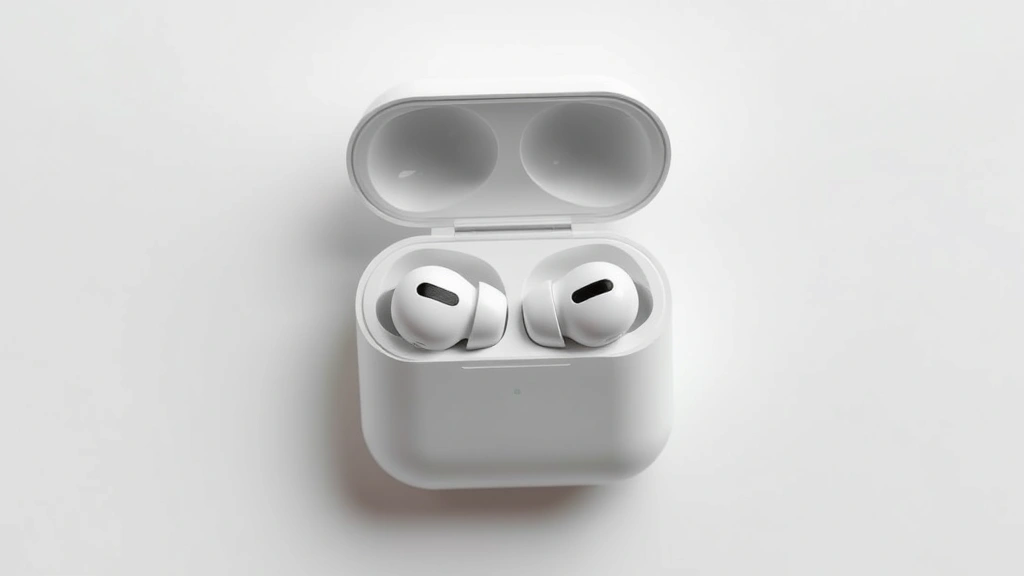
The primary method for how to reset AirPods Pro involves using the physical setup button located on your charging case. This process takes less than two minutes and requires no additional devices or apps.
- Open the charging case with your AirPods Pro inside. Ensure both earbuds are sitting properly in their charging slots.
- Locate the setup button on the back of the case. It’s a small circular button positioned between the two LED status lights.
- Press and hold the setup button continuously. Don’t release it yet—this is crucial for a successful reset.
- Watch for the status light changes. After about 5 seconds, the light will flash amber. Continue holding the button.
- Wait for the white flash. After approximately 15 seconds total, the status light will flash white multiple times. This indicates your AirPods Pro have been successfully reset.
- Release the button and close the charging case. Your AirPods Pro are now in pairing mode and ready to connect to a new device.
Timing is everything when learning how to reset AirPods Pro. Many users make the mistake of releasing the button too early. If you see only an amber light and no white flashing, you haven’t held it long enough. Simply repeat the process and hold the button for the full 15 seconds.
Resetting AirPods Pro on Different Apple Devices
While the physical reset method works universally, you may also want to remove your AirPods Pro from individual devices’ Bluetooth settings. This complementary approach ensures complete disconnection across your entire Apple ecosystem.
On iPhone or iPad: Open Settings, tap Bluetooth, find your AirPods Pro in the list, tap the info icon next to them, and select “Forget This Device.” Repeat this for each Apple device that has paired with your AirPods Pro. This step is particularly important if you’re selling your earbuds or giving them to someone else.
On Mac: Navigate to System Preferences (or System Settings on newer macOS versions), click Bluetooth, select your AirPods Pro, click the X button or “Remove” option, and confirm. This removes them from your Mac’s Bluetooth memory completely.
On Apple Watch: Go to the Watch app on your paired iPhone, navigate to Bluetooth, find your AirPods Pro, and tap the remove option. Apple Watches don’t store independent Bluetooth pairings the way iPhones do, so this step is often unnecessary but recommended for thoroughness.
According to WikiHow, properly removing devices from all paired systems prevents connection conflicts. After removing your AirPods Pro from all devices and performing the physical reset, you’ll have a completely clean slate.
Troubleshooting Common Reset Issues
Sometimes how to reset AirPods Pro doesn’t go smoothly on the first attempt. Understanding common problems helps you troubleshoot effectively.
Status light not changing: If the status light doesn’t respond when you hold the setup button, your charging case battery might be depleted. Place the case on a charger for at least 15 minutes, then try again. The case needs sufficient power to execute the reset command.
Amber light only, no white flash: You’re likely not holding the button long enough. Many users release after 10 seconds. Count to 15 slowly or use your phone’s timer to ensure you’re holding for the full duration. The white flash is essential—don’t stop short.
AirPods Pro won’t enter pairing mode after reset: Try removing the earbuds from the case and reinserting them. Close the case lid for 10 seconds, then open it again. The reset should trigger pairing mode automatically when you open the case after a successful reset.
One earbud not responding: If only one earbud resets while the other doesn’t, there may be a hardware issue. However, try the reset process again, ensuring both earbuds are properly seated in the charging case. Sometimes they need better contact with the charging pins.
Persistent connectivity problems after reset: If issues continue after resetting, your AirPods Pro may have a deeper hardware problem. Contact Apple Support or visit an Apple Store for professional diagnosis. As reviewed by Consumer Reports, persistent issues after a factory reset typically indicate hardware failure rather than software problems.
What Happens When You Reset AirPods Pro
Understanding exactly what occurs during a reset helps you prepare mentally for the process and know what to expect afterward. A complete reset of your AirPods Pro clears all stored information and returns them to their original factory configuration.
Your AirPods Pro will forget all previously paired devices. If you have them connected to your iPhone, iPad, Mac, and Apple Watch, they’ll disconnect from all of them simultaneously. This is why it’s crucial to perform the reset intentionally and when you’re prepared for the disconnection.
All personalized settings disappear during the reset. This includes custom audio preferences, noise cancellation adjustments, transparency mode settings, and any ear detection preferences you’ve configured. Your AirPods Pro will revert to Apple’s default audio settings, which are generally well-balanced and suitable for most users.
Firmware updates are preserved. The reset doesn’t downgrade your AirPods Pro to an older firmware version. They maintain their current software version, which is important for compatibility and security. However, you may need to update the firmware after reconnecting to an Apple device, depending on Apple’s latest releases.
The charging case retains its pairing history but loses active connections. When you reset the earbuds, the case essentially becomes unpaired as well. After reset, the case will automatically re-pair with your AirPods Pro, and you’ll see the white flashing light indicating they’re ready for initial setup on a new device.
Post-Reset Setup and Pairing Guide
After successfully resetting your AirPods Pro, you’ll need to set them up again on your desired device. This process is straightforward and takes just a few minutes.
Initial pairing on iPhone or iPad: With your AirPods Pro in their open charging case nearby, unlock your iPhone or iPad and hold the case next to the device. An animation should appear on your screen showing the AirPods Pro setup screen. Tap “Connect” and follow the on-screen prompts. You’ll be guided through naming your AirPods Pro and configuring initial settings.
Pairing on Mac: Go to System Preferences or System Settings, navigate to Bluetooth, and wait for your AirPods Pro to appear in the available devices list. Click “Connect” next to your AirPods Pro. Mac will automatically configure them for use.
Pairing on Apple Watch: Open the Watch app on your paired iPhone, go to Bluetooth, and tap your AirPods Pro when they appear. They’ll automatically sync with your Apple Watch through your iPhone’s connection.
After initial pairing on your primary device, your AirPods Pro will automatically connect to other Apple devices signed in with the same iCloud account. This seamless integration is one of Apple’s greatest strengths. You won’t need to manually pair them again—they’ll simply recognize your ecosystem and connect intelligently.
Take time to reconfigure your preferences after setup. Revisit Bluetooth settings to enable features like automatic ear detection, adjust noise cancellation levels, and customize which Siri commands work with your AirPods Pro. These personalized settings enhance your overall experience significantly.
Maintenance Tips to Prevent Future Problems
Learning how to reset AirPods Pro is valuable, but preventing issues in the first place is even better. Regular maintenance keeps your earbuds functioning optimally and reduces the need for frequent resets.
Clean your AirPods Pro regularly: Earwax and debris accumulate on the mesh speaker covers and charging contacts. Use a soft, dry, lint-free cloth to gently wipe the earbuds weekly. For stubborn buildup, slightly dampen the cloth with water—never use liquids directly on the earbuds. Clean the charging pins on both the case and earbuds with a dry cotton swab to ensure optimal charging contact.
Keep your charging case clean: The charging case is just as important as the earbuds themselves. Wipe it down weekly and ensure the charging port is free from dust and debris. A clean charging case ensures consistent power delivery to your earbuds, preventing charging-related issues that sometimes necessitate a reset.
Update firmware promptly: When your AirPods Pro notify you of available firmware updates, install them immediately. These updates often include bug fixes and performance improvements that prevent the issues requiring a reset. Updates occur automatically when your AirPods Pro are near a connected Apple device with sufficient battery.
Avoid extreme temperatures: Lithium-ion batteries in your AirPods Pro perform poorly in extreme heat or cold. Don’t leave them in hot cars or freezing environments for extended periods. Store them at room temperature when not in use, and allow them to reach room temperature before using them after exposure to extreme conditions.
Store properly when not in use: Always return your AirPods Pro to their charging case when you’re done using them. This protects them from physical damage, dust, and maintains their charge. A damaged earbud often triggers connectivity issues that users mistakenly think require a reset.
As suggested by Lifehacker, proper maintenance of your wireless earbuds extends their lifespan significantly. Similar to how you’d maintain your iPhone charging port as covered in our guide on how to clean iPhone charging port, regular earbud maintenance prevents costly replacements.
Frequently Asked Questions
Q: Will resetting my AirPods Pro delete any music or files?
A: No. AirPods Pro don’t store music, photos, or files. They’re purely audio output devices. Resetting only clears pairing information and settings, not content.
Q: How often should I reset my AirPods Pro?
A: Most users never need to reset their AirPods Pro. Only reset when experiencing specific issues or when transferring ownership. Unnecessary resets can disrupt your workflow.
Q: Can I reset AirPods Pro without the charging case?
A: No. The setup button is located exclusively on the charging case. You cannot reset your AirPods Pro without it. If your case is lost or damaged, you’ll need to purchase a replacement case.
Q: What’s the difference between forgetting AirPods Pro and resetting them?
A: Forgetting removes them from one device’s Bluetooth list. Resetting clears all pairings and settings from the earbuds themselves. Resetting is more comprehensive.
Q: Will my AirPods Pro reset if the battery dies?
A: No. A dead battery won’t trigger an automatic reset. You must manually perform the reset using the setup button. However, ensure your case has sufficient charge before attempting a reset.
Q: How long does it take to reset AirPods Pro?
A: The physical reset process takes about 15-20 seconds. However, the complete process including removing them from all devices can take 5-10 minutes.
Q: Can I reset just one AirPod?
A: No. Pressing the setup button resets both earbuds simultaneously. They’re paired together and reset as a single unit.
Q: What if my AirPods Pro won’t reset no matter what I do?
A: Try charging the case fully, ensure both earbuds are properly seated, and attempt the reset again. If the status light still doesn’t respond, contact Apple Support or visit an Apple Store. This may indicate a hardware defect.
Q: Do I need to reset my AirPods Pro before selling them?
A: Absolutely. Always perform a complete reset before transferring ownership. This removes all your personal data and Bluetooth pairings, ensuring the new owner receives a clean device ready for their own setup.
Q: Will resetting fix water damage?
A: No. While AirPods Pro are water-resistant, resetting won’t repair water damage. If water has entered the internal components, a reset cannot fix hardware damage. Professional service may be necessary.
For additional troubleshooting resources, check out Instructables for community-contributed solutions and Family Handyman for general tech maintenance advice. You might also find it helpful to review our related guides on how to replace AirTag battery and how to turn off Apple Watch for comprehensive Apple device management.
Conclusion: Knowing how to reset AirPods Pro is an essential skill for any Apple ecosystem user. Whether you’re troubleshooting connectivity issues, preparing to transfer your earbuds, or simply starting fresh, the process is straightforward and takes just minutes. Remember to hold the setup button for the full 15 seconds, watch for the white flashing light, and follow the post-reset pairing instructions carefully. With proper maintenance and occasional resets when needed, your AirPods Pro will provide years of reliable, high-quality audio. Don’t hesitate to reach out to Apple Support if issues persist after a reset—sometimes hardware problems require professional intervention.