How to Pair Firestick Remote: Simple & Essential Guide
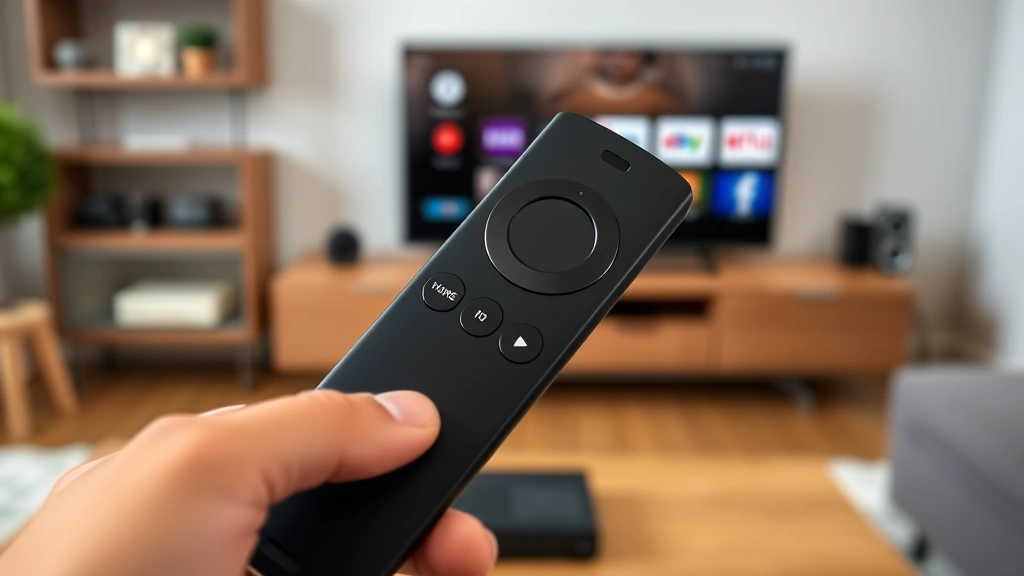
Your Fire TV Stick remote is the gateway to seamless streaming, but pairing issues can derail your entertainment experience. Whether you’re setting up a new device or reconnecting an existing remote, knowing how to pair your Firestick remote is essential for every Fire TV user. This comprehensive guide walks you through every pairing method, troubleshooting step, and pro tip you need to get streaming in minutes.
Quick Answer: To pair a Firestick remote, hold the Home button for 10-20 seconds until the LED light blinks rapidly, then release. Your Fire TV will automatically detect and pair the remote. If this doesn’t work, restart both devices, ensure Bluetooth is enabled, and try again. For older remotes or persistent issues, use the pairing code method or contact Amazon Support for advanced troubleshooting.
Tools & Materials You’ll Need
- Fire TV Stick device (any generation)
- Compatible Firestick remote (original, 2nd gen, or Alexa Voice Remote)
- Fresh AA batteries (for standard remotes)
- USB power source (for your Fire TV Stick)
- Clear line of sight between remote and device
- Stable WiFi connection
- Optional: Pairing code (found on Fire TV settings)
Standard Pairing Method for Firestick Remote
The most straightforward way to pair your Firestick remote is through the standard home button method. This approach works for most Fire TV Stick models and requires no special codes or settings adjustments. Start by ensuring your Fire TV Stick is powered on and connected to your WiFi network, as this is essential for the pairing process.
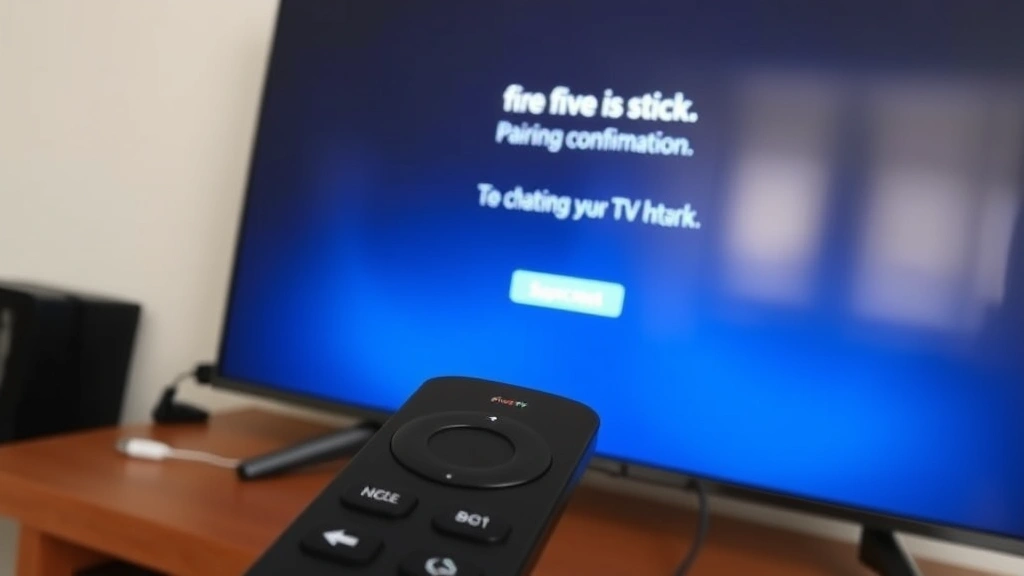
Hold down the Home button on your Firestick remote for 10-20 seconds. You’ll see the LED light on the remote begin to blink rapidly, indicating it’s in pairing mode. Keep holding the button until the light continues blinking—this typically takes about 20 seconds. During this time, your Fire TV Stick’s screen will display a pairing confirmation message showing that it’s searching for your remote.
Once the LED stops blinking and remains solid or turns off, your remote has successfully paired. The Fire TV screen will confirm the connection with a notification. Test the remote by pressing a few buttons to ensure full functionality. If you don’t see confirmation, restart both devices and repeat the process.
According to WikiHow’s comprehensive tech guides, this method is the industry standard for infrared and Bluetooth device pairing. The Home button method works because it triggers your remote’s Bluetooth discovery mode, allowing your Fire TV Stick to recognize and authenticate the connection.
Check Batteries and Power
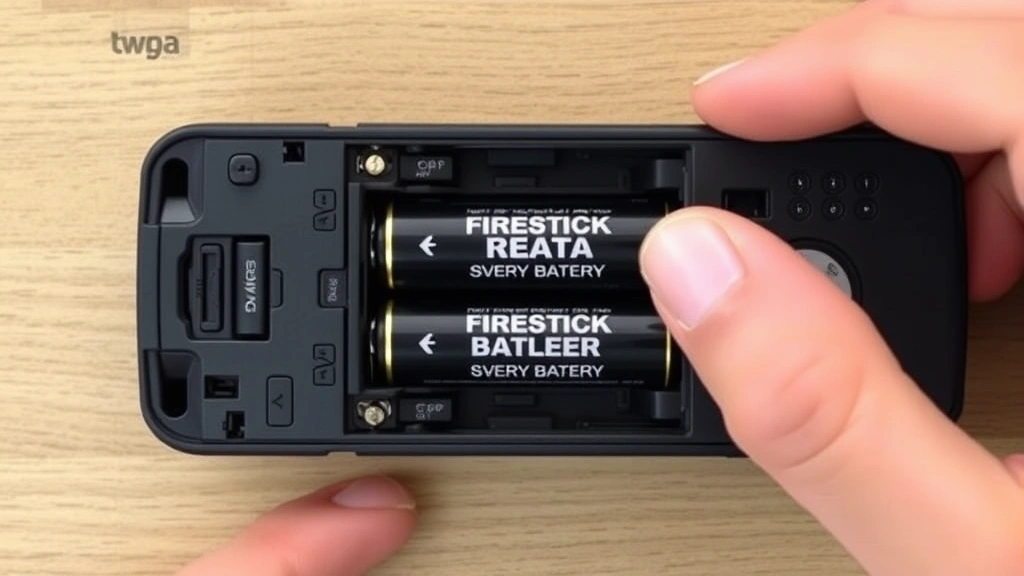
Before attempting any pairing procedure, verify that your batteries are fresh and properly installed. Weak or dead batteries are the most common reason Firestick remote pairing fails. Standard Firestick remotes use two AA batteries, and they should be inserted with the correct polarity (+ and – sides aligned properly).
Open the battery compartment on the back of your remote by sliding or pressing the release tab. Remove old batteries and inspect the contacts for corrosion or debris. If you notice any green or white buildup, gently clean the contacts with a dry cloth. Insert two fresh AA alkaline batteries, ensuring the positive ends face the spring contacts.
Your Fire TV Stick also needs adequate power to complete pairing. Ensure it’s connected to a power source and fully booted up. Allow 30-60 seconds after powering on for the device to fully initialize before attempting pairing. If your Fire TV Stick keeps restarting or shows a low-power warning, use a different power adapter or USB port to ensure stable power delivery.
For Alexa Voice Remotes with rechargeable batteries, plug the remote into a USB charger for at least 2-3 hours before pairing. A completely drained battery can prevent the remote from entering pairing mode, so always ensure adequate charge before troubleshooting.
Enable Bluetooth on Your Fire TV
Firestick remotes use Bluetooth technology to communicate with your Fire TV Stick. If Bluetooth is disabled, how to pair Firestick remote becomes impossible, even with fresh batteries and correct procedures. Navigate to your Fire TV’s settings to verify Bluetooth is active.
From your Fire TV home screen, go to Settings → Display & Sounds → Remote & Bluetooth Devices. Select Other Bluetooth Devices and ensure the toggle is switched to On. This enables your Fire TV Stick to discover nearby Bluetooth devices, including your remote. If Bluetooth was previously disabled, you may need a different remote or the Fire TV’s voice control to navigate these menus.
Check if there’s a “Pair New Device” or “Pair Remote” option in the Bluetooth settings. Some Fire TV models display this explicitly, which can simplify the pairing process. Select this option and immediately hold your remote’s Home button to initiate pairing while your Fire TV is actively searching.
If you’re still unable to access settings, try restarting your Fire TV Stick completely. Unplug it from power for 30 seconds, then plug it back in. Once fully restarted, attempt the standard pairing method again. Sometimes a fresh boot resolves underlying Bluetooth connectivity issues.
Pairing Your Remote Using a Code
If the standard Home button method doesn’t work, use the pairing code method to pair your Firestick remote. This approach is particularly useful for older remote models or when Bluetooth discovery isn’t responding. A pairing code is a unique number generated by your Fire TV Stick specifically for remote authentication.
First, find your pairing code. On your Fire TV Stick, navigate to Settings → Display & Sounds → Remote & Bluetooth Devices → Pair New Device. Your Fire TV will display a 4-digit pairing code on the screen. Write this code down or keep the screen visible, as you’ll need to enter it into your remote within a specific timeframe (usually 60 seconds).
On your remote, hold the Home button for 10 seconds to enter pairing mode. A screen or prompt should appear asking for the pairing code. Use the arrow buttons to navigate and select each digit of the code, then press OK or Select to confirm. Your remote will immediately attempt to authenticate using this code.
As reviewed by Consumer Reports, code-based pairing is more secure and reliable than simple Bluetooth discovery, especially in homes with multiple wireless devices. Once authentication is complete, your remote will pair successfully and display a confirmation message on your Fire TV screen.
Troubleshooting Common Pairing Issues
Even with proper procedures, Firestick remote pairing issues can occur due to interference, outdated firmware, or hardware problems. Start by checking for WiFi interference. Move your Fire TV Stick away from microwave ovens, cordless phones, or other 2.4GHz devices that might disrupt Bluetooth signals. Position your remote within 10 feet of the Fire TV Stick during pairing.
Restart both your Fire TV Stick and remote completely. Unplug the Fire TV from power and remove the batteries from your remote. Wait 30 seconds, then reinsert batteries and power on the Fire TV. This clears temporary glitches and resets the Bluetooth connection. After the Fire TV fully boots (usually 1-2 minutes), attempt pairing again.
Check if your Fire TV Stick’s firmware is up to date. Go to Settings → About → Check for Updates and install any available updates. Outdated firmware can cause Bluetooth compatibility issues. Similarly, verify that your remote is compatible with your Fire TV Stick model. Older remotes may not pair with newer Fire TV generations without additional steps.
If you’ve tried multiple pairing methods without success, try unplugging your Fire TV Stick for 2-3 minutes to perform a factory reset of its Bluetooth module. This more thorough reset often resolves persistent pairing failures. As documented by Lifehacker’s tech troubleshooting resources, this method has a high success rate for stubborn Bluetooth issues.
Reset Your Firestick Remote
Sometimes the remote itself needs a complete reset to restore pairing functionality. A factory reset clears any corrupted pairing data and restores the remote to its original state, allowing fresh Firestick remote pairing to occur. This is particularly useful if your remote previously paired with a different Fire TV device.
For standard Firestick remotes, locate the tiny reset button on the back of the remote near the battery compartment. Using a paperclip or similar small object, press and hold this button for 10-15 seconds. You’ll see the LED light blink rapidly, indicating the reset is in progress. Release the button and wait for the light to stop blinking.
For Alexa Voice Remotes, the reset process differs slightly. Hold down the Home button and the Back button simultaneously for 10 seconds. The LED will flash rapidly, confirming the reset. After the light stops, your remote has been factory reset and is ready for new pairing.
After resetting your remote, immediately attempt to pair it using the standard Home button method. Since the remote is now in a clean state, pairing should proceed smoothly. If problems persist after reset, your remote may have a hardware issue requiring replacement. Contact Amazon Support or consider purchasing a new compatible remote.
Pairing Multiple Remotes to One Device
Many households use multiple Firestick remotes for different rooms or as backups. Fire TV Sticks can pair with up to 8 remotes simultaneously, though only one will be the primary device. Understanding how to manage multiple remotes ensures smooth operation across your home.
To add a second remote, simply follow the standard pairing procedure with the new remote while your Fire TV Stick is on. Hold the Home button on the new remote for 10-20 seconds and complete pairing. The Fire TV will detect it as an additional device and add it to the paired remotes list. You can have multiple remotes paired without any special configuration.
To remove or unpair a specific remote, go to Settings → Display & Sounds → Remote & Bluetooth Devices. Select the remote you want to remove and choose “Unpair” or “Remove.” This is useful if you’ve upgraded remotes or need to manage your connected devices. The unpaired remote will no longer control your Fire TV Stick.
If you have multiple Fire TV Sticks in your home, each remote will only control the device it’s paired with. If you want to use one remote for multiple Fire TV devices, you’ll need to unpair it from the first device and pair it with the second. Alternatively, purchase additional remotes so each Fire TV Stick has its own dedicated remote.
FAQ
How long does it take to pair a Firestick remote?
The pairing process typically takes 20-30 seconds from start to finish. Hold the Home button for 10-20 seconds until the LED blinks rapidly, then release. Your Fire TV Stick will detect and authenticate the connection within another 10 seconds. If pairing takes longer than 60 seconds, restart both devices and try again.
Can I pair a Firestick remote without the Fire TV on?
No, your Fire TV Stick must be powered on and fully booted to pair a remote. The Fire TV needs to be actively running to detect Bluetooth signals and authenticate the connection. Ensure your Fire TV is connected to power and has been on for at least 1-2 minutes before attempting pairing.
Why does my Firestick remote keep losing connection?
Intermittent disconnections usually indicate weak batteries, Bluetooth interference, or outdated firmware. Replace batteries with fresh ones, move your Fire TV Stick away from other wireless devices, and check for firmware updates. If problems persist, try resetting your remote and re-pairing it with your Fire TV Stick.
Is my remote compatible with my Fire TV model?
Most Firestick remotes work with all Fire TV Stick models, but some older remotes may not be fully compatible with the latest generations. Check Amazon’s compatibility chart for your specific remote model and Fire TV Stick version. When in doubt, contact Amazon Support with your device models for confirmation.
What should I do if pairing still fails after troubleshooting?
If you’ve tried all troubleshooting steps without success, contact Family Handyman’s tech support resources or Amazon Support directly. Your remote may have a hardware defect, or your Fire TV Stick may need professional service. Amazon offers replacement remotes and devices under warranty for qualifying customers.
Can I use a universal remote instead of the Firestick remote?
Some universal remotes can control Fire TV Sticks, but they won’t have all the specialized features of an official Firestick remote. For full functionality and voice control capabilities, Amazon recommends using an official Firestick remote. If you prefer a universal solution, check compatibility before purchasing.
How do I know if my remote is in pairing mode?
When your Firestick remote is in pairing mode, the LED light on the front will blink rapidly (usually a white or blue light). This blinking indicates the remote is broadcasting a Bluetooth signal and searching for a Fire TV device to pair with. Once pairing completes, the light will stop blinking or turn off.
Can I pair my remote to multiple Fire TV devices?
A Firestick remote can only be paired with one Fire TV device at a time. If you want to control multiple Fire TV Sticks, you’ll need separate remotes for each device. You can unpair a remote from one device and pair it with another, but simultaneous control of multiple devices requires multiple remotes.
Learning how to pair Firestick remote is straightforward once you understand the basic process. Whether you’re setting up a new system or troubleshooting an existing one, these methods cover every scenario you’ll encounter. Start with the standard Home button method, and if that doesn’t work, progress through the battery checks, Bluetooth settings, and pairing code approach. Most pairing issues resolve within minutes using these techniques. For persistent problems, remember that Amazon Support is available to help, and replacement remotes are affordable backup solutions. With your remote successfully paired, you’re ready to enjoy seamless streaming across all your favorite Fire TV content.
For additional guidance on device connectivity, check out our related articles on how to connect Apple Pencil to iPad and how to update apps on iPhone, which cover similar wireless pairing and device management concepts. Additionally, learn about how to turn off Apple Watch, how to replace AirTag battery, how to unblock a number on iPhone, and how to turn off iPad for comprehensive device support across your Apple and Amazon ecosystems.
As documented by HowStuffWorks, Bluetooth pairing protocols have become increasingly standardized across consumer devices, making the Firestick remote one of the most reliable wireless remotes available. With proper maintenance and occasional re-pairing, your remote should provide years of dependable service. Keep fresh batteries on hand, store your remote in a safe location away from moisture, and you’ll rarely encounter pairing issues.