How to Add Drop Down List in Excel: Simple & Essential Tips

Drop down lists in Excel save time, reduce errors, and ensure data consistency across your spreadsheets. Whether you’re managing inventory, tracking customer information, or organizing project data, knowing how to add drop down list in Excel is a game-changer. This guide walks you through every method—from basic data validation to advanced techniques—so you can create professional, user-friendly spreadsheets in minutes.
Quick Answer: To add a drop down list in Excel, select your target cell(s), go to the Data tab, click Data Validation, choose List as the validation type, and enter your list items separated by commas or reference a cell range. Click OK to apply. This straightforward process takes under a minute and works across all Excel versions.
Tools & Materials You’ll Need
- Microsoft Excel (2016 or newer recommended)
- A spreadsheet with data or a blank workbook
- List of items for your drop down (text, numbers, or cell references)
- Basic understanding of cell selection and navigation
- Optional: A source list in another worksheet for advanced setups
The Basic Method: Creating Your First Drop Down List
Learning how to add drop down list in Excel starts with the simplest approach: manual entry. This method works perfectly for lists with fewer than 10-15 items and is ideal for beginners. Start by clicking on the cell where you want the drop down to appear—this could be a single cell or part of a larger data entry area.
Next, navigate to the Data menu in your Excel ribbon and select Data Validation (in some versions, this appears as “Validity”). A dialog box will open with several tabs; make sure you’re on the Settings tab. In the “Allow” dropdown field, select List from the options available. This tells Excel that you want to restrict entries to specific predefined values.
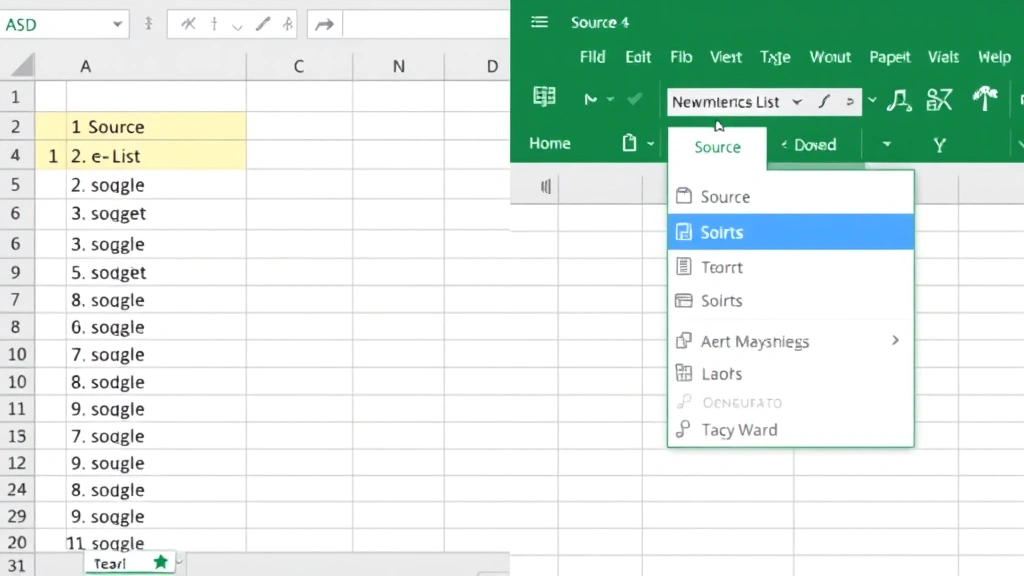
Once you’ve selected “List,” a new field labeled “Source” will appear. Here’s where you enter your drop down items. Type your list items directly into this field, separating each item with a comma and a space (for example: Red, Blue, Green, Yellow). Excel will automatically create a drop down arrow in your selected cell once you click OK. Users can now click that arrow to see all available options.
This basic method is quick and effective, but it has limitations—if you need to change your list later, you’ll need to edit the data validation settings again. For larger, more dynamic lists, consider using cell references instead, which we’ll cover in the next section.
Understanding Data Validation Settings
Data Validation is the underlying feature that powers drop down lists in Excel. When you add drop down list in Excel, you’re actually setting up validation rules that control what data can be entered into specific cells. Understanding these settings helps you create more robust and user-friendly spreadsheets.
The Data Validation dialog has several important tabs. The Settings tab controls what type of data is allowed and where it comes from. The Input Message tab lets you add helpful text that appears when users click on a cell with a drop down—this is perfect for providing instructions or context. The Error Alert tab defines what happens if someone tries to enter data that’s not on your list.
For the Error Alert tab, you have three style options: Stop (prevents invalid entries entirely), Warning (allows entries but warns users), and Information (just notifies users). Most professionals use “Stop” for strict data entry requirements. You can customize the error message to something user-friendly like “Please select from the drop down list provided.”
The Input Message feature is often overlooked but incredibly valuable. For example, if your drop down contains product codes, you could add a message like “Select the appropriate product code from the list below.” This message appears automatically when users click the cell, reducing confusion and improving data quality across your team.
Using a Cell Range as Your Source List
For larger lists or lists that change frequently, referencing a cell range is far superior to typing items manually. This approach to add drop down list in Excel allows you to maintain your source data in one location and automatically update all drop downs that reference it.
First, create your source list in a separate area of your spreadsheet—many professionals use a hidden worksheet or a column to the far right. List all your items vertically in consecutive cells (for example, A1:A20). Give this range a meaningful name by selecting it, then going to the Name Box (top left corner) and typing a descriptive name like “ProductList” or “StatusOptions.”
Now, when you set up your drop down using Data Validation, instead of typing items in the Source field, you’ll reference your named range or use the standard cell range notation. For example, enter =ProductList or =Sheet2!$A$1:$A$20 in the Source field. Using absolute references (the $ symbols) ensures your drop down always points to the correct cells, even if rows are inserted or deleted elsewhere.
This method is particularly powerful because you can add new items to your source list anytime, and all drop downs referencing that list update automatically. It’s also easier to maintain—you’re managing data in one place rather than hunting through multiple validation rules. According to WikiHow, this is the recommended approach for professional spreadsheet management.
If your list is on a different worksheet, make sure to reference it correctly: =OtherSheet!$A$1:$A$50. Excel will automatically expand or contract the range if you add or remove items, as long as you don’t have gaps in your source data.

Applying Drop Down Lists to Multiple Cells
Once you’ve created your first drop down, you’ll likely want to apply the same list to multiple cells. Fortunately, Excel makes this straightforward. If you want to add drop down list in Excel to an entire column or specific range, you can copy the validation rule efficiently.
Start by selecting the cell containing your completed drop down. Copy this cell using Ctrl+C. Now select the range where you want to apply the same drop down—this could be a column, multiple columns, or even non-adjacent cells. Paste using Ctrl+V, and Excel will automatically copy the data validation settings to all selected cells.
Alternatively, you can select your target range first, then open Data Validation and enter your settings. Excel will apply those settings to every cell in the selected range simultaneously. This is faster if you’re setting up a large area at once. For example, if you want drop downs in cells B2:B100, select that entire range, open Data Validation, configure your list, and click OK.
A helpful tip: use the Format Painter or conditional formatting to visually distinguish cells with drop downs from regular cells. Many professionals apply a light background color to cells containing drop downs, making it immediately obvious to users where data entry is restricted to predefined options.
Advanced Techniques: Dependent Lists & Formulas
Once you’ve mastered basic drop down lists, you can create more sophisticated solutions. Dependent drop downs—where one list’s options depend on another list’s selection—are powerful for complex data entry scenarios. For instance, if your first drop down selects a category, the second could automatically show only subcategories relevant to that choice.
To create dependent drop downs, you’ll need to use named ranges combined with the INDIRECT function. First, create separate lists for each category. Name each list appropriately (for example, “Electronics,” “Clothing,” “Books”). In your first drop down cell, create a list using these category names. In your second drop down, use =INDIRECT(FirstCell) as the source, where FirstCell is the cell containing your first drop down.
This formula tells Excel to use whatever value is selected in the first drop down as a named range reference. When a user selects “Electronics” in the first drop down, the second automatically shows items from the “Electronics” named range. This is particularly useful for inventory systems, product catalogs, and any hierarchical data structure.
Another advanced technique involves combining drop downs with IF statements for dynamic validation. You can create formulas that change validation rules based on other cell values, though this requires more complex setup. For most users, dependent lists using INDIRECT cover 90% of advanced scenarios.
According to Instructables, dependent drop downs are among the most requested Excel features for data-heavy applications, making them worth learning for anyone managing complex datasets.
Common Issues & Solutions
Even experienced users encounter issues when working with drop downs. If your drop down arrow doesn’t appear after creating it, check that you’ve properly configured the Data Validation settings. The most common cause is accidentally selecting “Decimal” or “Whole Number” instead of “List” in the Allow field.
If your drop down shows an error message like “Invalid range reference,” you likely have a syntax error in your source formula. Double-check that named ranges exist and are spelled correctly, and verify that cell references use proper notation (like $A$1:$A$20 with absolute references). If referencing another sheet, ensure the sheet name is correct and enclosed in single quotes if it contains spaces.
Sometimes users report that drop downs work in some cells but not others. This usually means the validation settings weren’t applied to all intended cells. Select your entire target range and reapply the validation to ensure consistency. You can also use Data > Validity > Circle Invalid Data to identify cells that don’t meet your validation criteria.
If your source list is on a hidden worksheet and your drop down stops working, check that the worksheet is truly hidden and not deleted. Hidden worksheets remain functional, but deleted ones break all references. You can unhide sheets by right-clicking the sheet tab and selecting “Unhide.”
Performance issues with very large lists (1000+ items) are rare but possible. If your drop down becomes slow, consider splitting your list into categories and using dependent drop downs instead of one massive list. Family Handyman and similar resources emphasize that proper organization prevents most technical issues.
Best Practices for Drop Down Lists
Creating effective drop downs goes beyond just knowing how to add drop down list in Excel—it’s about designing them for real-world use. Always include an input message that explains what users should do. Something simple like “Select a status from the list” prevents confusion and reduces support requests.
Keep your lists organized and alphabetized when possible. This makes it easier for users to find items quickly, especially in longer lists. If you have a list with 20+ items, consider using dependent drop downs to break it into logical categories.
Use consistent validation rules across your entire spreadsheet. If one column uses drop downs for status entries, apply the same drop down to every row in that column. This creates a professional appearance and ensures data consistency. According to The Spruce, consistency in data entry tools is crucial for maintaining spreadsheet integrity.
Regularly audit your source lists to remove obsolete items and add new ones. If you’re using cell ranges as sources, maintain them in a dedicated area of your workbook. Document what each drop down is for and where its source data lives—this is invaluable when you or colleagues need to update the spreadsheet later.
Consider using data validation in conjunction with other Excel features. For example, combine drop downs with how to find duplicates in Excel to identify and manage duplicate entries. You might also pair drop downs with how to freeze a row in Excel to keep header rows visible while users scroll through data entry areas.
For teams sharing spreadsheets, protect your drop down cells while allowing other areas to remain editable. Use Format > Cells > Protection combined with Tools > Protect Sheet to lock drop down cells while keeping the rest of the sheet accessible. This prevents accidental modification of your validation rules.
FAQ
Can I create a drop down list that allows multiple selections? Standard Excel drop downs only allow one selection per cell. However, you can use VBA macros or third-party add-ins to enable multi-select functionality. For most users, single-select drop downs are sufficient.
What’s the maximum number of items I can include in a drop down list? Excel can handle lists with thousands of items, though performance may slow with very large lists (5000+ items). For practical purposes, keep lists under 1000 items, or use dependent drop downs to organize larger datasets.
How do I delete a drop down list? Select the cell(s) containing the drop down, go to Data > Data Validation, click the Clear All button, and click OK. This removes all validation rules from the selected cells.
Can I copy a drop down list to another workbook? Yes, copy the cell containing the drop down and paste it into the new workbook. If your drop down references a named range, you’ll need to recreate that named range in the new workbook, or update the references to match the new workbook’s structure.
Why does my drop down show “#NAME?” error? This error indicates a broken reference, usually in your source formula. Check that named ranges exist, sheet names are spelled correctly, and cell references are valid. Remove the # and recreate the validation rule.
Is there a way to make drop downs searchable? Standard Excel drop downs aren’t searchable in the traditional sense, but you can type to jump to items. In a long list, typing the first letter jumps to the first item starting with that letter. For true search functionality, you’d need VBA or an add-in.
Can I use formulas in my drop down source? You can reference cells containing formulas, but you can’t directly enter formulas in the Data Validation source field. Create your list using formulas in cells, then reference those cells in your drop down.
How do I make a drop down list in Excel Online? Excel Online supports basic drop down creation. Go to Data > Data Validation, select your options, and configure your list. Some advanced features like dependent drop downs work, but complex macros aren’t supported.
Learning how to add drop down list in Excel is fundamental to creating professional, user-friendly spreadsheets. Whether you’re managing a simple inventory list or a complex project tracking system, drop downs improve data quality, reduce errors, and streamline data entry. Start with the basic method, progress to cell range references, and explore advanced techniques like dependent lists as your needs grow. With these skills, you’ll create spreadsheets that are both powerful and easy to use.
For additional spreadsheet management tips, explore our guides on how to create a drop down list in Excel for deeper technical details, and how to set out of office in Outlook for managing your email while working on spreadsheet projects. Consumer Reports emphasizes that proper data management tools like drop downs save time and prevent costly errors in business operations.