
How to Update Apps on iPhone: Easy & Essential Guide
Keeping your iPhone apps updated is one of the most important maintenance tasks you can perform. Regular app updates deliver security patches, bug fixes, new features, and performance improvements that keep your device running smoothly and safely. Whether you prefer automatic updates or manual control, learning how to update apps on iPhone takes just minutes and ensures your device stays protected against vulnerabilities.
Quick Answer: To update apps on your iPhone, open the App Store, tap the profile icon in the top-right corner, scroll down to “Available Updates,” and tap “Update All” or update individual apps. Alternatively, enable automatic updates in Settings > App Store > App Updates > toggle “Include in Auto-Update” for seamless background updates without manual intervention.
Tools & Materials You’ll Need
- iPhone with iOS 15 or later
- Active Wi-Fi or cellular connection
- Sufficient storage space (at least 1-2 GB free)
- Apple ID account
- Approximately 15-30 minutes for full update cycle
- Optional: Power source or full battery charge
Enable Automatic App Updates
The easiest way to keep your apps current is by enabling automatic updates on your iPhone. This method ensures you never miss critical security patches or important feature releases. When automatic updates are enabled, your iPhone will download and install app updates in the background, typically during off-peak hours when you’re not actively using your device.
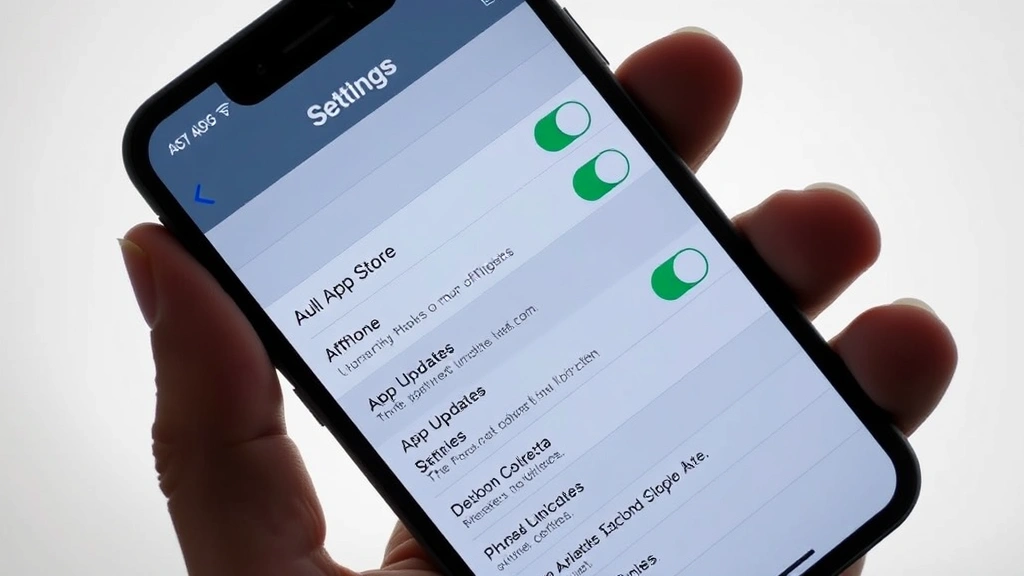
To enable automatic app updates, open the Settings app and navigate to App Store. Scroll down until you find the “App Updates” section. Toggle on “Include in Auto-Update” to allow apps to update automatically. You can also enable “Automatic Downloads” for apps purchased on other devices, which will automatically download them to your iPhone as well.
For users concerned about data usage, note that automatic updates typically occur over Wi-Fi networks. If your iPhone is connected to cellular data, you can adjust these settings in the same App Store menu to prevent automatic updates from consuming your mobile data allowance.
This automated approach is particularly valuable for busy users who may forget to manually check for updates. According to WikiHow’s comprehensive guide on app management, automatic updates represent the most reliable method for maintaining security across your device’s entire app ecosystem.
Manually Update Apps Using App Store
If you prefer hands-on control over which apps update and when, manual updating gives you complete flexibility. This approach allows you to review update details, understand what’s changing in each app, and choose the timing that works best for your workflow. Manual updates are particularly useful if you have limited storage space or want to avoid potential compatibility issues before updating.
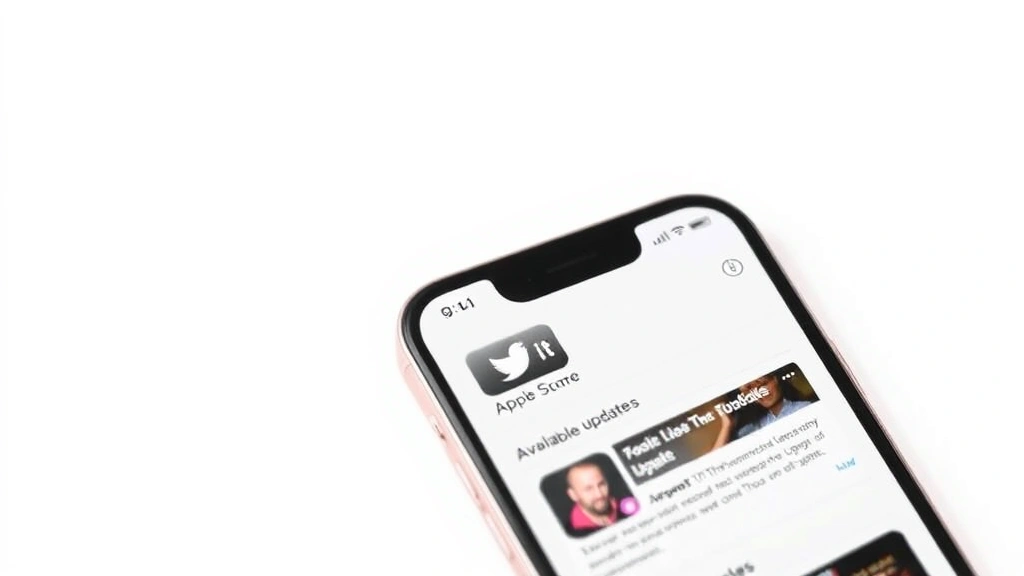
To manually update apps on your iPhone, open the App Store application and tap the profile icon (your account picture) in the top-right corner of the screen. This takes you to your account page where all available updates are displayed. You’ll see a section labeled “Available Updates” which lists every installed app that has a newer version available.
From this screen, you have two options: tap “Update All” to install all pending updates at once, or scroll through the list and tap the individual “Update” button next to specific apps. Each approach has advantages—updating all at once saves time, while selective updating lets you prioritize security-critical apps first.
The manual update process typically takes 5-15 minutes depending on the number of apps and their file sizes. During this time, your iPhone may slow down slightly, so it’s best to perform updates when you won’t need immediate access to your device.
Update Individual Apps
Sometimes you may want to update specific apps rather than your entire library. This selective approach is useful when you’re low on storage space, want to test an update before committing to all of them, or need a particular app’s new features immediately. Updating individual apps is straightforward and takes just a few seconds per app.
Navigate to the App Store and tap your profile icon in the top-right corner. In the “Available Updates” section, locate the specific app you want to update and tap the “Update” button next to its name. A progress indicator will appear showing the download and installation status. Once complete, the button will change to “Open,” confirming the update was successful.
You can also update apps directly from the Home Screen by long-pressing any app icon and selecting “App Information” or “App Store,” though the dedicated App Store method is more efficient for multiple updates. For apps you use frequently, consider prioritizing their updates first to ensure you have access to the latest features and security improvements.
If you’re looking to organize your apps more effectively, you might want to learn about how to unhide apps on iPhone so you can access all your applications easily during the update process.
Troubleshooting Update Issues
Occasionally, app updates may fail or encounter problems during installation. Common issues include insufficient storage space, unstable internet connections, or temporary App Store server problems. Understanding how to resolve these issues quickly minimizes disruption to your app management routine.
If an update fails to download, first check your internet connection by opening Safari and visiting a website. If the web loads slowly or fails, restart your Wi-Fi router or switch to cellular data. Next, ensure you have adequate storage space—go to Settings > General > iPhone Storage and verify you have at least 1-2 GB available. If storage is low, delete unused apps or old photos to free up space.
If an app update consistently fails, try signing out of your Apple ID and signing back in. Open Settings > [Your Name] > Sign Out, then sign back in with your credentials. This refreshes your App Store session and often resolves authentication issues. Alternatively, force-close the App Store by swiping up from the bottom of the screen (or swiping down from the top-right on Face ID devices) and reopening it.
For persistent problems, restart your entire iPhone by holding the power button and volume down button simultaneously until the “Slide to Power Off” screen appears. After your device restarts, attempt the update again. As noted by The Spruce’s tech support resources, most app update issues resolve after a simple device restart.
Best Practices for App Maintenance
Maintaining your apps properly extends device performance and ensures security. Best practices include updating apps regularly (ideally weekly), reviewing app permissions before and after updates, and removing apps you no longer use. Regular maintenance prevents your iPhone from becoming cluttered with outdated or unused applications that consume storage and processing power.
Schedule a weekly app update routine by setting a reminder on your calendar. This consistent approach ensures you never fall significantly behind on security patches. If you use your iPhone for work or sensitive tasks, consider updating apps more frequently—even daily if possible. Security vulnerabilities are discovered constantly, and staying current is your primary defense against exploitation.
After updating an app, spend a minute testing its core functionality to ensure the update didn’t introduce unexpected changes or bugs. If an update causes problems, you can report issues directly through the App Store by opening the app’s page and tapping “Ratings and Reviews” to leave detailed feedback for developers.
Consider learning about how to delete stickers on iPhone and other app-related management tasks to keep your device organized alongside your update routine.
Managing Storage During Updates
Storage management is critical when updating multiple apps simultaneously. Large apps like social media platforms, games, and productivity tools can consume 100 MB to several GB each. Before performing bulk updates, verify that your iPhone has sufficient free space to accommodate all pending downloads and installations.
Check your available storage by going to Settings > General > iPhone Storage. This screen displays how much space is used and available, plus a breakdown of which apps consume the most storage. If you’re below 1 GB of free space, delete unused apps, clear app caches, or remove old photos and videos before updating.
A useful strategy is to update apps in batches—update 5-10 apps, wait for completion, then update the next batch. This approach prevents your iPhone from becoming overwhelmed and maintains better performance during the update process. Alternatively, delete rarely-used apps before updating to create more breathing room for your most important applications.
If you frequently encounter storage issues, enable “Offload Unused Apps” in Settings > App Store. This feature automatically removes unused apps while preserving their data, freeing up storage without losing your app information. When you need the app again, simply tap it to reinstall—your data will be restored.
Understanding Update Notifications
Your iPhone provides various notifications about app updates to keep you informed. The red badge with a number on the App Store icon indicates how many apps have available updates waiting. These notifications are helpful reminders, but you can customize them based on your preferences.
When an app has a critical security update, the notification badge appears more prominently, and the app’s name may appear in bold or highlighted text in the “Available Updates” section. Security-related updates should be prioritized over feature updates. If you’re unsure whether an update is security-critical, tap the app name to read the “What’s New” section, which typically highlights important security improvements.
To manage update notifications, go to Settings > Notifications > App Store and customize alert styles. You can choose to receive badges, sounds, or banners for update availability. If notifications feel intrusive, disable them here and instead manually check for updates weekly through the App Store.
Some users prefer to keep notifications enabled for critical updates but disabled for feature updates. Unfortunately, the iPhone doesn’t allow this granular control, so you’ll need to choose all-or-nothing notification settings. Most users find that keeping notifications enabled encourages more frequent updates, which is beneficial for security and performance.
Frequently Asked Questions
Can I update apps on iPhone without Wi-Fi?
Yes, you can update apps using cellular data, though this may consume your monthly allowance quickly. To restrict updates to Wi-Fi only, go to Settings > App Store > App Updates and ensure “Wi-Fi” is selected. For manual updates, the App Store will prompt you if you’re on cellular—you can proceed or wait for Wi-Fi.
How long does it take to update all apps on iPhone?
Updating all apps typically takes 10-30 minutes depending on the number of apps, their sizes, and your internet speed. A typical iPhone with 50-100 apps might take 15-20 minutes for a complete update cycle. Larger apps and slower connections extend this timeframe.
Will updating apps delete my data?
No, standard app updates preserve all your data, settings, and preferences. Updates only replace the app’s code and resources, not your personal information. However, major version updates (like moving from version 4.0 to 5.0) occasionally introduce changes that affect data organization, though developers typically provide migration tools.
What’s the difference between automatic and manual app updates?
Automatic updates download and install in the background without your involvement, while manual updates require you to initiate each update through the App Store. Automatic updates ensure you’re always current with security patches, while manual updates give you control over timing and which apps to update.
Can I revert to an older version of an app after updating?
Unfortunately, Apple doesn’t provide a built-in downgrade feature for apps. If an update causes problems, you must wait for the developer to release a fix. In the meantime, you can report the issue through the App Store and check for alternative apps that provide similar functionality.
Why do some apps update more frequently than others?
Apps update based on developer release schedules and user feedback. Popular apps like social media platforms update frequently (weekly or monthly) to add features and fix bugs, while utility apps might update only quarterly. Frequent updates indicate active development and commitment to user experience.
Is it safe to update apps automatically?
Yes, automatic app updates are secure and recommended by Apple. Developers thoroughly test updates before release, and Apple reviews all updates for security and functionality. Automatic updates actually enhance security by ensuring you receive critical patches without delay.
Can I update apps while using my iPhone?
Yes, you can continue using your iPhone while apps update in the background, though performance may be slightly reduced. For optimal results, let your device rest during bulk updates. Avoid intensive tasks like gaming or video streaming while multiple apps are updating simultaneously.
If you want to enhance your overall iPhone management skills, explore related topics like how to scan with iPhone and how to see blocked numbers on iPhone to master your device completely. For iPad users, learning how to connect Apple Pencil to iPad pairs well with understanding app management across Apple’s ecosystem.
According to Consumer Reports’ technology guidance, maintaining regular app updates is one of the three most important security practices for mobile device users, alongside using strong passwords and enabling two-factor authentication. By understanding how to update apps on iPhone effectively, you’re taking a crucial step toward protecting your device and personal information from security threats.
Learning how to update apps on iPhone is an essential skill that takes minimal time but yields significant benefits for device security, performance, and functionality. Whether you choose automatic or manual updates, the key is establishing a consistent routine that works with your lifestyle. Start with automatic updates for simplicity, and adjust to manual updates if you need more control. Your iPhone will thank you with faster performance, better security, and access to the latest features developers create.


