
How to Turn Off Active Status on Instagram: Simple & Essential Tips
Instagram’s active status feature shows your followers when you’re online, but many users prefer privacy. Learning how to turn off active status on Instagram takes just minutes and gives you complete control over your visibility. Whether you want to browse discreetly or simply reduce digital distractions, this guide walks you through every method across devices and platforms.
Quick Answer: Open Instagram → Settings & Privacy → Activity Status → Toggle “Show activity status” off. On desktop, visit Instagram.com, click your profile icon, select Settings, navigate to How You Use Instagram, then disable Activity Status. The change applies instantly across all devices where you’re logged in, and your followers won’t see when you’re active.
Tools & Materials You’ll Need
- Instagram app (iOS or Android) or web browser
- Your Instagram account login credentials
- Device with internet connection
- 5 minutes of your time
How to Turn Off Active Status on Instagram Mobile App
The mobile app method is the most straightforward way to disable how to turn off active status on Instagram. Start by opening the Instagram app on your iPhone or Android device and navigating to your profile by tapping the person icon at the bottom right of your screen. This takes you to your profile home where all your account settings are accessible.
Next, tap the three horizontal lines (hamburger menu) in the top right corner of your profile screen. This opens Instagram’s main menu where you’ll find Settings & Privacy near the bottom. Tap this option to access your account preferences. According to WikiHow’s comprehensive guides, navigating settings menus is crucial for privacy management on social platforms.
Once in Settings & Privacy, scroll down until you locate “How You Use Instagram” or simply look for “Activity Status.” Tap this section to reveal your active status options. You’ll see a toggle switch next to “Show activity status” – tap it to turn the feature off. The toggle will change color, indicating the setting is now disabled. Your active status will immediately stop showing to other users across Instagram.
Pro Tip: If you’re using multiple Instagram accounts, you’ll need to repeat this process for each account separately. Each account has independent privacy settings, so disabling active status on one profile won’t affect others.
Disabling Active Status on Desktop & Web Browser
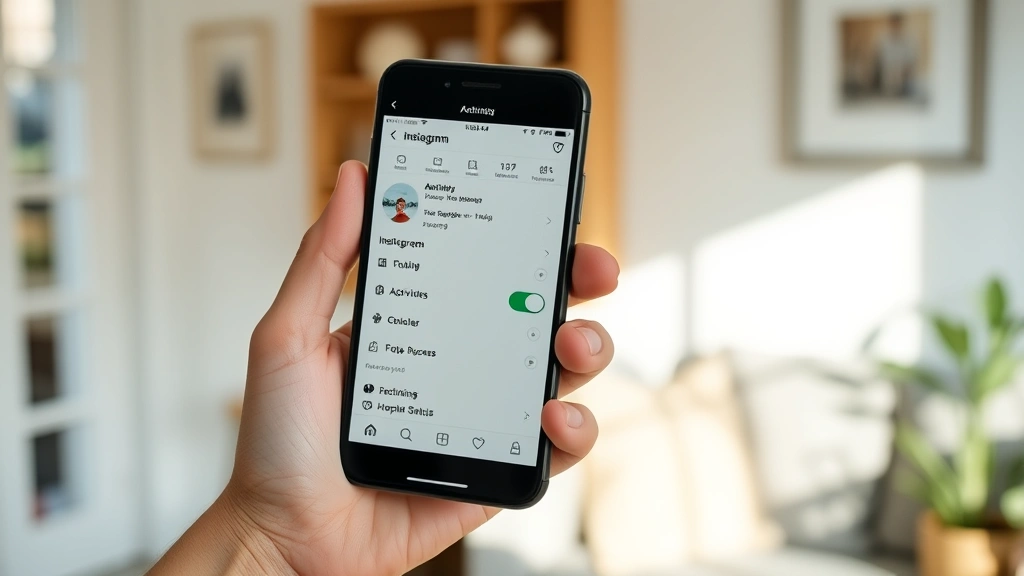
Desktop users can also easily manage how to turn off active status on Instagram through the web version. Open your preferred web browser and navigate to Instagram.com, then log in with your credentials. Once logged in, click your profile picture icon in the top right corner of the screen to access your account menu.
From the dropdown menu, select “Settings” to open your account preferences. On the left sidebar, you’ll see various options including “How You Use Instagram” or “Privacy.” Click on this section to access activity-related settings. Look for “Activity Status” and click it to expand those options.
You’ll see the toggle switch for “Show activity status” – click it to disable the feature. Unlike the mobile app, the desktop version may require you to refresh your browser or log out and back in for changes to fully sync across all devices. This ensures your privacy settings update consistently everywhere you use Instagram.
Desktop access is particularly useful if you’re managing Instagram for business purposes or prefer making privacy adjustments on a larger screen. The web interface provides the same functionality as the mobile app with clearer navigation for detailed settings.
Understanding Instagram Active Status Settings
Instagram’s active status feature is designed to show your contacts when you’re actively using the platform. When enabled, your followers can see a green dot next to your username in direct messages and on your profile, indicating you’re currently online. Understanding what this feature does helps you make informed decisions about how to turn off active status on Instagram for your specific privacy needs.
The active status system tracks your real-time usage across all Instagram platforms – mobile app, desktop web, and Instagram Direct Messages. If you’re logged in anywhere, your status reflects that activity. This means disabling active status provides comprehensive privacy protection across all devices and platforms simultaneously. As noted by Consumer Reports, understanding platform features is essential for informed privacy decisions.
Instagram introduced this feature to enhance communication and make conversations more natural, similar to messaging apps like WhatsApp or Facebook Messenger. However, the company recognizes that not everyone wants their availability broadcast to followers. That’s why Instagram made the setting easily toggleable, giving users complete control over their visibility.
When you disable active status, others won’t see when you’re online, but you’ll still be able to see when they’re active (unless they’ve also disabled their status). This asymmetrical visibility is intentional – Instagram respects individual privacy choices while maintaining the feature’s usefulness for those who want it enabled.
What Happens When You Disable Active Status
Disabling how to turn off active status on Instagram creates several immediate changes to how you appear on the platform. The green dot that normally indicates your online status disappears from your profile and direct messages. Your followers won’t see when you’re active, giving you complete anonymity regarding your usage patterns.
However, there are important nuances to understand. Instagram still tracks when you read messages – if you’ve previously enabled read receipts in your DM settings, people can still see when you’ve read their messages even if your active status is off. To achieve complete privacy, you may want to disable read receipts separately. This is similar to managing privacy on other platforms, as discussed in our guide on how to turn off Find My iPhone, which addresses location privacy concerns.
Your activity still appears in other contexts. Instagram’s algorithm continues tracking your engagement (likes, comments, follows) for personalization purposes. Disabling active status only hides your online presence – it doesn’t affect your overall account activity or engagement metrics that Instagram uses internally for recommendations.
The good news is that disabling active status doesn’t impact your ability to use Instagram normally. You can still send messages, post content, like photos, and engage with followers exactly as before. The only difference is that no one will know you’re currently online. This makes it perfect for users who want to browse casually without feeling obligated to respond immediately to messages.
Selective Privacy: Hide Status from Specific Users
Instagram offers a more nuanced approach to how to turn off active status on Instagram – you can hide your active status from specific users while keeping it visible to others. This selective privacy option is perfect for users who want to maintain transparency with close friends while keeping distance from acquaintances or followers.
To implement selective privacy, open your Instagram settings and navigate to Activity Status. Instead of completely disabling the feature, look for the option “Hide activity status from” or similar wording (exact terminology varies by app version). Tap this option to access a list of your followers and accounts you follow.
You can then select individual users from whom you want to hide your active status. This creates a customized privacy experience – for example, you might hide your status from your boss or certain family members while keeping it visible to close friends. The selected users won’t see your online status, while others continue seeing it normally.
This feature requires a bit more setup than completely disabling active status, but it offers superior control for users with complex social situations. It’s particularly useful for professionals who maintain Instagram accounts for both personal and business purposes, similar to how you might manage app visibility as described in our guide on how to unhide apps on iPhone.
Troubleshooting Common Active Status Issues
Sometimes how to turn off active status on Instagram settings don’t work as expected. If you’ve disabled active status but people still report seeing you online, several issues could be responsible. First, check that you’ve actually toggled the setting off – the switch should be in the off position (usually gray rather than blue).
Next, ensure you’ve fully logged out of all Instagram sessions. If you’re logged in on multiple devices, you may need to disable active status on each device individually. Log out completely from the device where you made the change, wait a few minutes, and check if the setting has synchronized across your other devices.
Clear your Instagram app cache if the problem persists. On Android, go to Settings → Apps → Instagram → Storage → Clear Cache. On iPhone, you may need to uninstall and reinstall the app to clear cached data. This often resolves synchronization issues between your phone and Instagram’s servers.
If you’re still having issues, check your internet connection – Instagram requires a stable connection to update settings across all devices. Switch between WiFi and mobile data to test connectivity. If problems continue, contact Instagram support directly through the app’s Help Center. According to Family Handyman’s troubleshooting approach, systematic problem-solving works best for tech issues.
Privacy Best Practices for Instagram Users
Disabling active status is just one component of comprehensive Instagram privacy management. To maximize your privacy on the platform, implement multiple protective measures simultaneously. Start by reviewing your account type – switch from a public to private account if you haven’t already, which restricts who can see your posts and follow you.
Beyond active status, examine your other privacy settings. Disable read receipts in Direct Messages if you want to read messages without notifying senders. Limit who can see your story, restrict comments on your posts, and review your blocked accounts regularly. These layered privacy controls work together to create a comprehensive privacy strategy.
Consider your follower list carefully. Regularly review and remove followers who make you uncomfortable, and don’t hesitate to block accounts that harass or concern you. Similar to managing device security as described in our guide on how to turn off Apple Watch, proactive management prevents problems before they start.
Be mindful of what you share publicly, even when your account is private. Avoid posting real-time location information, financial details, or personal schedules that could compromise your security. Use Instagram’s privacy features consistently, and review your settings quarterly as the platform updates features and options regularly.
For additional privacy guidance, Lifehacker provides comprehensive privacy tips for managing your digital footprint across all platforms. Combining Instagram’s built-in privacy tools with broader digital hygiene practices creates the strongest protection for your personal information.
FAQ
Q: Will people know I turned off my active status?
A: No. Instagram doesn’t notify users when you disable active status. People simply won’t see the green dot anymore, but Instagram doesn’t send an announcement about your privacy change. They might notice over time that your status never appears, but they won’t receive an explicit notification.
Q: Can I turn active status back on whenever I want?
A: Yes, absolutely. You can toggle active status on and off as frequently as you like by following the same steps in Settings & Privacy. There’s no cooldown period or restriction – you have complete control over when the feature is enabled.
Q: Does turning off active status hide my read receipts too?
A: No, these are separate settings. Disabling active status only hides when you’re online. If you also want to hide read receipts (the indicator showing you’ve read a message), you’ll need to disable that setting separately in your Direct Messages settings.
Q: Will my followers still see me in their DMs if I disable active status?
A: Yes. Disabling active status only removes the green dot indicator. Your profile, messages, and all other Instagram content remain fully accessible to your followers. You’ll appear in their DM list normally – they just won’t see when you’re currently online.
Q: What if I only want to hide my active status from certain people?
A: Instagram offers a selective privacy option where you can hide your active status from specific users while keeping it visible to others. Access this through Settings & Privacy → Activity Status → Hide activity status from, then select the users you want to exclude.
Q: Does Instagram still track my activity if I disable active status?
A: Yes. Disabling active status only hides your online presence from other users. Instagram still tracks your engagement (likes, comments, follows) internally for algorithmic recommendations and analytics. Your activity data remains visible to you in your Instagram Insights if you have a business account.
Q: How long does it take for the setting to apply across all devices?
A: The change usually applies instantly to your current device. However, it may take a few minutes to synchronize across all devices where you’re logged in. If you’re experiencing delays, try logging out completely and logging back in to force a refresh.


