
How to Retract an Email in Outlook: Essential Easy Guide
We’ve all been there—you hit send on an email in Outlook only to realize you made a mistake, included the wrong attachment, or sent it to the wrong recipient. The good news is that how to retract an email in Outlook is possible, though with important limitations. Microsoft Outlook offers a recall feature that can help you unsend messages, but success depends on several factors including recipient email server type, message read status, and timing. This guide walks you through every method to retract emails in Outlook, from the built-in recall function to preventative measures that save you from future mishaps.
Quick Answer
To retract an email in Outlook: Open the Sent Items folder, select the message you want to recall, click Actions (or Message tab), then select Recall This Message. Choose whether to delete the unread copy or replace it with a new message. Note that recall only works if the recipient uses Outlook or Exchange Server and hasn’t read the email yet. For other email clients, you’ll need alternative solutions like sending a follow-up message or using the detailed recall process.
Tools & Materials Needed
- Microsoft Outlook (desktop application or web version)
- Active email account with Exchange Server (for best recall results)
- Access to Sent Items folder
- Internet connection
- Recipient’s email server information (helpful for troubleshooting)
Understanding Email Recall Limitations
Before attempting to retract an email in Outlook, you need to understand that the recall feature has significant limitations. Email recall only works reliably when both you and the recipient use Microsoft Outlook or Exchange Server. If your recipient uses Gmail, Yahoo, or another email client, the recall feature typically fails, and they’ll still receive the original message. This is because recall works by sending a special command through Exchange servers, which non-Microsoft email systems don’t recognize.
Timing is critical when you want to retract an email in Outlook. The recall feature works best if the recipient hasn’t opened the message yet. Once they read the email, most recall attempts fail. Additionally, the recipient’s email client settings and server configuration affect whether recall succeeds. Even with Outlook users, if their email hasn’t synced with the Exchange server or if they’ve already cached the message locally, recall may not work.
According to WikiHow’s comprehensive guides, understanding these limitations helps you decide whether recall is worth attempting or if you should use alternative approaches. The success rate for email recall in Outlook ranges from 40-60% in real-world scenarios, making it an unreliable solution for urgent situations.
How to Retract an Email Using Outlook Desktop
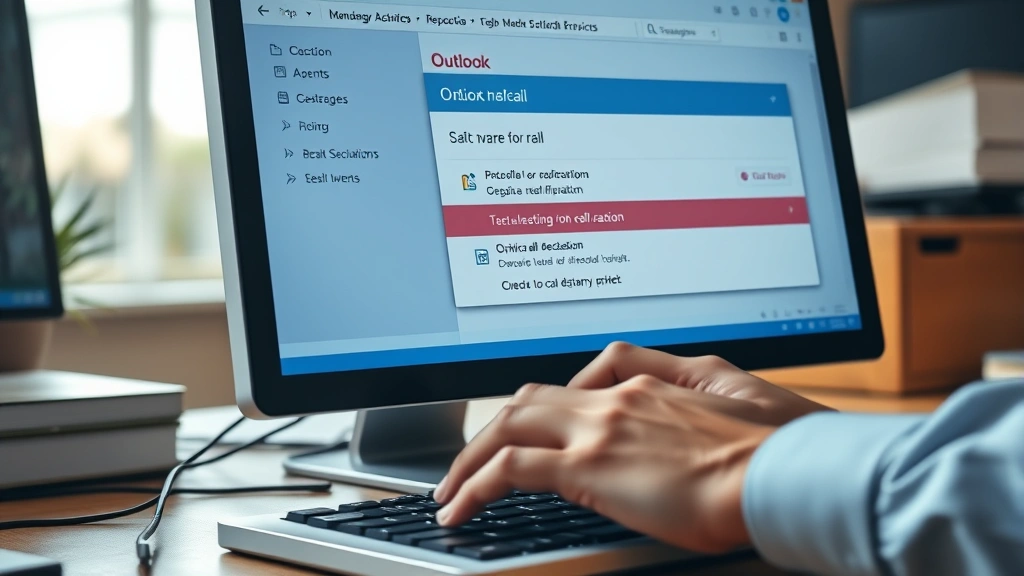
The desktop version of Outlook provides the most straightforward way to retract an email. Here’s the step-by-step process for how to retract an email in Outlook on your computer:
- Open Outlook and navigate to your Sent Items folder (usually in the left sidebar under your mailbox)
- Find the email you want to recall by scanning the list or using the search function
- Right-click the message or select it and look for the Message tab in the ribbon menu
- Click Actions (in older Outlook versions) or the Message tab, then select Recall This Message
- A dialog box appears asking what you want to do—choose either Delete unread copies of this message or Delete unread copies and replace with a new message
- If replacing, type your corrected message in the new window
- Click Send to execute the recall
After initiating the recall for how to retract an email in Outlook, you’ll receive a notification report showing whether the recall succeeded or failed for each recipient. Keep in mind that even if Outlook reports success, there’s no guarantee the recipient won’t see both messages or that the original won’t appear in their deleted items.
Retracting Emails in Outlook Web Access
If you use Outlook Web Access (Outlook.com or Microsoft 365 web version), the process for how to retract an email in Outlook differs slightly from the desktop application. Web-based recall functionality is more limited, but here’s what you can do:
- Log into Outlook Web Access through your browser
- Navigate to Sent Items from the folder list on the left
- Open the email you want to recall by clicking on it
- Look for the delete button or actions menu (usually represented by three dots or a trash icon)
- Select Delete to remove the message from your sent folder
Unfortunately, web-based Outlook has limited recall capabilities compared to the desktop version. Deleting a message from your sent folder doesn’t actually unsend it to recipients—it only removes it from your account. For true recall functionality with how to retract an email in Outlook on the web, you’ll need to use the desktop application or send a follow-up message explaining the error.
Microsoft continues to improve Outlook Web Access features, so check your version to see if additional recall options are available. Some organizations with advanced Exchange Server setups may have enhanced recall capabilities in their web interface.
Alternative Methods When Recall Fails
Since email recall in Outlook isn’t always reliable, having backup strategies is essential. When you can’t successfully retract an email in Outlook through the recall feature, try these proven alternatives:
Send a Follow-Up Message
The most effective alternative is sending an immediate follow-up email marked as urgent. Clearly state in the subject line that it’s a correction or retraction. For example: “URGENT: Please disregard previous email about [topic]—see corrected version below.” This approach works with all email clients and ensures recipients see your correction.
Contact the Recipient Directly
For important emails, pick up the phone and call the recipient to warn them about the error before they open it. This personal touch often prevents misunderstandings and shows you’re taking the mistake seriously. It’s particularly useful for professional situations where the email content could have significant consequences.
Request Manual Deletion
If you catch the error quickly, email the recipient asking them to delete the message without opening it. While this doesn’t guarantee compliance, many people will help if you explain the situation clearly. This method works better with colleagues and people you have established relationships with.
Use Rules and Alerts
Set up Outlook rules to automatically delay sending emails by a few minutes, giving you a window to recall them before they reach recipients. According to Instructables’ tech guides, this preventative approach is often more effective than trying to recall after the fact.

Preventing Email Mistakes Before They Happen
The best way to handle email mistakes is preventing them in the first place. Since how to retract an email in Outlook isn’t foolproof, implement these preventative measures:
Enable Send Delay
Outlook allows you to delay message delivery by several minutes. Go to File > Options > Mail > Compose Messages and enable Delay Delivery. Set a 2-5 minute delay for all messages, giving you time to recall before sending. This simple feature prevents many email disasters.
Use the Focused Inbox
Outlook’s Focused Inbox helps you review important emails before sending. Take time to carefully review recipient lists, especially when using reply-all. Double-check that you’re sending to the correct people.
Create Email Templates
For routine communications, use Outlook templates to reduce typing errors and ensure consistency. Templates also help you avoid accidentally including sensitive information you didn’t intend to share.
Implement a Review Checklist
Before hitting send, ask yourself: Is the recipient correct? Are all attachments included? Is the tone appropriate? Does the content make sense? This 30-second review catches most mistakes before they become problems.
Use Categories and Flags
Mark sensitive emails with flags or categories to remind yourself to review them extra carefully. This visual cue helps you slow down and think before sending important messages.
Troubleshooting Recall Problems
When your attempt to retract an email in Outlook doesn’t work as expected, troubleshoot using these strategies:
Check Recipient Email Server
Verify that recipients use Outlook or Exchange Server. If they use other email clients, recall won’t work. You’ll need to use alternative methods like sending a follow-up message. Contact your IT department if you’re unsure about your organization’s email setup.
Review Recall Reports
Outlook provides detailed recall reports showing which recipients received the recall command and which didn’t. Check these reports to understand why recall failed. A message stating “The recall was successful” doesn’t guarantee the original email disappeared—it only means the recall command was sent.
Clear Outlook Cache
Sometimes Outlook’s cache interferes with recall functionality. Close Outlook completely, clear your cache files (location varies by Outlook version), and restart the application. This often resolves technical issues preventing recall.
Update Outlook
Ensure you’re running the latest version of Outlook. Microsoft regularly releases updates that improve email recall and other features. Go to File > Office Account > Update Options to check for updates.
Contact IT Support
If recall consistently fails, your organization’s IT department may need to investigate. They can check Exchange Server settings, recipient configurations, and other technical factors affecting recall functionality. As reviewed by Consumer Reports’ tech support guides, professional IT assistance often resolves persistent issues.
Check Message Size
Extremely large emails with multiple attachments sometimes fail to recall properly. If you’re trying to retract an email in Outlook with large files, the recall may timeout before completing. In these cases, send a follow-up message as your backup plan.
Best Practices for Email Management
Beyond knowing how to retract an email in Outlook, developing strong email habits prevents most mistakes. Lifehacker’s productivity tips recommend treating email like traditional mail—you wouldn’t mail a letter without checking it first, so don’t send emails without reviewing them.
Create a system where important emails sit in drafts for at least an hour before sending. This cooling-off period helps you catch errors and reconsider tone or content. For urgent emails, have a colleague review them before you send. This peer-review approach catches mistakes your eyes might miss.
Use Outlook’s spell-check and grammar features before sending. Enable these tools in File > Options > Mail > Spelling and Autocorrect. These automated checks catch many common errors that could embarrass you or confuse recipients.
Finally, remember that even if you successfully retract an email in Outlook, recipients may have already seen it through notifications or mobile devices. The safest approach combines recall attempts with a professional follow-up message explaining any errors or changes. This transparent approach maintains trust and professionalism in your communications.
FAQ
Can I recall an email sent to Gmail users?
No, email recall in Outlook only works with Outlook and Exchange Server users. Gmail and other email providers don’t support the recall protocol. You’ll need to send a follow-up message to Gmail recipients explaining the error.
How long do I have to recall an email in Outlook?
You typically have a few minutes to an hour, depending on server speed and whether the recipient has opened the message. The sooner you attempt recall after sending, the better your chances of success. Some sources suggest attempting recall within 2 minutes for best results.
Will the recipient know I tried to recall an email?
If recall succeeds, they may not know. However, if they’ve already read the message, they’ll see a recall notification. Some email clients display both the original and recalled message, making it obvious you tried to unsend something.
Does Outlook on mobile support email recall?
Outlook mobile apps have limited recall functionality. For reliable recall, use the desktop version of Outlook. Mobile apps may not have the full recall feature available, depending on your version and email server configuration.
What’s the difference between recall and delete?
Deleting an email from your sent folder only removes it from your account—it doesn’t unsend it to recipients. Recall attempts to remove it from recipients’ inboxes. These are completely different actions with different outcomes.
Can I recall an email I sent days ago?
Technically yes, but success is extremely unlikely. Recall works best within minutes of sending. After hours or days, recipients have almost certainly read the message, making recall impossible. Use a follow-up message instead.
Why does Outlook say recall was successful but the recipient still has the email?
Outlook’s “successful” message only means the recall command was sent—not that it actually removed the email. If the recipient read the message, uses a non-Outlook email client, or has cached the message locally, they’ll still see it despite the success notification.
Can I prevent accidental sends in Outlook?
Yes, enable the send delay feature (2-5 minutes) in Outlook settings. This gives you a window to recall before the email actually leaves your account. You can also use the Undo Send feature if available in your Outlook version.
Is there an undo send feature in Outlook?
Some versions of Outlook Web Access include an “Undo Send” feature that appears briefly after sending. Check your version’s settings to see if this option is available. It’s more reliable than recall for preventing emails from reaching recipients.
How do I know if my recall attempt worked?
Outlook generates a recall report showing delivery status for each recipient. Check this report in your Sent Items folder. However, remember that a successful report doesn’t guarantee the recipient won’t see the original message—it only confirms the recall command was processed.


