
How to Double Space in Word: Easy & Essential Guide
Double spacing is one of the most fundamental formatting tasks in Microsoft Word, yet many users struggle to get it right. Whether you’re preparing an academic paper, business document, or professional correspondence, knowing how to double space in Word is essential for meeting formatting requirements. This guide walks you through every method—from the quickest ribbon approach to advanced paragraph settings—so you can master this skill in minutes.
Double spacing increases the vertical distance between lines of text, making documents easier to read and providing space for annotations. Most academic institutions and professional organizations require double spacing for submissions, making this skill invaluable for students and professionals alike.
Quick Answer
To double space in Word, select all your text (Ctrl+A), then click the line spacing button in the Home tab ribbon and choose “2.0.” Alternatively, open the Paragraph dialog (Ctrl+0), set line spacing to “Double,” and click OK. Both methods take seconds and apply instantly to your entire document or selected text.
Tools & Materials Needed
- Microsoft Word (any recent version: 2016, 2019, 2021, or Office 365)
- A document with text to format
- Mouse or trackpad for clicking ribbon options
- Keyboard for using shortcuts (optional but faster)
- Basic understanding of text selection
Method 1: Using the Ribbon Line Spacing Button
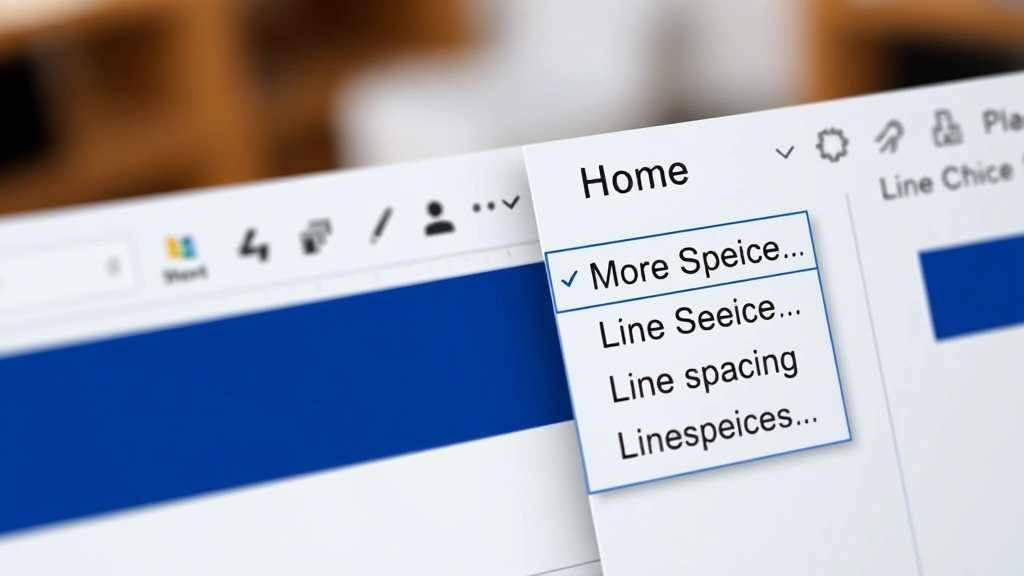
The ribbon method is the most visual and intuitive way to double space in Word. This approach works in Word 2016 and later versions, including Office 365. Start by selecting the text you want to format—either highlight specific paragraphs or use Ctrl+A to select your entire document.
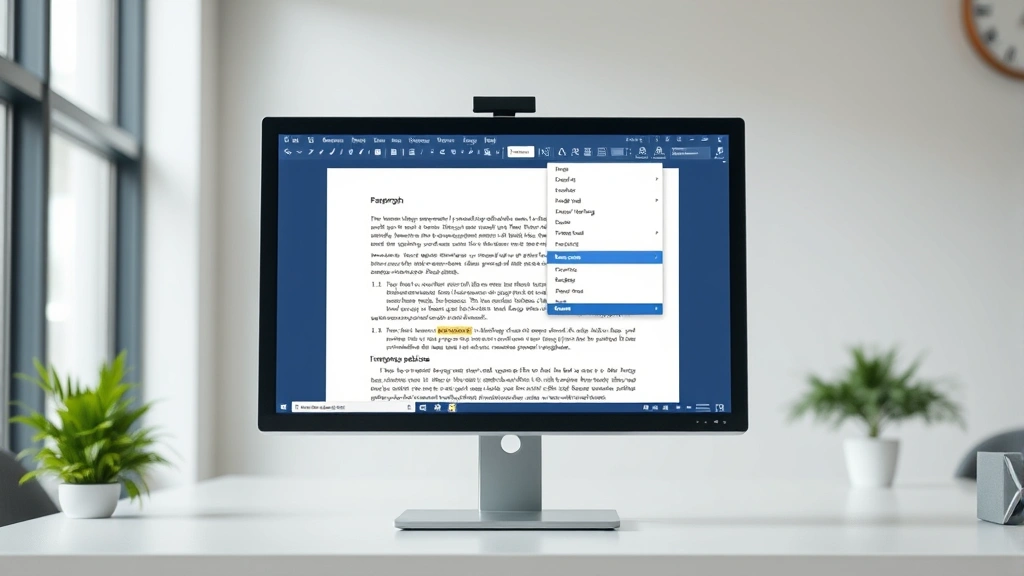
Once your text is selected, locate the Home tab on the ribbon at the top of your screen. Look for the line spacing icon, which typically appears as horizontal lines with arrows. Click the small dropdown arrow next to it to reveal spacing options. Select “2.0” from the menu, and your document instantly converts to double spacing. This method gives you immediate visual feedback and works reliably across all Word versions.
The ribbon approach is particularly helpful for users who prefer visual interfaces over keyboard shortcuts. You can see exactly what spacing option you’re selecting before applying it, reducing the chance of errors. If you can’t find the line spacing button, ensure the Home tab is active and look for an icon resembling stacked lines.
Method 2: Paragraph Dialog Box (Advanced Control)
For more granular control over spacing, the Paragraph dialog box offers comprehensive options beyond basic double spacing. This method is ideal when you need to adjust spacing before and after paragraphs simultaneously with line spacing. Right-click on your selected text and choose “Paragraph,” or navigate to Home > Paragraph > Dialog Launcher (the small arrow in the bottom-right corner of the Paragraph group).
In the Paragraph dialog, click the “Indents & Spacing” tab if it’s not already selected. Under the “Spacing” section, locate the “Line spacing” dropdown menu. Click it and select “Double” from the available options. You’ll notice other settings like “Single,” “1.5 lines,” and “Exactly” for custom spacing. After selecting “Double,” click OK to apply the formatting. This method is particularly useful when how to double space in Word involves coordinating multiple spacing parameters.
The dialog box approach provides additional benefits: you can preview changes before applying them, adjust spacing before and after paragraphs (measured in points), and create custom spacing values if needed. This is the preferred method for professional documents requiring precise formatting control.
Method 3: Quick Keyboard Shortcuts
Power users prefer keyboard shortcuts for speed and efficiency. To double space in Word using shortcuts, first select your text with Ctrl+A (entire document) or by highlighting specific sections. Then press Ctrl+2 on your keyboard—this instantly applies double spacing without opening any menus or dialog boxes. This shortcut works across all Windows versions of Word and is often the fastest method available.
If you want to revert to single spacing, use Ctrl+1. For 1.5 line spacing, press Ctrl+5. These shortcuts are consistent across Word versions and work whether you’re using a desktop computer or laptop. Mac users should note that these shortcuts may differ slightly; Command+2 typically works on Mac Word, though this varies by version. The keyboard shortcut method eliminates menu navigation entirely, making it ideal for users formatting multiple documents or making rapid adjustments.
Learning these shortcuts dramatically speeds up your workflow. Many professional writers and students memorize Ctrl+2 as their first Word shortcut because double spacing is so frequently required. Once muscle memory develops, applying double spacing becomes automatic and requires no conscious thought.
Method 4: Setting Default Double Spacing
If you frequently work with double spacing in Word, setting it as your default style saves time on every new document. This approach modifies your Normal style template, ensuring all future documents open with double spacing already applied. Open a blank Word document and apply double spacing using any of the previous methods. Then, right-click the “Normal” style in the Styles panel (usually on the right side) and select “Modify.”
In the Modify Style dialog, ensure the line spacing is set to “Double” and check the box for “Add to the Quick Style Gallery” if desired. Click OK, then choose to update the Normal style to reflect these changes. From that point forward, every new Word document you create will automatically have double spacing, eliminating the need to manually format each document. This is a game-changer for academic writers, researchers, and professionals who consistently need double spacing.
Be cautious with this approach if you work on diverse document types. Some projects may require single spacing, and having double spacing as default could create extra work. Consider creating a separate template specifically for documents requiring double spacing instead of modifying your global Normal style.
Troubleshooting Common Issues
Double spacing not applying: If your text doesn’t appear to double space after selecting the option, ensure you’ve actually selected the text before applying the formatting. Use Ctrl+A to select all content, then try again. Sometimes hidden formatting marks can interfere; toggle them on (Ctrl+*) to diagnose issues.
Inconsistent spacing throughout document: This usually indicates that different sections have different formatting applied. Select all text (Ctrl+A) and reapply double spacing to the entire document. Alternatively, use Find & Replace (Ctrl+H) with formatting options to standardize spacing across the document.
Spacing reverts after saving: This rare issue typically occurs with corrupted documents or incompatible file formats. Save your document in the standard .docx format rather than .doc or .rtf. If problems persist, copy your content into a new document and reapply formatting.
Double spacing affects only part of document: You likely selected only a portion of text before applying spacing. To fix this, select all content with Ctrl+A and reapply double spacing, or manually select each section that needs adjustment.
Double Spacing on Mac Word
Mac users can double space in Word using similar methods with slight variations. The ribbon interface appears nearly identical to Windows versions, so the ribbon method works the same way: select text, click Home, find the line spacing button, and choose 2.0. The keyboard shortcut for Mac is typically Command+2 instead of Ctrl+2, though this varies by Office version.
For the Paragraph dialog on Mac, right-click selected text and choose “Paragraph,” or use the menu bar: Format > Paragraph. The dialog layout matches Windows versions, making navigation straightforward. If you’re unsure about Mac-specific shortcuts, consult Apple’s support documentation or experiment with Command+2 as a starting point. Most Mac Word features mirror Windows versions closely enough that this guide applies universally.
According to WikiHow’s comprehensive formatting guides, Mac and Windows Word versions maintain feature parity for basic formatting tasks like line spacing, ensuring cross-platform consistency for collaborative documents.
Best Practices for Document Formatting
When working with how to double space in Word, follow these best practices to ensure professional results. Always apply formatting after writing your content rather than before; this prevents formatting issues and makes text entry smoother. Use styles consistently throughout your document—if you format one heading a certain way, apply the same formatting to all headings using Word’s built-in styles.
Check your document’s formatting requirements before beginning. Academic institutions often specify not just double spacing but also font type, margins, and header requirements. Creating a template that incorporates all these requirements saves time and prevents formatting errors. Use the View menu to toggle on formatting marks (Ctrl+*) to see exactly where spaces, tabs, and line breaks occur—this helps diagnose spacing issues quickly.
When collaborating on documents, ensure all contributors understand the required formatting. Use Track Changes (Review tab) to monitor formatting modifications, and establish a single person responsible for final formatting to maintain consistency. As reviewed by Consumer Reports’ technology section, standardized formatting practices across teams prevent miscommunication and revision cycles.
Test your document’s appearance before submitting. Print preview (File > Print) shows how your document appears on paper, revealing spacing issues that might not be obvious on screen. Double-check that headers, footers, and page breaks maintain proper spacing throughout the entire document. These small details distinguish professional documents from amateur efforts.
FAQ
Q: What’s the difference between double spacing and 2.0 line spacing?
A: They’re identical terms. “Double spacing” and “2.0 line spacing” both refer to the same formatting—twice the standard single-line spacing. Word uses these terms interchangeably throughout its interface.
Q: Can I double space only specific paragraphs?
A: Yes. Select only the paragraphs you want to format before applying double spacing. This allows you to have single-spaced sections alongside double-spaced sections in the same document, though this is uncommon in formal documents.
Q: Does double spacing affect the page count?
A: Significantly. Double spacing typically increases page count by 50-100% compared to single spacing. A 10-page single-spaced document becomes approximately 15-20 pages when double-spaced. This is why academic institutions require double spacing—it provides space for comments and ensures readability.
Q: How do I double space in Word Online?
A: Word Online has a simplified interface. Select your text, click the line spacing icon (usually in the toolbar), and choose double spacing from the dropdown. The process is identical to desktop Word but with fewer advanced options available.
Q: Will double spacing settings transfer to PDF?
A: Yes. When you export or save your Word document as PDF, all formatting including double spacing transfers perfectly. The PDF will maintain identical spacing to your Word document.
Q: What if my document already has inconsistent spacing?
A: Use Find & Replace with formatting options. Press Ctrl+H, leave both search fields empty, then use the formatting dropdown to search for any spacing and replace it with double spacing. This standardizes spacing throughout your entire document.
Q: Is there a maximum line spacing I can set?
A: Word allows line spacing up to “Exactly 1584 pt,” far exceeding any practical need. For most documents, choose from preset options: Single, 1.15, 1.5, Double, or Triple. Custom spacing is available for specialized formatting needs.
Q: How do I know if my document is properly double-spaced?
A: Enable formatting marks (Ctrl+*) to visualize spacing. Each line should have visible space between it and the next line. Alternatively, place your cursor between two lines and check the line spacing value in the ribbon or paragraph dialog.
Q: Can templates help with double spacing requirements?
A: Absolutely. Create a template with double spacing already applied, then save it as a template file (.dotx). Every new document based on this template automatically includes double spacing, eliminating manual formatting for each document.
Mastering how to double space in Word is straightforward once you understand the available methods. Whether you prefer the visual ribbon approach, comprehensive paragraph dialog, or lightning-fast keyboard shortcuts, you now have multiple paths to achieve proper document formatting. Practice these techniques with your next document, and you’ll develop the muscle memory needed for instant formatting. For additional formatting guidance, explore Instructables’ Word tutorials or consult The Spruce’s comprehensive guide to document preparation.
Remember that consistent formatting demonstrates professionalism and attention to detail. Whether submitting academic papers, business proposals, or professional correspondence, properly formatted documents make stronger impressions and are easier for readers to navigate. Start applying these techniques today, and you’ll never struggle with document spacing again.


