
How to Delete Stickers on iPhone: Easy & Essential Guide
iPhone stickers can clutter your Messages app, Notes, and creative projects faster than you’d expect. Whether you’re managing digital sticker packs or removing unwanted sticker collections, knowing how to delete stickers on iPhone is essential for keeping your device organized and freeing up valuable storage space. This comprehensive guide walks you through every method to remove stickers permanently from your iPhone, from built-in apps to third-party sticker packs.
Quick Answer
To delete stickers on iPhone, open the Messages app, tap the sticker icon, find the sticker pack you want to remove, and swipe left on it, then tap Delete. For sticker packs in Notes or other apps, visit Settings → General → iPhone Storage, locate the app, and offload or delete it entirely. You can also manage stickers through the App Store by removing sticker pack applications directly from your home screen.
Tools & Materials You’ll Need
- iPhone (iOS 13 or later recommended)
- Active Wi-Fi or cellular connection
- Access to Messages, Notes, or Mail apps
- Sufficient iPhone storage space (varies by sticker pack size)
- Apple ID (for App Store sticker pack management)
How to Delete Stickers from Messages App
The Messages app is the primary hub for managing stickers on your iPhone. When you tap the sticker icon during conversations, you’ll see all your installed sticker packs. Learning how to delete stickers on iPhone through Messages is the most straightforward approach for most users.
Step-by-step process:
- Open the Messages app on your iPhone
- Start a new conversation or open an existing one
- Tap the sticker icon (looks like a smiley face or star) in the message composition area
- Locate the sticker pack you want to remove
- Swipe left on the sticker pack thumbnail
- Tap the red “Delete” button that appears
- Confirm the deletion when prompted
This method removes the sticker pack from your Messages app instantly. The process is reversible—you can reinstall sticker packs from the App Store anytime. According to WikiHow’s comprehensive guides, this is the most user-friendly method for iPhone sticker management, especially for beginners.
Important note: Deleting stickers from Messages doesn’t necessarily free up storage space if the sticker pack is still installed as an app. For complete removal, you’ll need to uninstall the app itself.
Removing Sticker Packs from Your iPhone
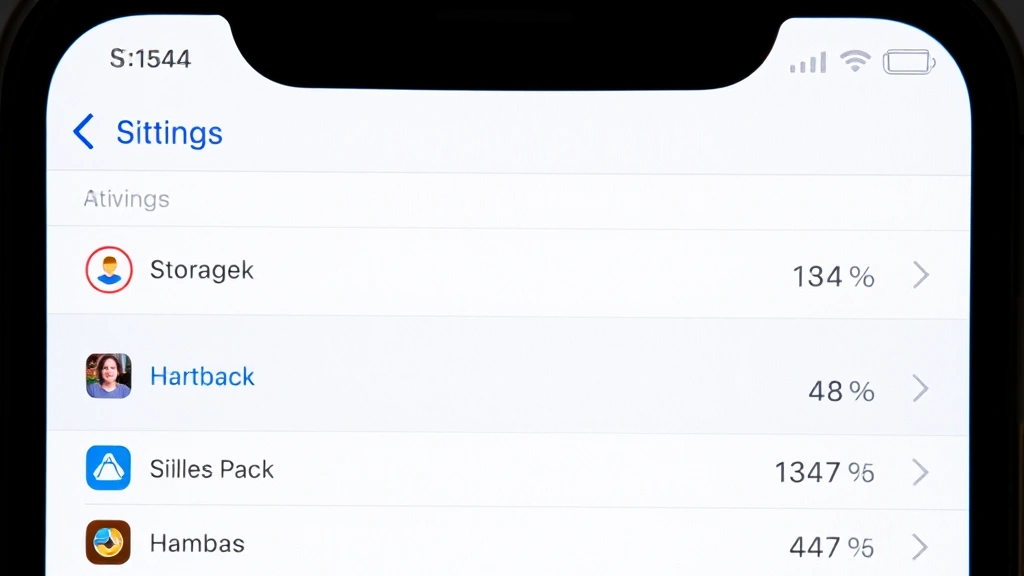
Sticker packs on iPhone are typically standalone apps or bundled within larger applications. To completely eliminate stickers and reclaim storage, you need to uninstall these apps. This approach ensures how to delete stickers on iPhone results in actual storage savings and a cleaner device.
Uninstalling sticker pack apps:
- Find the sticker pack app on your home screen
- Long-press the app icon until a menu appears
- Select “Remove App” from the options
- Choose “Delete App” to confirm removal
- Enter your Apple ID password if prompted
- Tap “Delete” to finalize
Alternatively, you can manage sticker apps through Settings. Navigate to Settings → General → iPhone Storage, scroll to find the sticker pack app, tap it, and select “Offload App” or “Delete App.” Offloading keeps your data but removes the app, while deleting removes everything associated with it. As reviewed by Consumer Reports, proper app management is crucial for iPhone performance and storage optimization.
If you’re unsure which apps contain stickers, check your Messages sticker drawer to identify pack names, then search for those names in your home screen or App Library. This targeted approach prevents accidental deletion of apps you actually use.
Deleting Stickers in Notes and Mail
Beyond Messages, stickers appear in Notes, Mail, and other Apple apps. Removing stickers from these applications requires slightly different methods, but the principle of managing how to delete stickers on iPhone remains consistent across platforms.
In Notes app:
- Open any note containing stickers
- Long-press the sticker you want to remove
- Tap “Delete” from the context menu
- The sticker disappears from that note only
In Mail app:
- Compose a new email or reply to an existing one
- Tap the sticker icon in the composition toolbar
- Swipe left on unwanted sticker packs
- Tap “Delete” to remove from Mail
These deletions only affect sticker availability in those specific apps—they don’t uninstall the sticker pack itself. If you want to remove stickers from all apps simultaneously, uninstalling the app through Settings is more efficient. According to Lifehacker’s tech guides, understanding app-specific sticker management helps users maintain cleaner digital spaces.
Managing Sticker Storage and iPhone Space
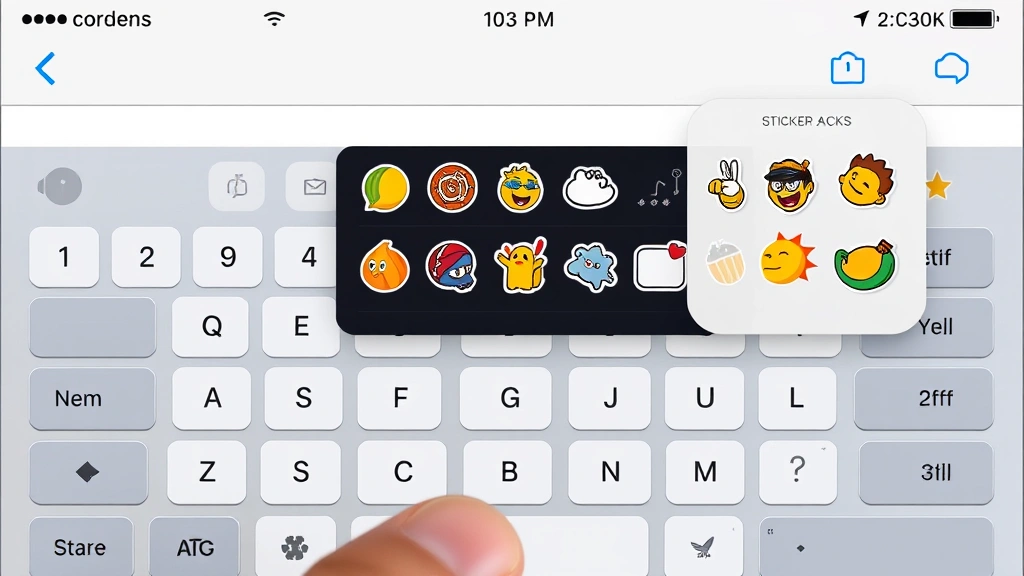
Sticker packs consume storage space on your iPhone, especially when you accumulate dozens of them. Knowing how to delete stickers on iPhone to free up space is particularly important for devices with limited storage capacity. A single sticker pack might use 10-50 MB, but collections can quickly add up to hundreds of megabytes.
Check sticker storage usage:
- Go to Settings → General → iPhone Storage
- Scroll through the list to find sticker pack apps
- Tap each app to see its size
- Note which packs consume the most space
Once you’ve identified heavy sticker apps, you can prioritize deletion. Removing your largest sticker packs first maximizes storage recovery. If your iPhone storage is critically low, offloading sticker apps temporarily (via “Offload App” option) can free space while preserving your data. You can reinstall them later without losing associated information.
Consider creating a habit of reviewing your sticker collection quarterly. Most users accumulate stickers they rarely or never use, making regular purges an effective storage management strategy. This proactive approach prevents the frustration of running out of storage when you need space for photos, videos, or important apps.
Handling Third-Party Sticker Apps
Beyond Apple’s native sticker functionality, third-party apps like Gboard, Telegram, Discord, and WhatsApp include their own sticker systems. Managing stickers in these apps differs slightly from native iPhone stickers, but the principle of learning how to delete stickers on iPhone applies universally.
Gboard sticker management:
- Open Gboard keyboard in any app
- Tap the sticker icon
- Long-press sticker packs you want to remove
- Select “Remove” or “Delete” from the menu
Telegram and Discord stickers:
- Access Settings within the app
- Navigate to Stickers or Emojis section
- Swipe or tap to delete individual sticker packs
- Confirm removal when prompted
Third-party apps store stickers within their own data, so deleting stickers here doesn’t affect your iPhone’s system storage the same way. However, uninstalling the apps themselves provides more significant storage savings. If you use Gboard or similar keyboards, managing stickers within those apps keeps your keyboard experience streamlined and responsive. You can also review our guide on how to unhide apps on iPhone to better organize your device after removing sticker apps.
How to Prevent Sticker Buildup
Prevention is more effective than constant cleanup. Implementing smart habits prevents excessive sticker accumulation and reduces the need to repeatedly learn how to delete stickers on iPhone. By being intentional about which stickers you keep, you maintain a cleaner, more efficient device.
Best practices for sticker management:
- Only download sticker packs you genuinely use regularly
- Delete unused packs immediately after downloading
- Review your sticker collection every 2-3 months
- Avoid downloading “pack bundles” that include dozens of similar stickers
- Use the “Offload Unused Apps” feature in Settings to automatically remove rarely-used sticker apps
- Disable automatic sticker pack suggestions in Messages settings
Most iPhone users download stickers impulsively during conversations, then forget about them. Setting a personal rule to delete sticker packs within one week of installation if unused prevents long-term clutter. You can also disable sticker suggestions by going to Settings → Messages and toggling off “Show Suggested Stickers.” This simple change dramatically reduces the temptation to accumulate unnecessary stickers.
Additionally, consider using emoji and Memoji instead of sticker packs for most communications. These built-in options don’t consume app storage and offer sufficient variety for daily messaging needs. They’re also universally compatible across all devices and platforms, making them more practical than proprietary sticker packs.
Troubleshooting Sticker Deletion Issues
Occasionally, users encounter problems when attempting how to delete stickers on iPhone. Understanding common issues and their solutions ensures successful sticker removal every time. Most problems stem from app glitches, permission settings, or outdated iOS versions.
Problem: Delete button doesn’t appear when swiping left
Solution: Force close the Messages app and reopen it. Go to Settings → General → iPhone Storage, find Messages, and offload/reinstall it. Ensure your iOS is updated to the latest version.
Problem: Sticker pack reinstalls automatically
Solution: This typically occurs when the sticker pack is bundled with another app you use regularly. Uninstall the app entirely rather than just removing stickers from Messages. Check if “Automatic Downloads” is enabled in Settings → [Your Name] → iCloud → App Library and disable it.
Problem: Storage space doesn’t increase after deletion
Solution: Deleting stickers from Messages alone doesn’t free storage. You must uninstall the app through Settings → General → iPhone Storage. After uninstalling, restart your iPhone to ensure the system recognizes the freed space.
Problem: Can’t find sticker pack in App Library
Solution: Check your Messages sticker drawer to identify the exact app name. Some sticker packs use unusual names. Search for the app in the App Library’s search function or Settings → General → iPhone Storage. As noted by Family Handyman’s tech section, detailed app identification prevents deletion errors.
If problems persist, back up your iPhone and perform a soft reset by holding the power button and volume down button simultaneously until the power-off slider appears, then slide to power off. Wait 30 seconds and power back on. This resolves most temporary app glitches without losing data.
For persistent issues, you might also find it helpful to review our guide on how to unblock a number on iPhone if sticker-related notifications are causing problems, or check out how to turn off Find My iPhone for comprehensive device management tips.
FAQ
Can I recover deleted stickers on my iPhone?
Yes, you can reinstall deleted sticker packs from the App Store anytime. Your sticker usage history isn’t permanently lost—you can simply re-download the same apps. However, if you deleted stickers from individual notes or messages, those specific instances are permanently gone. The sticker pack itself remains recoverable through App Store reinstallation.
Do deleted stickers free up iPhone storage?
Deleting stickers from Messages, Notes, or Mail doesn’t free storage. Only uninstalling the sticker pack app itself through Settings → General → iPhone Storage frees space. Deleting stickers from apps only removes them from that app’s interface, not from your device’s storage.
How much storage do sticker packs typically use?
Most sticker packs range from 5-50 MB each. Premium sticker collections with animated or high-resolution graphics can reach 100+ MB. Bundled sticker packs containing multiple sets often consume 200-500 MB combined. Check individual app sizes in iPhone Storage to determine which packs consume the most space.
Why do I keep getting sticker pack suggestions?
Apple’s Messages app suggests sticker packs based on your conversations and contacts’ sticker usage. Disable these suggestions by opening Settings → Messages and toggling off “Show Suggested Stickers.” This prevents unsolicited sticker pack recommendations and reduces temptation to download unnecessary packs.
Can I delete stickers without uninstalling the entire app?
Yes, for most apps. In Messages, Notes, and Mail, you can delete stickers from those apps specifically without uninstalling the app itself. However, this doesn’t free storage since the app remains installed. Only complete app uninstallation removes the sticker pack from storage entirely.
What’s the difference between offloading and deleting a sticker app?
Offloading removes the app but keeps its data and documents. Deleting removes both the app and all associated data. For sticker packs, both options remove the stickers from your device. Use offload if you might reinstall the app later; use delete for permanent removal. Offloading typically frees more storage than deleting in some cases due to retained data.
Are sticker packs different from emoji or Memoji?
Yes, significantly. Emoji and Memoji are built into iOS and don’t consume app storage. Sticker packs are separate apps or app extensions that take up storage space. For most users, emoji and Memoji provide sufficient visual expression without the storage overhead of sticker packs. Consider replacing sticker usage with these built-in options to eliminate storage concerns entirely.
How do I manage stickers in group chats?
Sticker management in group chats works identically to individual conversations. You can still access your sticker drawer and delete packs from Messages. Other group members’ sticker usage doesn’t affect your device—only stickers you’ve personally downloaded consume your storage.
Learning how to delete stickers on iPhone empowers you to maintain a clean, organized device with optimal storage capacity. Whether you’re removing unused sticker packs, managing third-party sticker apps, or preventing future buildup, these methods ensure your iPhone operates efficiently. Regular sticker management, combined with strategic app selection, keeps your device running smoothly and frees valuable storage for photos, videos, and important applications. Start implementing these strategies today to experience a more streamlined iPhone experience. As noted in The Spruce’s home organization guides, maintaining digital organization follows the same principles as physical decluttering—regular reviews and intentional choices create lasting results.


