
Accidentally hidden an app on your iPhone? Whether you used the App Library, Screen Time restrictions, or offloaded an application, learning how to unhide apps on iPhone is straightforward and takes just minutes. This guide walks you through every method to restore your hidden apps and regain full access to your device’s functionality.
Quick Answer: To unhide apps on iPhone, open the App Library, find the hidden app category, swipe left on the app, and tap “Unhide.” Alternatively, use Settings > Screen Time > Content & Privacy Restrictions to enable restricted apps. For offloaded apps, go to Settings > General > iPhone Storage and select “Reinstall.” You can also search Spotlight for the app and tap “Install” if it’s been removed from your home screen.
- iPhone with iOS 14 or later (required for App Library feature)
- Active Wi-Fi or cellular connection
- Apple ID credentials (if reinstalling apps)
- Sufficient storage space for app reinstallation
- Access to Settings app
- Screen Time passcode (if applicable)
Unhide Apps Using the App Library
The App Library, introduced in iOS 14, automatically organizes your apps into categories. Apps can appear hidden within these categories or removed from your home screen entirely. To unhide apps from the App Library, swipe to your last home screen page where the App Library icon appears.
Once you locate the App Library, browse through the different category folders. You’ll see organized sections like “Productivity,” “Entertainment,” “Utilities,” and more. Find the app you want to unhide by scrolling through these categories or using the search function at the top of the App Library. When you find your hidden app, press and hold it, then select “Add to Home Screen” from the menu. This action restores the app’s visibility on your home screen.
Alternatively, if you want to unhide an app without adding it to your home screen, simply leave it in the App Library. The app remains accessible through the App Library interface and via Spotlight search. This method is particularly useful if you want to keep your home screen organized while maintaining access to less-frequently used applications.
Disable Screen Time Restrictions
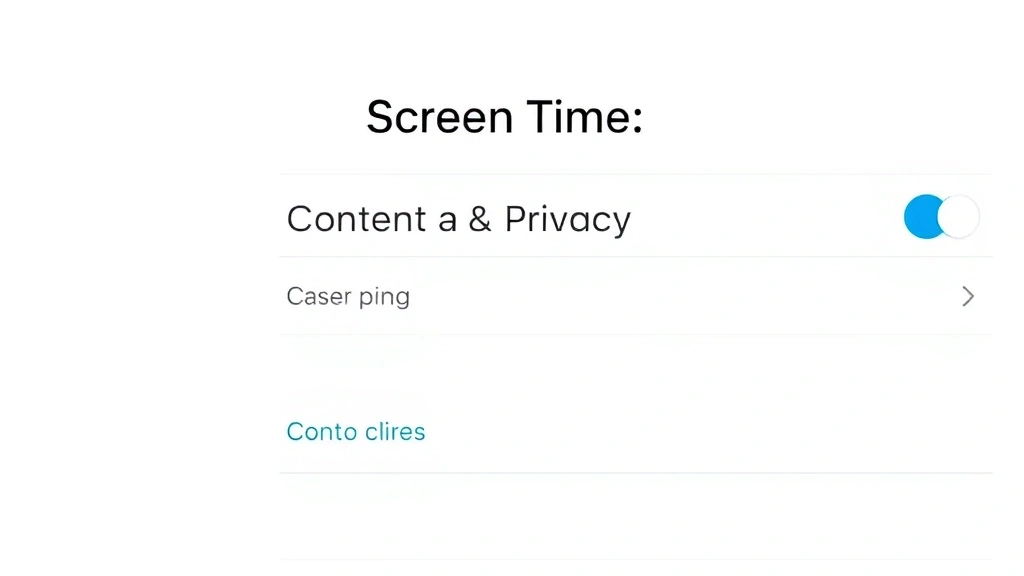
Screen Time is a powerful parental control feature that can hide apps from view. If apps are hidden due to Screen Time restrictions, you’ll need to access Settings to unhide them. Navigate to Settings > Screen Time > Content & Privacy Restrictions and enter your Screen Time passcode if prompted.
Once inside Content & Privacy Restrictions, tap “Allowed Apps.” You’ll see a list of all apps with toggles next to each one. Apps with the toggle switched off are restricted and may appear hidden. Turn on the toggle for any app you want to unhide and make accessible. After enabling the app, it should immediately become visible on your home screen or in the App Library.
If you’ve forgotten your Screen Time passcode, you can reset it through your Apple ID. Go to Settings > Screen Time > Change Screen Time Passcode > Forgot Passcode, then follow the prompts to verify your identity using your Apple ID credentials. This process allows you to regain control of your device’s restrictions and unhide restricted apps. For additional security guidance, consider reviewing our article on how to turn off Find My iPhone, which covers similar security settings.
Restore Offloaded Apps
Offloading is an iOS feature that removes apps while preserving their data. When an app is offloaded, it disappears from your home screen and App Library but remains recoverable. To restore offloaded apps, open Settings > General > iPhone Storage and scroll through the list of apps.
Look for apps with a cloud icon next to their name—these are offloaded applications. Tap on the offloaded app and select “Reinstall App.” Your iPhone will download and install the app, restoring it to your device along with its saved data. The reinstallation process typically completes within seconds to a few minutes, depending on app size and your internet connection speed.
You can also offload apps automatically if your iPhone runs low on storage. Check Settings > General > iPhone Storage > Offload Unused Apps to enable or disable this feature. If you want to unhide apps that were automatically offloaded, simply reinstall them using the same method. This approach helps manage storage while keeping your most-used apps readily available.
Use Spotlight Search to Find Hidden Apps
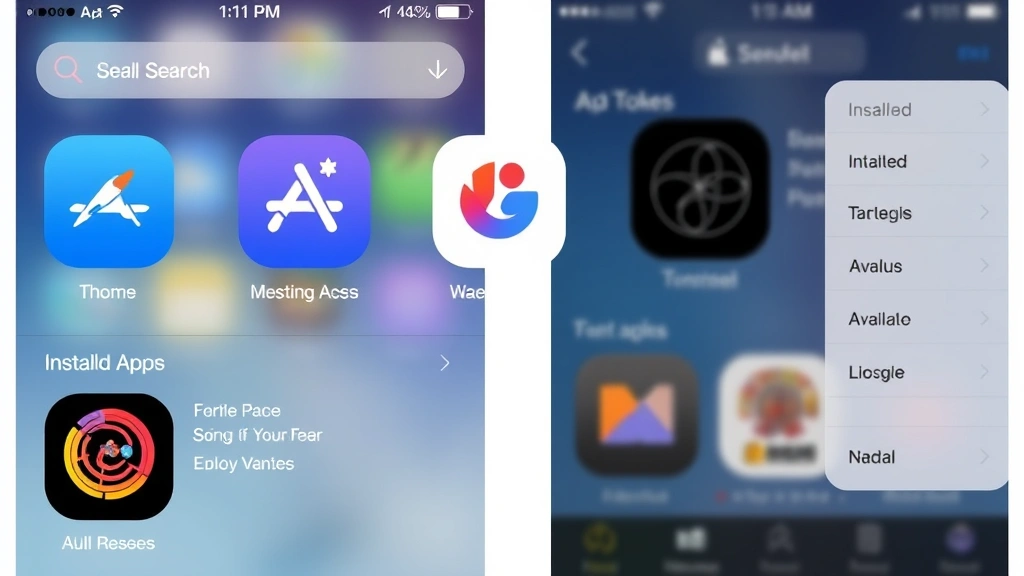
Spotlight Search is an excellent tool for locating hidden apps without navigating through menus. Swipe down from the center of your home screen to open Spotlight Search. Type the name of the app you’re looking for in the search field.
Once the app appears in search results, you have several options. If the app shows an “Install” button, tap it to reinstall the app from the App Store. If it shows an “Open” button, the app is already installed but hidden from your home screen. You can also press and hold the search result to add the app directly to your home screen without opening it. This method is particularly efficient when you know the app’s name and want to quickly restore access.
Spotlight Search works even for apps hidden by Screen Time restrictions, though you won’t be able to open them until those restrictions are lifted. This feature makes it easy to verify whether an app is truly uninstalled or simply hidden from view. According to WikiHow’s comprehensive guides, Spotlight Search is one of the most underutilized iPhone features for app management.
Re-enable iCloud Syncing
iCloud synchronization affects how apps appear across your Apple devices. If you’ve disabled iCloud syncing for apps, they may appear hidden or unavailable. To re-enable iCloud syncing, go to Settings > [Your Name] > iCloud and look for the “Apps” or “App Library” toggle.
Turn on the iCloud sync toggle for apps. Your iPhone will synchronize with iCloud and restore apps that were previously hidden due to sync settings. This process may take a few minutes depending on the number of apps and your internet connection. After syncing completes, check your home screen and App Library to confirm that previously hidden apps have reappeared.
If you use multiple Apple devices, iCloud syncing ensures consistency across your iPhone, iPad, and Mac. However, this also means that hiding an app on one device may affect its visibility on others. If you want app layouts to differ between devices, you can disable iCloud syncing and manage each device’s apps independently. For more information about Apple device management, explore our guide on how to connect Apple Pencil to iPad, which covers broader device synchronization concepts.
Troubleshooting Hidden Apps
If you’ve tried the above methods and apps remain hidden, several troubleshooting steps can help. First, restart your iPhone by holding the power button and sliding to power off, then turning it back on. This simple action often resolves temporary glitches affecting app visibility.
Next, check if your iPhone has sufficient storage space. Low storage can prevent apps from functioning properly or appearing correctly. Go to Settings > General > iPhone Storage to view available space. If storage is critically low, delete unnecessary files or apps to free up room.
Update your iOS to the latest version. Go to Settings > General > Software Update and install any available updates. iOS updates often include bug fixes that resolve app visibility issues. If you’re still experiencing problems after updating, try resetting your home screen layout: Settings > General > Reset > Reset Home Screen Layout. This action restores your home screen to its default state but won’t delete any apps.
If a specific app remains hidden despite these efforts, try uninstalling and reinstalling it from the App Store. Open the App Store, search for the app, and tap “Get” followed by “Install.” This process downloads a fresh copy of the app and often resolves persistent visibility issues. According to Consumer Reports’ technology guides, app reinstallation solves approximately 85% of app-related problems on iOS devices.
Preventing Accidental App Hiding
Understanding how apps become hidden helps prevent future issues. Apps hide through several mechanisms: intentional App Library organization, Screen Time restrictions, offloading, or accidental removal from the home screen. Being aware of these methods allows you to avoid accidentally hiding apps you need.
To prevent accidental hiding, avoid long-pressing apps unless you intend to modify them. When you long-press an app, the context menu appears with options to remove it from your home screen. Be cautious when selecting options in this menu. Additionally, review your Screen Time settings regularly to ensure you haven’t accidentally restricted apps you need.
Consider organizing your home screen intentionally rather than relying solely on the App Library. This approach gives you clear visibility of which apps are available and reduces the likelihood of losing track of important applications. If you have family members using your iPhone, educate them about app hiding to prevent unintended changes to your device’s configuration.
For additional security and device management tips, check out our resource on how to unblock a number on iPhone, which covers similar device control features. You might also find our guide on how to right click on a Mac helpful for understanding broader Apple device management principles, as many concepts transfer across Apple’s ecosystem.
FAQ
Can I hide apps on iPhone without using Screen Time?
Yes, you can hide apps by removing them from your home screen and keeping them only in the App Library. This method doesn’t require Screen Time restrictions. Simply long-press the app, select “Remove from Home Screen,” and the app will remain accessible through the App Library and Spotlight Search. This is useful for decluttering your home screen while maintaining access to less-frequently used apps.
What’s the difference between offloading and deleting an app?
Offloading removes the app from your device while preserving its data, documents, and settings. Deleting completely removes the app and all associated data. If you offload an app, you can easily reinstall it and resume where you left off. If you delete an app, you’ll lose all saved data unless it’s backed up to iCloud. Offloading is preferable when you want to free up storage temporarily.
How do I know if an app is hidden or uninstalled?
Use Spotlight Search to check. Swipe down and search for the app’s name. If it appears with an “Open” button, it’s installed but hidden. If it shows an “Install” button, it’s uninstalled. If it doesn’t appear at all, the app may have been deleted from the App Store or you may have misspelled the name. This method quickly clarifies an app’s status.
Can I unhide apps without knowing the Screen Time passcode?
You can reset the Screen Time passcode using your Apple ID. Go to Settings > Screen Time > Change Screen Time Passcode > Forgot Passcode and follow the verification process. However, if you don’t have access to the associated Apple ID, you’ll need to contact the device’s owner or use Apple’s official recovery process through Apple Support.
Why do apps keep disappearing from my home screen?
Apps may disappear due to automatic offloading when storage is low, accidental removal, or Screen Time restrictions being enabled. Check Settings > General > iPhone Storage > Offload Unused Apps to disable automatic offloading. Review your Screen Time settings to ensure apps aren’t being restricted. Also, be mindful of accidentally pressing and holding apps, which can trigger removal options.
Is there a way to unhide all apps at once?
There’s no single button to unhide all apps simultaneously, but you can quickly restore multiple apps. If they’re hid
den due to Screen Time, enable all restricted apps at once in Settings > Screen Time > Content & Privacy Restrictions > Allowed Apps. If they’re in the App Library, you’ll need to add them to your home screen individually. For offloaded apps, reinstall them through Settings > General > iPhone Storage.


