
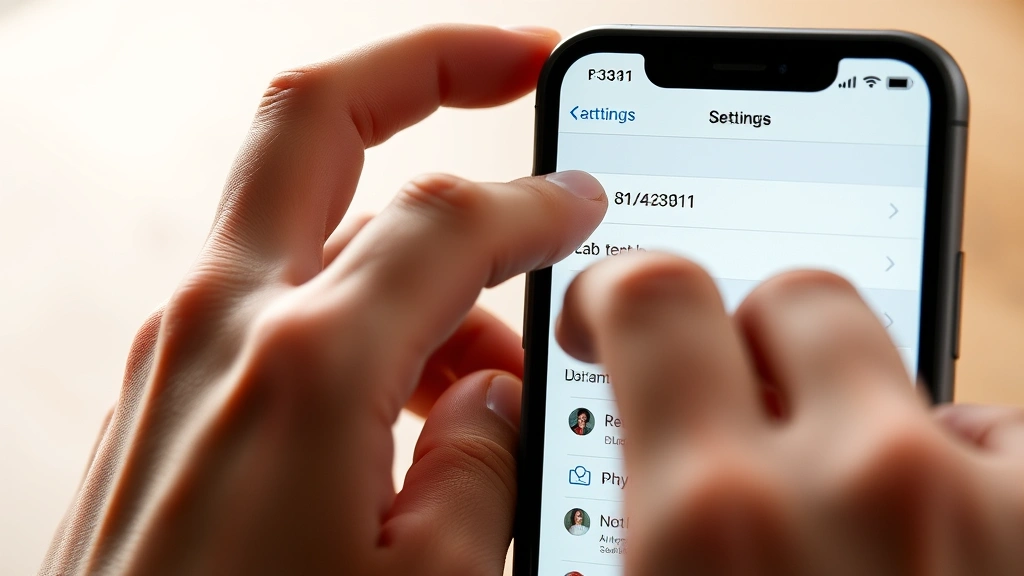
Accidentally blocked someone on your iPhone? Learning how to unblock a number on iPhone is straightforward and takes less than two minutes. Whether you blocked a contact by mistake or simply want to restore communication, this guide walks you through every method to unblock numbers on iOS devices. We’ll show you multiple approaches to regain access to blocked calls, messages, and FaceTime from that contact.
Quick Answer
To unblock a number on iPhone, open Settings, tap Phone, select Blocked Contacts, swipe left on the number you want to unblock, and tap Unblock. The process takes approximately 30 seconds and works on all iPhone models running iOS 7 or later. You can also unblock contacts directly from the Contacts app by finding the person and selecting Edit.
What You Will Need
- An iPhone (any model with iOS 7 or newer)
- Access to your iPhone’s Settings app
- Knowledge of which number or contact you want to unblock
- Approximately 2 minutes of your time
- Optional: Your contacts list for reference
Difficulty Level: Beginner | Time Required: 1–2 minutes | Cost: Free
Step 1: Open Settings and Navigate to Phone
Begin by unlocking your iPhone and locating the Settings app on your home screen. The Settings icon resembles a gray gear wheel. Tap it to launch the application, which typically opens to the General settings page.
Once Settings opens, scroll down through the menu options until you locate Phone. This section contains all call-related preferences, including your blocked contacts list. Tap Phone to access these options.
Understanding the Phone Settings Menu
The Phone settings menu houses several important features beyond blocked contacts. You’ll see options for call forwarding, call waiting, and caller ID settings. The blocked contacts management is located within this menu, making it the primary destination for unblocking numbers on iPhone.
Step 2: Access Your Blocked Contacts List
After tapping Phone in Settings, look for an option labeled Blocked Contacts or simply Blocked. This section displays all numbers and contacts you’ve previously blocked on your device. Tap this option to view your complete blocked list.
Your blocked contacts list shows every number or contact you’ve restricted from calling, messaging, or FaceTime calling you. The list appears in alphabetical order if contacts are blocked, or by phone number if you’ve blocked specific digits.
What Information Appears in the Blocked List
Each entry shows either the contact’s name (if saved in your phone) or the phone number itself. Some entries may display both the name and number if you saved that contact before blocking them. This helps you identify exactly which person or number you want to unblock.
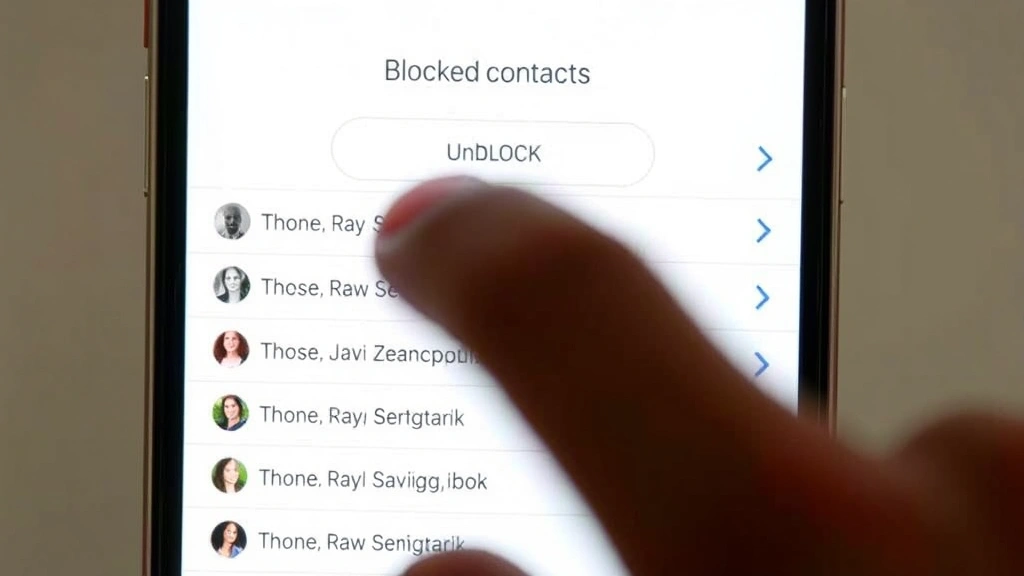
Step 3: Unblock a Number on iPhone Using Settings
Now you’re viewing your blocked contacts list. Locate the number or contact name you wish to unblock. Once found, swipe left on that entry using your finger. This action reveals a red button labeled Unblock.
Swiping left is the standard iOS gesture for accessing additional options on list items. The unblock button appears immediately after you complete the swipe motion, making it easy to access the unblocking function.
Swiping Technique for Success
Use a smooth, deliberate swiping motion from right to left across the blocked contact entry. If you swipe too quickly or too slowly, the action may not register properly. A medium-paced swipe works best on most iPhone models. Some users find it helpful to practice the gesture once or twice before attempting it on their actual blocked contact.
Step 4: Confirm the Unblock Action
After swiping left and revealing the red Unblock button, tap it immediately. This action unblocks the number and restores their ability to contact you via phone calls, text messages, and FaceTime. The contact will disappear from your blocked list within seconds.
Importantly, unblocking a contact does not automatically send them a notification. They won’t know you’ve unblocked them unless you tell them directly. They’ll simply regain the ability to reach you without any alert on their end.
What Happens After Unblocking
Once unblocked, the contact can immediately call you, text you, or initiate FaceTime calls. Any messages or calls they attempted while blocked will not be recovered—those are permanently deleted from your system. However, future communications will come through normally.
Step 5: Alternative Method—Unblock via Contacts App
If you prefer not navigating through Settings, you can unblock a contact directly from the Contacts app. Open your Contacts application and search for the person’s name you want to unblock. Tap their contact entry to open their full profile.
Once you’re viewing the contact’s details, tap the Edit button in the upper right corner. Scroll down to find the option that says Block this Caller or similar wording. If the contact is currently blocked, this option will appear with a checkmark or toggle switch indicating the block is active.
Using the Contacts App Method
This method proves particularly useful if you remember the contact’s name but not their phone number. The Contacts app method follows the same principle as the Settings approach but offers a more direct route when you already have the contact saved. Simply toggle off or tap the unblock option, and the contact is immediately unblocked.
Pro Tips for Managing Blocked Numbers
- Create a blocking system: Before blocking numbers, consider whether you want to block just calls, just messages, or both. Some contacts can be silenced differently than others.
- Review your blocked list regularly: Check your blocked contacts list monthly to ensure you haven’t forgotten why you blocked certain people.
- Use Do Not Disturb features: Instead of blocking, consider using iPhone’s privacy and security settings to silence notifications from specific contacts without fully blocking them.
- Document blocked numbers: Keep a personal note explaining why you blocked each contact, useful for future reference.
- Unblock before important communications: If you’re expecting a call from someone you previously blocked, unblock them at least an hour before to ensure their calls reach you.
- Check spam filters: Sometimes legitimate calls are filtered as spam. Verify the contact isn’t in your spam folder before assuming they’re blocked.
Common Mistakes to Avoid
Mistake 1: Forgetting to swipe in the correct direction. Users sometimes swipe right instead of left, which doesn’t reveal the unblock option. Always swipe from right to left for the proper action menu.
Mistake 2: Confusing blocked contacts with spam contacts. iOS maintains separate lists for blocked contacts and spam contacts. Unblocking someone from the blocked list doesn’t affect spam filtering. Verify you’re unblocking from the correct list.
Mistake 3: Expecting the contact to receive notification. The blocked person won’t know you’ve unblocked them. If you want them to understand you’re willing to communicate again, send them a message or call them directly.
Mistake 4: Not checking if they’re blocked on other services. Blocking someone on your phone doesn’t block them on iCloud, email, or other Apple services. Address those separately if needed.
Mistake 5: Attempting to unblock without proper iOS version. Ensure your iPhone runs iOS 7 or newer. Older versions have different blocking interfaces. Update your iOS if you can’t find the blocking options described in this guide.
Frequently Asked Questions
Can I unblock someone without them knowing?
Yes, unblocking is completely silent. The person you unblock receives no notification of any kind. They’ll simply discover they can reach you again when they attempt to call or message you.
What happens to messages from a blocked contact?
Messages from blocked contacts go to a separate area and are not delivered to your main message threads. After unblocking, future messages arrive normally, but previously blocked messages remain hidden.
Can I block and unblock someone repeatedly?
Technically yes, but repeatedly blocking and unblocking the same person may indicate a need for different communication boundaries. Consider using silence or Do Not Disturb features instead.
How do I know if I’ve successfully unblocked someone?
The contact disappears from your blocked list immediately after unblocking. You can verify by returning to Settings > Phone > Blocked Contacts and confirming they’re no longer listed.
Is there a way to unblock multiple contacts at once?
Unfortunately, iOS doesn’t offer bulk unblocking. You must unblock each contact individually using the swipe-left method described in this tutorial.
Will unblocking restore old messages and calls?
No, messages and calls received while someone was blocked remain permanently deleted. Unblocking only restores future communication capability.
Managing blocked contacts is an essential iPhone skill. Whether you need to manage your device’s communication settings or simply restore contact with someone, knowing how to unblock a number on iPhone empowers you to control your communication preferences. The process requires minimal time and effort, taking approximately 30 seconds once you locate the contact.
If you frequently manage communication preferences, you might also want to explore advanced Mac control techniques for managing contacts across your Apple ecosystem. For those using multiple Apple services, understanding these blocking features across all platforms ensures consistent communication management.
Remember that blocking and unblocking are reversible actions. You can change these settings anytime without permanent consequences. Whether you’re unblocking a contact you blocked by accident or restoring communication with someone after a disagreement, this feature provides the flexibility to adjust your communication boundaries whenever needed.
For additional privacy controls on your iPhone, consider exploring email management techniques and subscription management settings to maintain comprehensive control over your digital communications and accounts. These complementary skills help you manage your entire digital presence effectively across Apple devices and services.


