Canceling your YouTube TV subscription doesn’t have to be complicated. Whether you’re switching to another streaming service, cutting back on expenses, or simply no longer need live TV, learning how to cancel YouTube TV is a straightforward process that takes just a few minutes. This guide walks you through every step of canceling your account, managing your billing, and understanding what happens to your content after cancellation.
In this comprehensive tutorial, we’ll show you exactly how to cancel YouTube TV through multiple methods, answer common questions about your subscription, and provide expert tips to ensure a smooth cancellation process without any unexpected charges.
What You Will Need
- Active YouTube TV account with valid login credentials
- Device with internet access (smartphone, tablet, or computer)
- Current billing information for reference
- Time required: 3-5 minutes to complete cancellation
- Difficulty level: Beginner-friendly (no technical skills needed)
Step 1: Access Your YouTube TV Account Settings
The first step in learning how to cancel YouTube TV is accessing your account settings from any web browser or the YouTube TV app. Open your preferred web browser and navigate to the YouTube TV website, or launch the YouTube TV application on your smartphone or tablet.
Click on your profile icon located in the top right corner of the screen. This icon typically displays your initials or profile picture. A dropdown menu will appear with several options including account settings and membership information.
Select “Settings” from the dropdown menu. You may need to scroll down to find this option if you’re using the mobile app. Ensure you’re logged into the account associated with your YouTube TV subscription before proceeding.
Troubleshooting Access Issues
If you’re having trouble accessing your account, try clearing your browser’s cache and cookies, then log out and back in. Make sure you’re using the correct email address associated with your YouTube TV membership.
Step 2: Locate Your Membership and Billing Section
Once you’re in the Settings menu, look for the “Membership and billing” section. This section displays all information related to your YouTube TV subscription, including your current plan, billing date, and payment method.
The membership section typically appears near the top of your settings page. Click on it to expand and view your subscription details. You’ll see your renewal date and the amount you’re being charged each billing cycle.
Expert tip: Take a screenshot of this page for your records. Knowing your renewal date helps you understand when your subscription will end after cancellation.
Step 3: Review Your Current Subscription Details
Before proceeding with cancellation, carefully review your subscription information. You should see your plan type (such as the standard YouTube TV package), your monthly or annual billing cycle, and your next billing date.
Note the exact date your subscription renews. If you cancel today, you’ll typically retain access until that renewal date without being charged again. This is crucial information for planning your transition to another service.
Check if you have any promotional pricing or discounts applied. Understanding your current rate helps you decide if cancellation is truly the right choice, or if you want to explore pause options instead.
Step 4: Initiate the YouTube TV Cancellation Process
Now that you understand your subscription details, it’s time to initiate the cancellation. In the Membership and Billing section, look for a button or link that says “Cancel membership” or “Manage membership.” Click this option to begin the cancellation flow.
YouTube TV will present you with several options. You may see choices to pause your subscription, downgrade to a cheaper plan, or proceed with full cancellation. Select the option that best matches your needs.
If you select full cancellation, YouTube will ask you to confirm your decision. The platform often displays retention offers such as discounts or free trial periods. Review these carefully, but remember you can always resubscribe later if needed.
Understanding Pause vs. Cancellation
Pause option: Temporarily suspends your subscription for up to 3 months without losing your settings or preferences. You won’t be charged during this period.
Cancellation option: Permanently terminates your subscription. Your account data may be retained for a period, but your access to live TV and on-demand content ends immediately.
Step 5: Confirm Your Cancellation Request
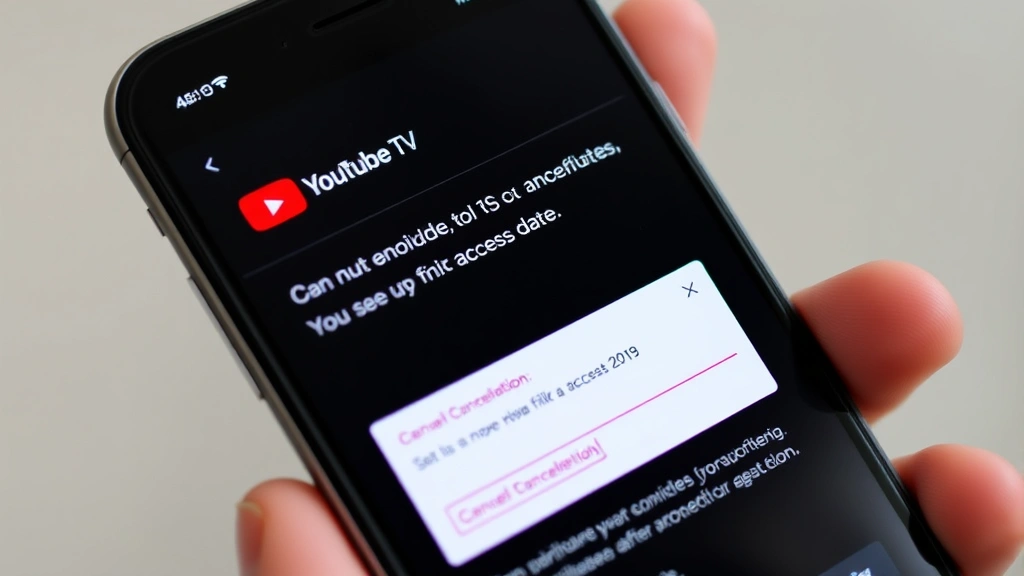
After selecting cancellation, YouTube TV will ask you to confirm your decision one final time. This confirmation step is critical to prevent accidental cancellation. Read the confirmation message carefully to understand the exact date your access will end.
Key information to note:
- Your final access date (usually the current billing cycle end date)
- Whether you’ll receive a refund for unused time
- What happens to any saved shows or preferences
- How to reactivate your subscription if you change your mind
Click the “Confirm Cancellation” or “Yes, Cancel My Membership” button to finalize the process. This action is typically irreversible, so ensure you’re ready before confirming.
Step 6: Verify Cancellation and Billing Changes
After confirmation, you should receive an immediate on-screen message indicating that your cancellation has been processed. YouTube TV will also send a confirmation email to your registered email address within minutes.
Check your email inbox (and spam folder) for the cancellation confirmation. This email serves as official documentation of your cancellation and includes your final access date.
Return to your Membership and Billing section and verify that your subscription status now shows “Canceled” or “Expires on [date].” Your payment method should no longer be charged after your current billing cycle ends.
What to Expect After Cancellation
- Immediate: You retain full access to YouTube TV until your billing cycle ends
- On your final date: Access to live TV and on-demand content terminates automatically
- After access ends: You can reactivate anytime by signing back in and restarting your subscription
- Refunds: Generally, YouTube TV does not offer prorated refunds for mid-cycle cancellations
Pro Tips for Canceling YouTube TV
Time your cancellation strategically. In our experience, canceling right after your billing date maximizes the time you have before losing access. This gives you the full month to explore alternatives.
Save your favorite shows beforehand. If you’ve marked shows as favorites, take screenshots or notes of your watchlist. YouTube TV doesn’t migrate this data if you resubscribe later.
Consider pausing instead. If you’re uncertain about cancellation, use the pause feature for up to 3 months. This option preserves your preferences and makes reactivation seamless without losing any settings.
Check for family sharing implications. If you’re the account owner and other family members use your YouTube TV subscription, notify them before canceling. They’ll lose access on your final date.
Download important content. Although YouTube TV doesn’t offer offline downloads, take screenshots of any recordings you want to remember or important information from the service.
Common Mistakes to Avoid When Canceling YouTube TV
Mistake 1: Forgetting to check your final access date. Many users assume they lose access immediately. In reality, you keep your subscription through the end of your current billing period. Mark this date on your calendar to avoid disruption.
Mistake 2: Not reviewing the confirmation email. Your cancellation confirmation email contains crucial information about your final access date and reactivation instructions. Save this email for future reference.
Mistake 3: Assuming all content is lost forever. Your viewing history and preferences may be retained by YouTube TV for a period. If you reactivate within a reasonable timeframe, some of this data might still be available.
Mistake 4: Canceling without exploring pause options. If you’re only taking a temporary break, pausing is better than canceling. This avoids the inconvenience of reactivating and reconfiguring your account.
Mistake 5: Overlooking family sharing. Failing to notify family members about your cancellation can lead to unexpected service loss for them. Communicate your plans in advance.
Mistake 6: Missing retention offers. YouTube TV sometimes provides discount codes or extended trial periods to prevent cancellation. Review these offers carefully before declining them.
Frequently Asked Questions
Do I get a refund when I cancel YouTube TV?
YouTube TV typically does not offer refunds for prorated amounts when you cancel mid-cycle. However, you retain full access until your next billing date. If you cancel right after being charged, you essentially get the full month of service. Always check your cancellation confirmation for specific refund information related to your account.
Can I reactivate my YouTube TV subscription after cancellation?
Yes, you can reactivate your subscription anytime by logging back into your account and selecting “Restart membership.” Your account data is typically preserved for a period after cancellation. Reactivation is as simple as selecting your plan and confirming your payment method.
Will canceling YouTube TV affect my Google account?
No, canceling YouTube TV only affects your TV subscription. Your Google account, Gmail, YouTube channel, and other Google services remain completely unaffected. The cancellation is isolated to your YouTube TV membership only.
How long does it take to cancel YouTube TV?
The cancellation process takes approximately 3-5 minutes from start to finish. Most of this time is spent reviewing your subscription details and confirmation screens. The actual cancellation typically completes instantly after you confirm.
What happens to my DVR recordings when I cancel?
Your DVR recordings and library are deleted when your subscription ends on your final access date. YouTube TV does not provide a way to download or transfer these recordings. If you have important content, consider recording it through other means before your cancellation date.
Can I cancel YouTube TV on my mobile device?
Yes, you can cancel through the YouTube TV app on your smartphone or tablet. Navigate to Settings, select Membership and Billing, and follow the same cancellation steps. The process is identical whether you use the web version or mobile app.
Is there a customer service phone number to cancel YouTube TV?
YouTube TV primarily handles cancellations through their online platform. However, you can contact Google support through the Help Center if you encounter issues. Visit the official YouTube TV support page for assistance options.
Conclusion: Taking Control of Your Subscription
Learning how to cancel YouTube TV empowers you to take control of your streaming subscriptions and budget. Whether you’re permanently switching services or taking a temporary break, following these six steps ensures a smooth cancellation process without unexpected charges or complications.
Remember that cancellation doesn’t mean the end—you can always reactivate your subscription later if your circumstances change. Use the pause feature if you’re uncertain, and always verify your cancellation through the confirmation email YouTube TV sends.
For additional streaming alternatives and service comparisons, check out Consumer Reports streaming service reviews and CordCutting.com for alternative live TV options. Taking time to research other services before canceling helps you make the best decision for your entertainment needs and budget.